The form of a Document app item contains detailed information about the document. You can configure different page configurations for different document types. The form is set up when the app is created.
начало внимание
Only users included in the Administrators group can set up app item forms.
конец внимание
There are different types of forms: for creating, viewing, and editing a document.
Create form
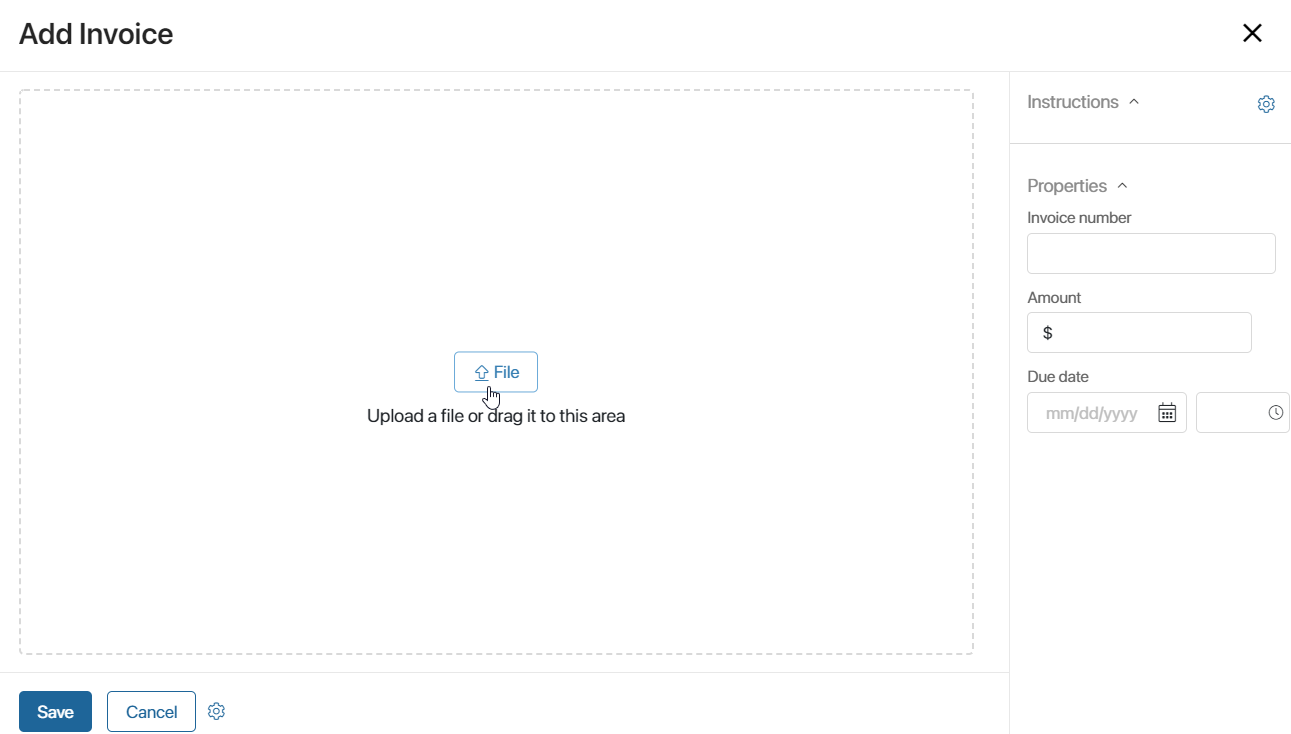
The create form opens when a user adds a new item of the Document type.
It consists of an area for uploading a file and a sidebar that displays the document's parameters. The set of fields is configured when the app is created.
View form
The view form opens when a user goes to the app page and clicks a document’s name. The viewing page may look like this:
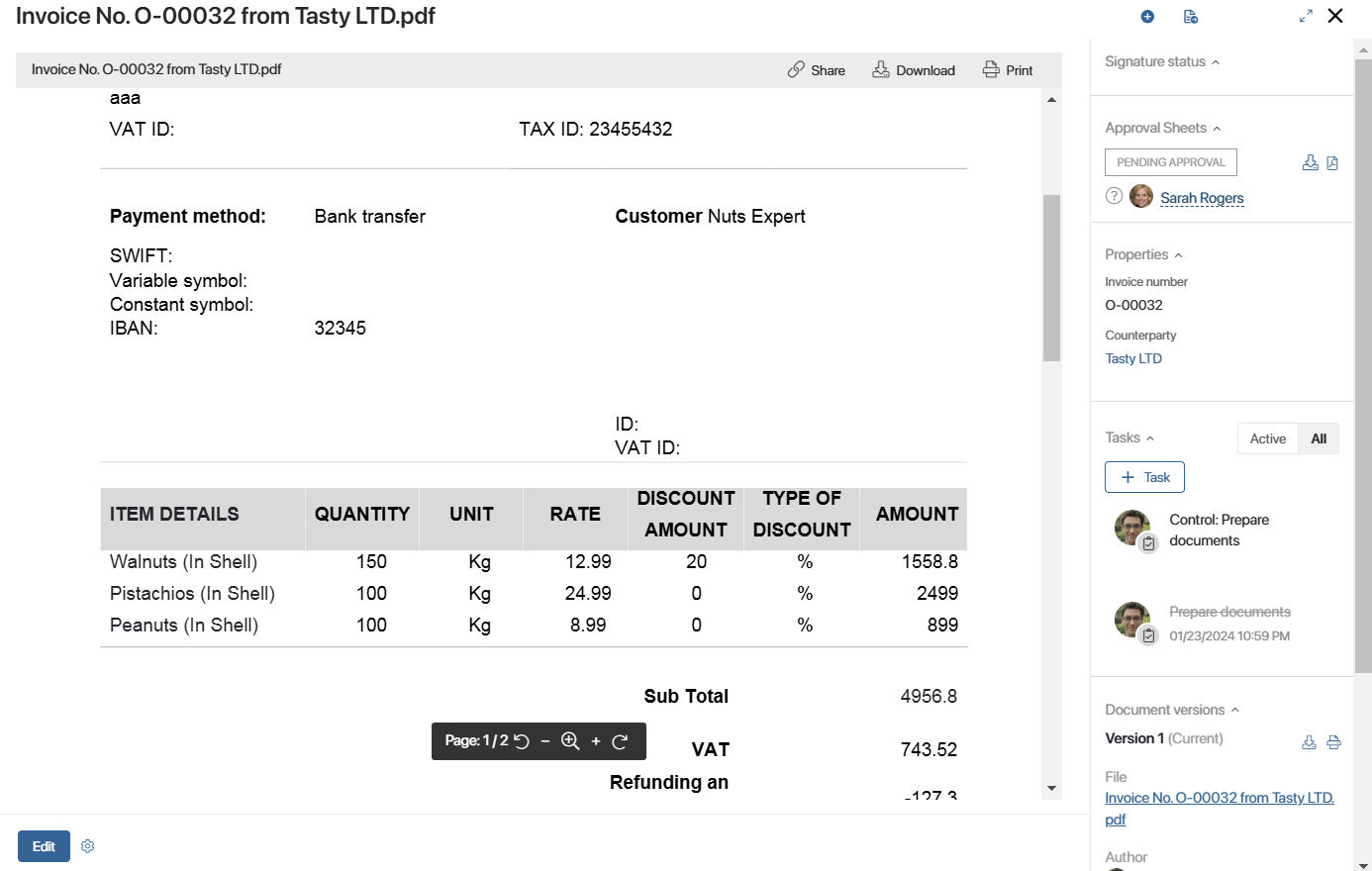
- The main area of the form shows the preview of the file added when creating the document.
- The toolbar includes the following options:
- Download. Download the file to your computer.
- Edit. Modify the document’s text. This button is available for users with editing permissions in the app. Whether the control is shown is managed by the administrator in the Upload and preview file widget settings on the item form. Editing files directly in the system requires an integration with a file viewing and editing service.
- Print. Download or print the document with a watermark. This control is available only if the Print form option is set up in the app.
- If you opened a document in the .pdf format, using the buttons at the bottom of the viewing area, you can:
- Display the left sidebar to quickly navigate to any page of the document.
- Rotate a document page.
- Change the zoom level.
- Controls in the top right corner allow you to:
- Send the document for information or for approval.
- Add a document version.
- Copy the document preview link to the clipboard to share it with a colleague. Please note that to open the document via the link, the user must have permission to view it.
- The sidebar displays the following:
- Information that users entered when they created the document, as well as the tasks and the activity stream associated with the document.
- All added versions of the document. You can view a version, download it, etc. Read more about all available actions in the article on document versions.
- Document registration button if registration is enabled.
- App item statuses if a status model is configured for the app.
- Approval sheet or list of informed users.
Edit form
The appearance of the edit page is determined in the advanced mode when creating a Document-type app.
To open the edit form, go to the app page and click on the document’s name. In the window that opens, click Edit in the bottom left corner.
On the edit form, you can:
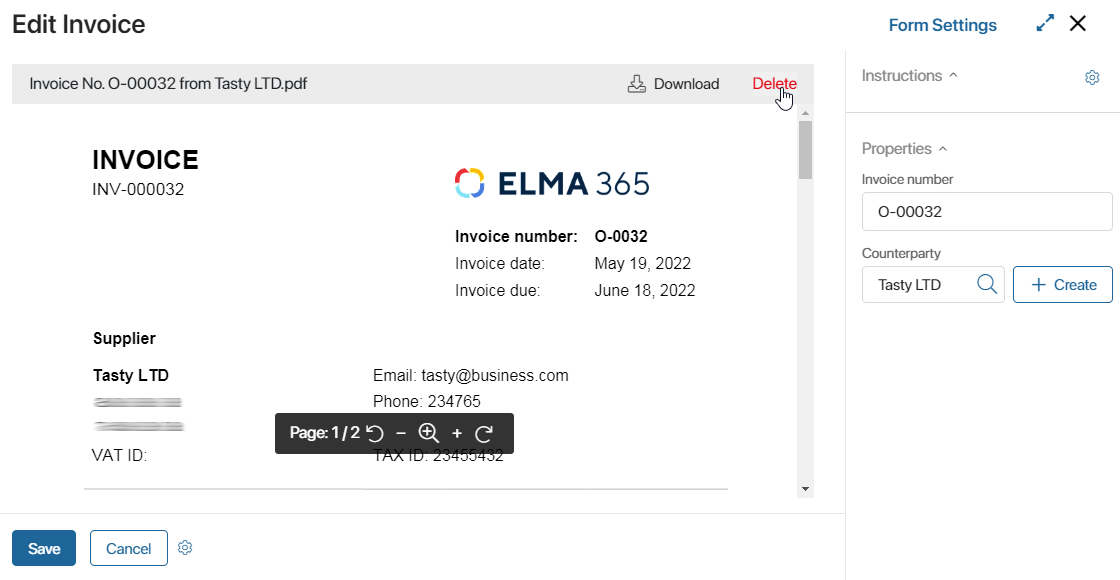
- Replace the document file by clicking Delete, or edit the fields on the sidebar.
- Edit the document online if integration with a file viewing and editing service is set up in the company.
- If a folder tree is set up in the app, you can move the app item from one folder to another. To do that, click on the pencil icon in the top left corner of the form, select a folder and click Move.