If multiple requests stem from the same issue, you can merge them into a master request. This can happen automatically based on configured rules or manually by an operator.
While working on merged requests, you can unlink child requests or select a different master request.
When the master request is closed, its resolution is applied to all linked requests. Child requests either close automatically, or their assignees receive a notification that the issue is resolved so they can update the request status.
For example, during a corporate email outage, several employees submit similar requests. These requests are merged into a master request. Once it is closed, its resolution is saved across all linked requests, eliminating the need to process them individually.
Automatic request merging
A system administrator can configure rules to detect similar requests, including the creation time window and processing conditions. A rule defines matching criteria such as subject, description, and service. The search can run across all requests or only within specific services or service catalogs.
For instance, if multiple requests with similar subjects and descriptions are submitted within a set period—such as one hour—they are linked into a master request. On the request pages, you will see the Links tab, where you can view the list of merged requests.
To learn more about configuring automatic request merging conditions, see Configure Service Desk settings.
Merge requests manually
To manually merge similar requests into a master request:
- On the Requests app page, select the requests to merge from the list, then open the Selected Items menu and choose Merge into Master Request.
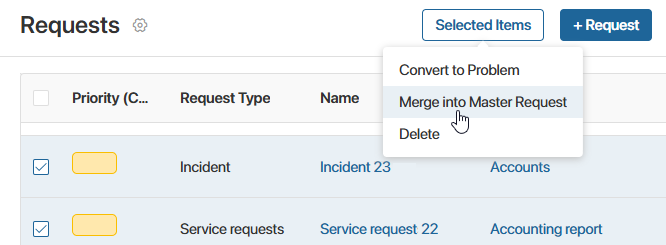
- The request merging window opens.
After merging, requests in the New or Pending Classification status inherit the type, service, and priority from the master request. If the list contains such requests, a notification appears on the form. You can confirm the merge or cancel it to assign different parameters to unprocessed requests during the classification process. - Select the master request from the list. You can choose a request in the Accepted or In Progress status.
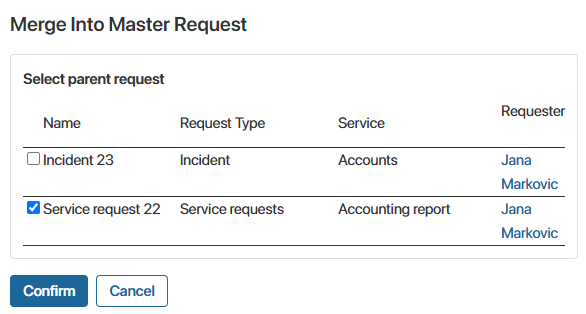
- Click Confirm.
You can now process the similar requests together under the master request.
Unlink merged requests
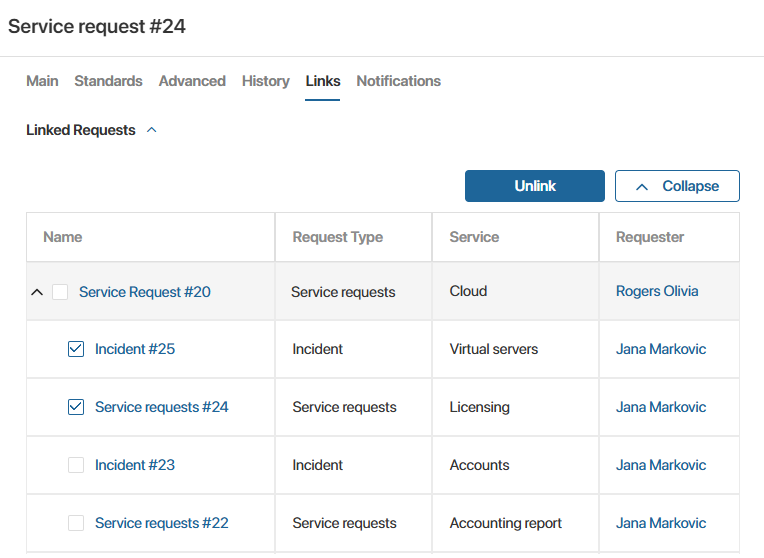
On the Links tab of a linked request page, you can modify or completely undo the merge. Three options are available:
- Detach individual child requests from the master request.
If one or more child requests were linked to the master request by mistake, you can remove their link. Select the child requests and click Unlink.
- Change the master request for child requests.
If you find that the root cause is being resolved in a different request, you can assign a new master request to the linked child requests. Select the current master request and click Unlink above the linked requests table. In the window that opens, select the new master request and confirm.
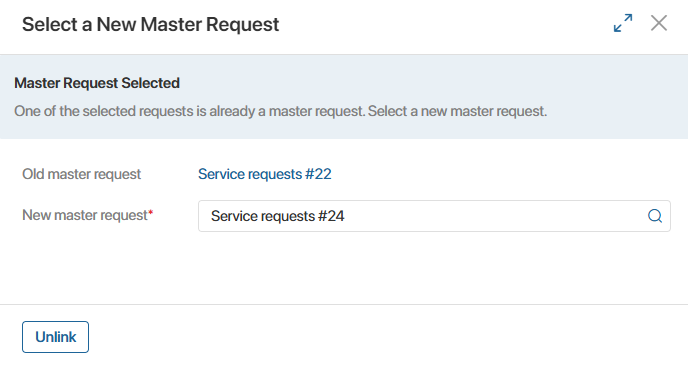
As a result, the original master request is detached from the linked requests and processed separately. The child requests are attached to the new master request, and their completion depends on its resolution.
- Undo the merge completely.
If you determine that none of the requests are related to a common issue, you can cancel the entire merge. Select the master request and all child requests, then click Unlink.
Closing child requests
When a master request closes, its resolution is added to all child request pages. Depending on the assignees and child request routes, linked requests either close along with the master request or remain open.
The system checks the following conditions to determine how to handle child requests:
- Checking assignees on the master and child requests:
- Child request closes automatically. Occurs when the master request and the child request are assigned to the same operator.
- Child request is closed manually by its assignee. To let child request assignees verify the outcome before closing, a system administrator must configure access permissions so that only the assignee can edit the request. In this case, child requests remain open, and their assignees receive a notification in the #Activity stream so they can close their requests themselves.
- Checking the child request's processing route.
If a child request follows a configured route, it will not close when the master request closes. The assignee can continue working through the route. They receive a notification in the #Activity stream about the master request closing and decide the next step: move the child request to the next stage or close it if the route is complete.