The Customer Service solution provides users with access to an external portal where they can read popular articles, submit service requests, and leave feedback.
начало внимание
Only the system administrator can invite users to the portal.
конец внимание
In order for both customers and employees to interact with the portal, they need to be added to the system as external users and invited to the portal.
Add an external portal user
- Go to System Apps > External Users, then click +External User in the upper right corner and enter the customer’s details.
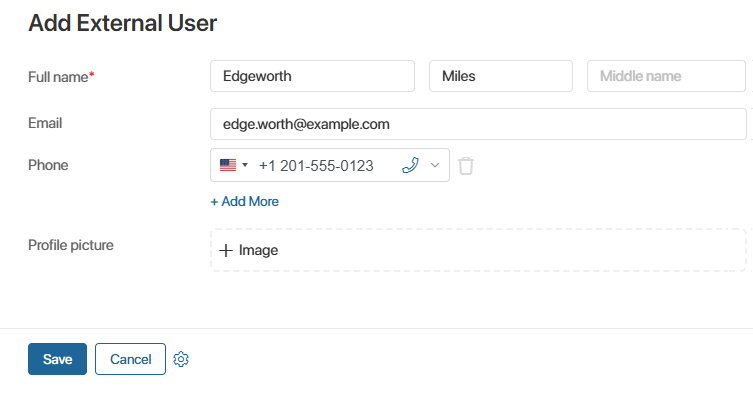
- After an external user has been added to the system, you need to specify the service catalogs available to them and link a contact from CRM. To do this, go to Customer Service > External Users. Click +External User and fill out the form:
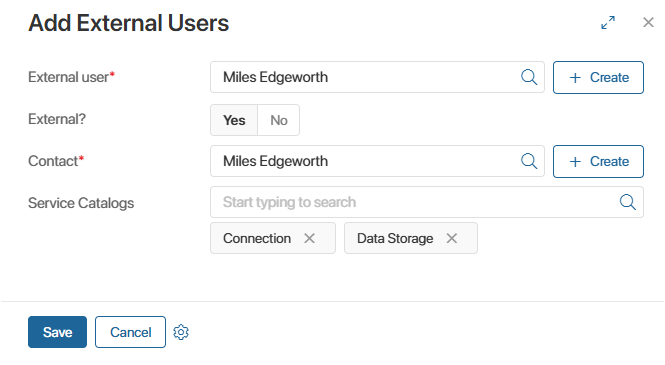
- External user*. Select the user created in the previous step. If they haven’t yet been added to the External Users system app, click the +Create button to the right of the field and add them.
- External. Since a customer is being added, select Yes. The No option is used when creating a company employee page.
- Contact*. Select or create a Contact for the customer in the CRM workspace.
- Internal. This option will appear when creating an employee page. You will need to select an entry from the Internal Users directory.
- Service Catalogs. Select or create service catalogs that will be available to the user when submitting a request on the portal.
Invite a user to the portal
Generate a personal link that the customer can use to access the portal. To do this:
- In the Customer Service workspace menu, open the Portal page.
- Click +Invite User.
- Select a user from the list and click Get Link.
- Copy the link and send it to the customer.
Additional options for generating links are described in the Add external users article.
You can also import users via AD/LDAP and grant them access to the portal. They will then be able to log in to the portal with their username and password. For more information, see the Import external users from AD/LDAP article.