The Customer Service solution includes an external portal with a preconfigured main page. This is a space where customers can find information about services, create a request, and leave feedback.
Users who are part of the Administrators group can modify existing portal pages or add new ones. For more information, see the Configure portal pages article.
Portal content
The portal contains the following preconfigured components:
- Portal navigation menu.
- Request creation button. The user fills out a form, and the request is automatically sent to operators for processing.
- Main page. The following information is available to external users here:
- Search bar for requests and articles. To search, enter the name and press Enter. The drop-down list will display matching items.
- News section where you can view published company news.

Click on the news item to see its details. If you want to see a list of all publications, click the All News button. Switch between news items using the  buttons.
- My Requests section. The last five requests created by the current user are displayed here.

You can track the status of your requests and open their pages to view full information. To open a request page, click on its name. You can view a complete list of your requests on the Request History page. To do this, click the All Requests button.
- Articles section. This section displays selected and frequently viewed articles.
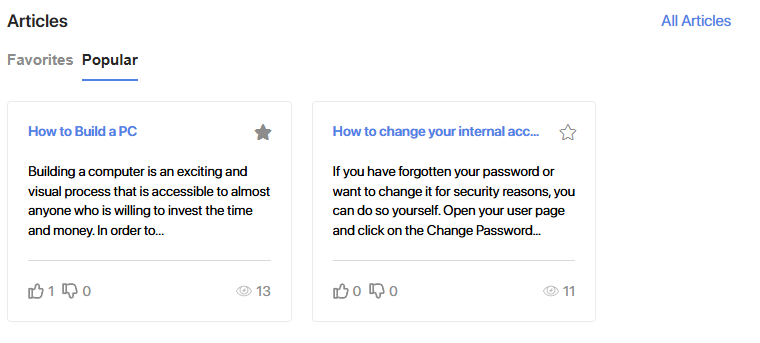
To read an article, click on its title. On the article page, you can add it to your favorites, send it for approval or information, and leave feedback. For more details, see the Working with articles on the Customer Service portal article. To open the full list of articles published on the portal, click the All Articles button.
- Request History page. This page displays all your requests. Use the search function to find the one you need. You can specify the type of request, service, creation period, and part of the request text. Click on the name to view detailed information about the request or edit it.
- News page. Here you can find all the company’s news and search for the publication you need by title or creation date.
- Knowledge Base page. Here you can search for useful articles and instructions from the knowledge base. Materials are sorted by specified categories. This simplifies the search for the required article in the database.
- Support Chat. If LiveChat is configured for the portal, the
 icon will be available in the lower right corner. Click on it to open a chat window to contact the support.