Articles are displayed on the portal’s home page and on the Knowledge Base page, accessible from the left navigation menu of the portal.
Here you can read an article, add it to your favorites, send it for approval or information, and leave feedback. To work with an article, open its page by clicking on the article title.
Article page
The article page consists of three tabs: Article, Information, and Versions. The Information and Versions tabs are only available to BRIX users with access permissions to the Customer Service solution.
Article tab
The Related items section shows the service and category that the article is related to, as well as the date of the last change.
The Description section displays the text of the article.
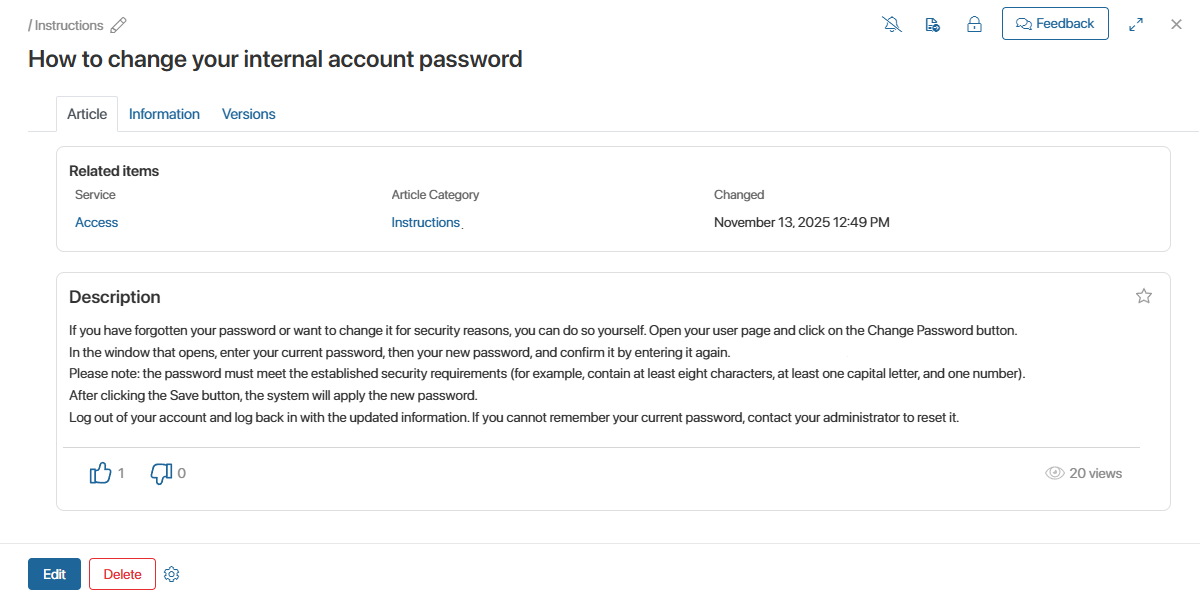
You can rate an article using the  buttons. When you click on the
  icon, the article is added to your favorites. You can access your list of favorite articles from the external portal page or from the Knowledge Base page. The total number of views is shown in the lower right corner.
Information tab
This tab displays a note about the publication of the article on the external portal, approval sheets and lists of informed users, the article activity stream, and associated tasks.

Versions tab
When someone edits an article, a new version is created. All versions are available on the article page, so you can see the author of the version, its status, and the change date.
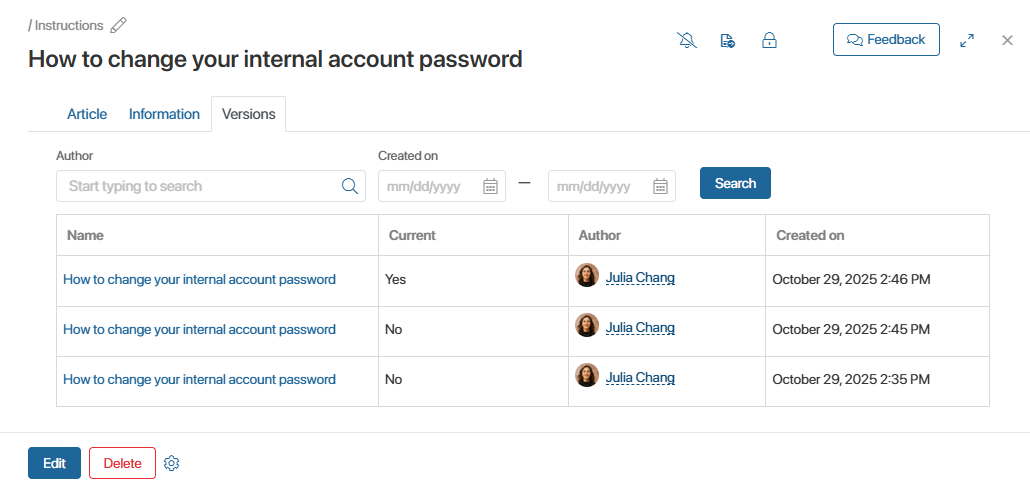
To restore a previous version, click on its name. On the page that opens, check the text and click the Restore button. The version will be marked as the current one.
Send article feedback
If you notice a typo or want to leave a suggestion for improvement, click the Feedback button on the article page and fill out the form.
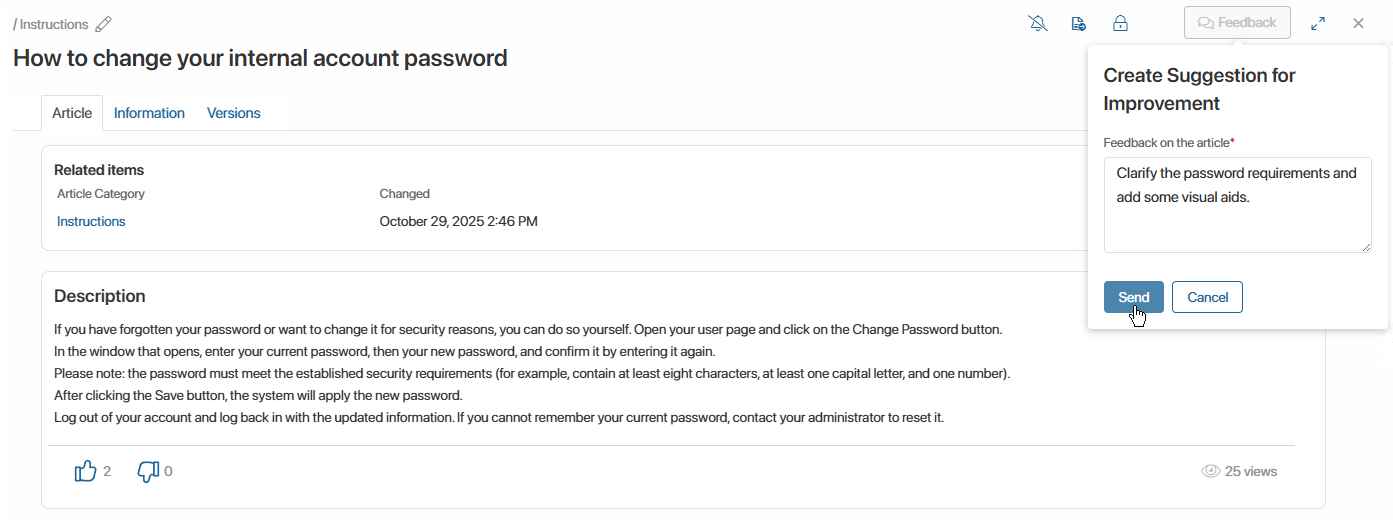
The suggestion is saved in BRIX, where it can be processed by an operator.
Send article for approval or information
A user with access to BRIX can send an article for approval to their supervisor or for information by other operators. To do this:
- Go to the article page.
- In the upper right corner, click the
 button.
 - Select the desired action from the drop-down menu.
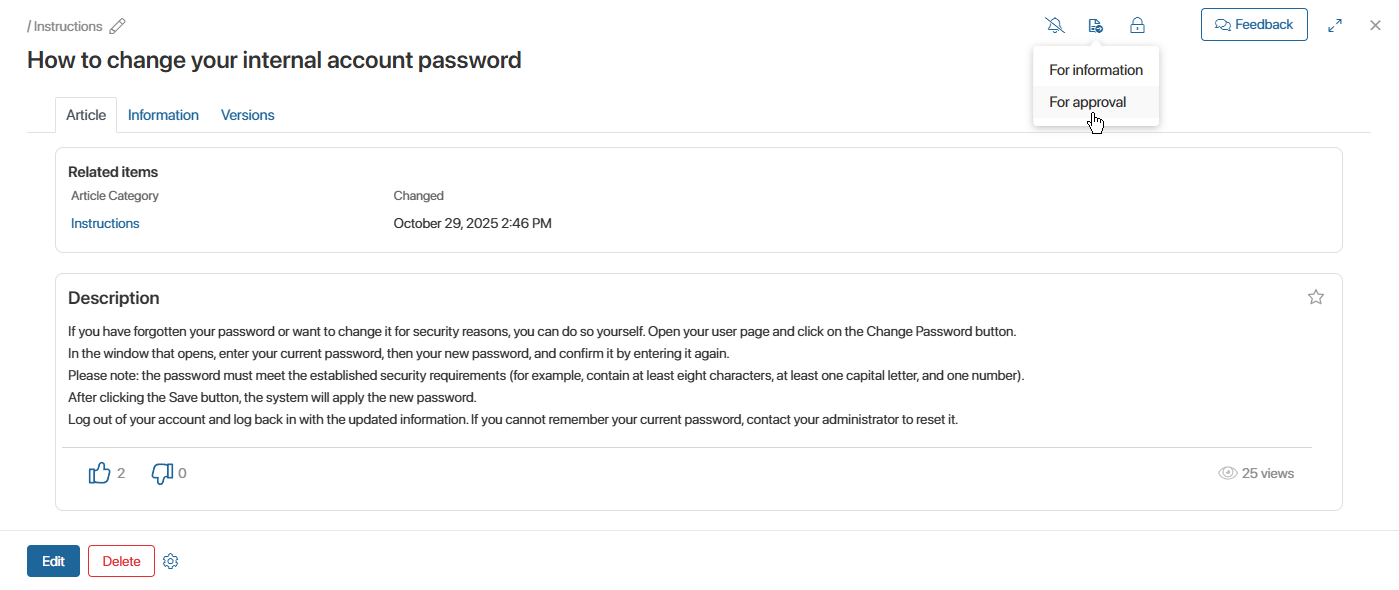
- In the opened window, specify the employee who will be tasked with being informed about the new article or approving it.
- Click the Send button.
Once the specified employee has completed the task, their decision will be displayed on the article page.
For more information on working with reviewing and approving app items, see the Ready-made document routes article.