To create a communication channel for your external and internal users, add and set up a live chat. Your colleagues or partners will be able to communicate with you in the live chat, and operators will reply to them directly in the BRIX interface.
начало внимание
Only users included in the Administrators group can create and configure live chats.
конец внимание
Add a live chat
To add a new live chat:
- Go to Administration > Live Chats andclick the +Live Chat button.
- In the live chat creation window, fill in the required fields.
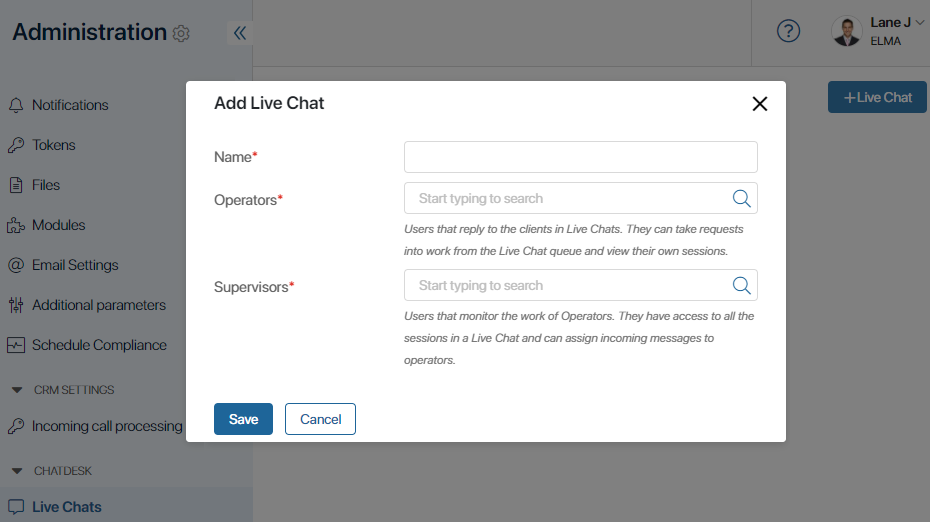
- Name*. Enter a name for the new live chat.
- Operators*. Select groups of employees who will work with requests in the live chat.
- Supervisors*. Select groups of employees who will supervise the operators in the live chat. They have access to the live chat’s settings and can assign incoming requests to specific operators.
- Click Save.
The live chat settings window will open. It features the following tabs: Settings, Routing, Messengers and Inbox, Inbox, Business Processes, and LiveChat.
Settings tab
On this tab you can configure the main settings of the live chat you are creating:
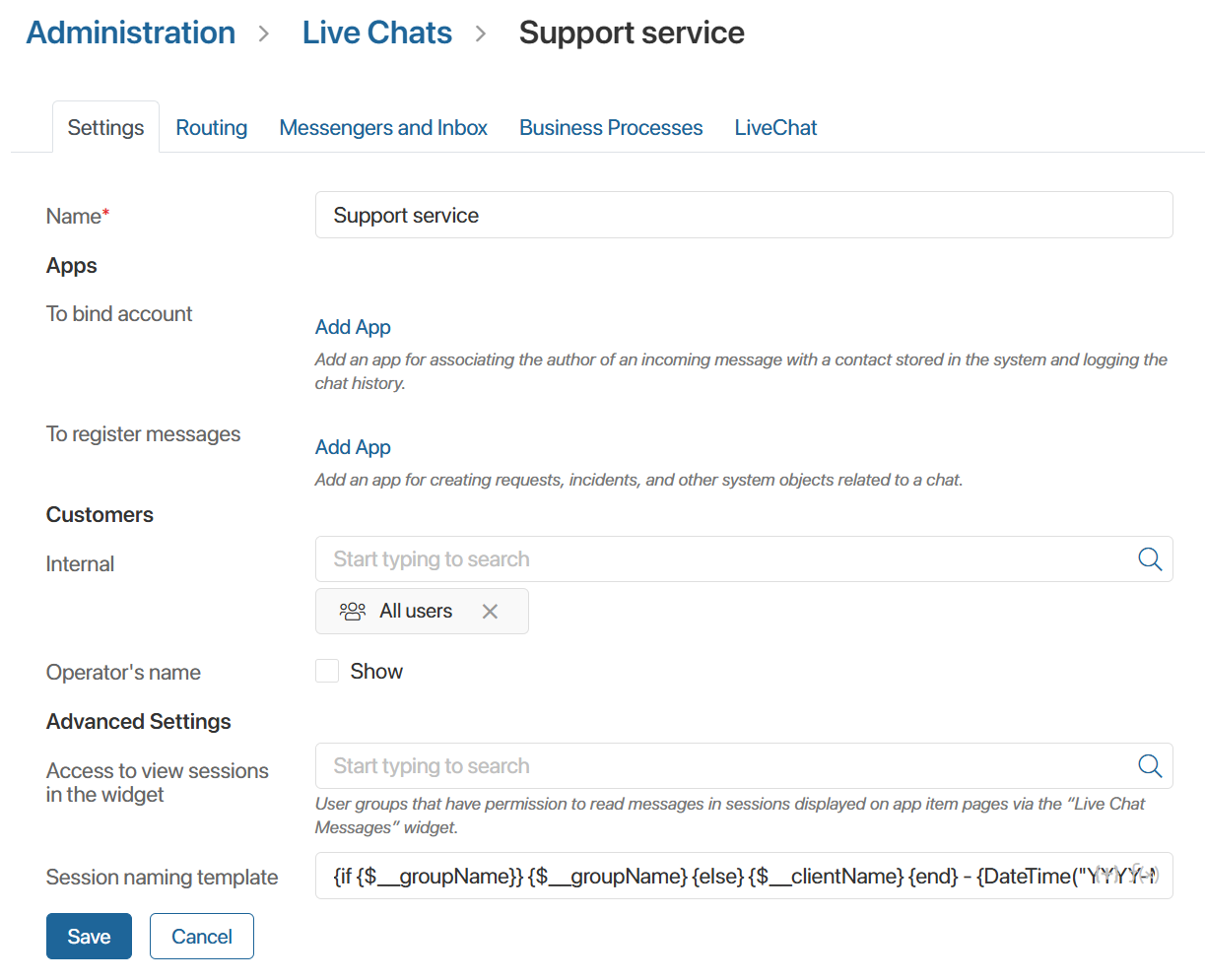
- In the Apps section, fill in the fields
- To bind account. Add the app that will store customer accounts, for example, Contacts, so that the operator can link the session to a specific contact during the conversation.
- To register messages. Add one or more apps to link to the live chat. On the session page, in the About Session section, the names of the selected apps will appear along with a + Bind button. When the operator clicks the button, they can create an item in the linked app based on the conversation, for example, add the client to the database, register a complaint, create a support ticket, and so on.
Please note that you can only select apps that have an Account type field in their context.
On the forms of apps linked to a live chat, you can display the conversation using the following widgets:
- Live Chat Messages. The operator can reply to the client from the item page or create a new session with them, while users with read access to sessions can view the conversation.
- Chat with live chat operators. The user can write to an available live chat from the item page, and the operator will respond to them in an automatically created session.
- If you are creating an internal live chat that company employees or external portal users can access, in the Customers section, specify these user groups in the Internal field.
If you are connecting the live chat to third-party messengers to communicate with clients who are not system users, this section does not need to be filled out.
- Operator’s name. This option appears if you specified a user group in the Internal field. Check the Show box to let the user see the name of the operator in a live chat. If the option if disabled, only the live chat name will be shown to the user.
- Fill out the fields in the Advanced Settings section:
- Access to view sessions in the widget. Click the magnifying glass icon and add user groups that will be granted the permission to view messages in the live chat’s sessions in the Live Chat Messages widget placed on app forms.
- Session naming template. Specify a template that will be used to form the name of each new session. The template can include context variables, for example, for the customer, the session creation date, the live chat name, etc. To add them, click {+} on the right side of the field. Moreover, you can use the DateTime() function in your template by clicking f(x). Read more about configuring templates in the Template syntax article.
- Save the settings.
Now employees can send a message to your live chat from BRIX, and operators can reply to them in the Live Chats workspace.
Routing tab
On this tab, you can specify which groups of users reply to messages in the live chat and set up routing rules.
The default rule is First Response. With this option, new sessions are queued, and they are assigned to the first person who starts working with them. You can create custom routing rules to flexibly distribute sessions based on any conditions you want. Read more in the Configure message routing article.
Messengers and Inbox tab
Interaction in the live chat can be performed not only using BRIX chats. On the Messengers and Inbox tab, you can connect the following to the live chat:
- One or more available messengers. You can link a messenger created and used in your company to the live chat.
- Email. You can connect the following email services: Gmail, Mail, Yandex, Rambler, Yahoo, Outlook, and Office365. You can also configure integration with an email inbox on a custom domain using SMTP and IMAP protocols.
This is convenient, for example, when creating a support channel for your customers or partners. They will use their usual messengers and the operators will be able to respond to them from the BRIX interface.
Read more about integration with instant messengers in the following articles:
Business Processes tab
You can set up a process to start automatically from a live chat. The following events can trigger process start:
- When a new session in created.
- When a new message from a customer is received.
- When a session is closed.
To set up automatic process launch, select a business process and map the process input fields with the fields of the Live Chats app. Read more about it in the Configure automatic process start article.
It is also possible to launch a process manually during a conversation right from the session’s page.
Processes help operators work faster by automating some operations. For example, a process can be used to automatically add and process a new lead when a session is created.
LiveChat tab
On this tab, you can configure an online chat that can be placed on a website. All messages sent to the website chat will be recorded in the live chat and processed by an operator.
Moreover, you can connect several communication channels to the LiveChat widget, for example, instant messengers or an email inbox. In this case, the user will be able to choose where to communicate with an operator: on the website, in a messenger, or by email.
Read more about configuring LiveChat in the Create an online LiveChat for your website article.