Versioning support allows you to create a version history of a structure and restore a previous configuration, for example, if an error occurs in the current version.
In BRIX, versions are created for the following structures:
- Solution.
- Workspace and its page, which opens when a user navigates to the workspace.
- Module and the API method defined in the module.
- Page created at the company or workspace level.
- App and its page, which opens when a user clicks the app name in the left menu.
- Contract and its page.
- Report component.
- Form configured in the interface designer.
- Widget.
- Business process.
- Document template.
- Folder in document categorization.
начало внимание
To enable version saving for system structures, turn on the allowVersionsSnapshots feature flag. For more details, see Modify BRIX parameters. If you are using the SaaS edition, contact your BRIX account manager to enable the feature flag.
конец внимание
Creating and storing structure versions
A structure version can be added as a result of different actions, such as creating a structure, changing its settings, importing or updating a structure, and so on. Each system component has its own set of actions, which you can find in the table below.
To open the version list for any structure, in Administration > Developer Tools select Configuration Version Management. You will see the configuration tree. Select the required component, click the three-dot icon to the right of its name, and then click Versions.
The table provides detailed information about how versions are created for each structure and other available ways to open version history.
Version creation conditions and ways to open version history
Structure |
When a version is created |
How to open the version list |
Solution |
Automatically when the structure is imported or updated.A workspace version is also added when the workspace is copied. Manually if the structure version is captured. |
Only in Administration > Developer Tools. |
Workspace |
||
Module |
||
Workspace page |
When the workspace is created or its settings. |
In the workspace settings menu, select More > Page Version History. |
API method defined in the module |
When changes to the API method are published. |
Only in Administration > Developer Tools. |
Page created at the company or workspace level |
For the following actions:
|
Only in Administration > Developer Tools. |
App, app page |
When the app is created or its settings. |
In the app settings menu, select the More > Version History. |
Contract, contract page |
When the contract is created, its settings or fields are changed, or a new version of the source app is created. For more details, see the article Contract settings. |
In the contract settings menu, select Version History:
|
Report |
When the report is created or its settings, source, or table are changed. For more details, see the article Create and configure a report. |
In the report settings list, select More > Version History. |
Form, widget |
When changes to an app form or widget are published in the interface designer. If a form used in a business process is edited, its new version is added after the process is published. |
Open the form in the interface designer or custom widget designer and go to the History tab. |
Business process |
When the process is published in the business process designer. |
In the business process designer, go to Settings > Version History. |
Document template |
When you add or change a document template, a file with a defined syntax for inserting variables that can be used in a business process. |
Depending on where the template was created, go to:
On the page that opens, click the three-dot icon next to the required entry, and then Version History. |
Folder in document categorization |
When you change the folder settings. |
In Administration > Document Categorization, select the folder, click the three-dot icon next to its name, and then Version History. |
Начало примечание
Note
When a solution is imported or updated, a new version is also added for each structure included in the solution if its settings differ from the current ones.
The exception is workspaces, modules, and API methods included in the solution. New versions are not created for them.
Конец примечание
Actions in version history
In the structure version list, the current version is marked with the . You can view the date and author of the changes that created the version, as well as the comment.
If a structure version is created during import or update, the comment is generated automatically and indicates the action performed: Import or Update.
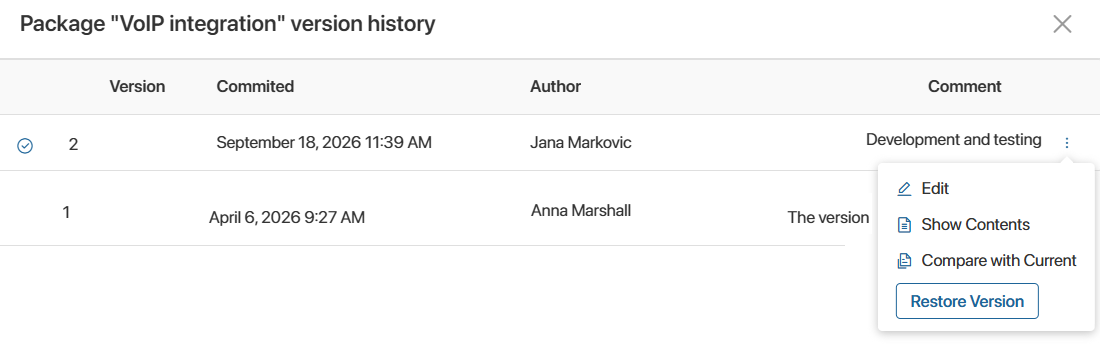
To open the menu of available actions for a version, select it in the list and click the three-dot icon. You can:
- Edit. Change the name of a solution, workspace, or module version and its comment.
- Show Contents. Display the component tree included in a solution, workspace, or module.
- Compare with Current. View the previous and current versions in JSON format.
- Download File. Download the version as a .e365 file. These version files can be compared in an external text editor, such as Visual Studio Code. Not applicable to solution, workspace, or module versions.
- Delete Version. Available only for previous versions. Allows you to clean up the history and permanently delete unnecessary versions. Not applicable to solutions, workspaces, modules, forms, widgets, business processes, or document categorization folders.
- Unpublish. Used for published versions of forms and widgets.
- Restore Version. Make one of the previous versions the current one. For example, if an error occurs and you do not have time to fix it, you can roll back the current version. A new version is created. For example, if the current version is 4 and you want to restore version 2, version 5 is created and is identical to version 2.
Compare structure versions
To view the differences between versions:
- In the row of the target version you want to restore, click the three-dot icon and select Compare with Current.
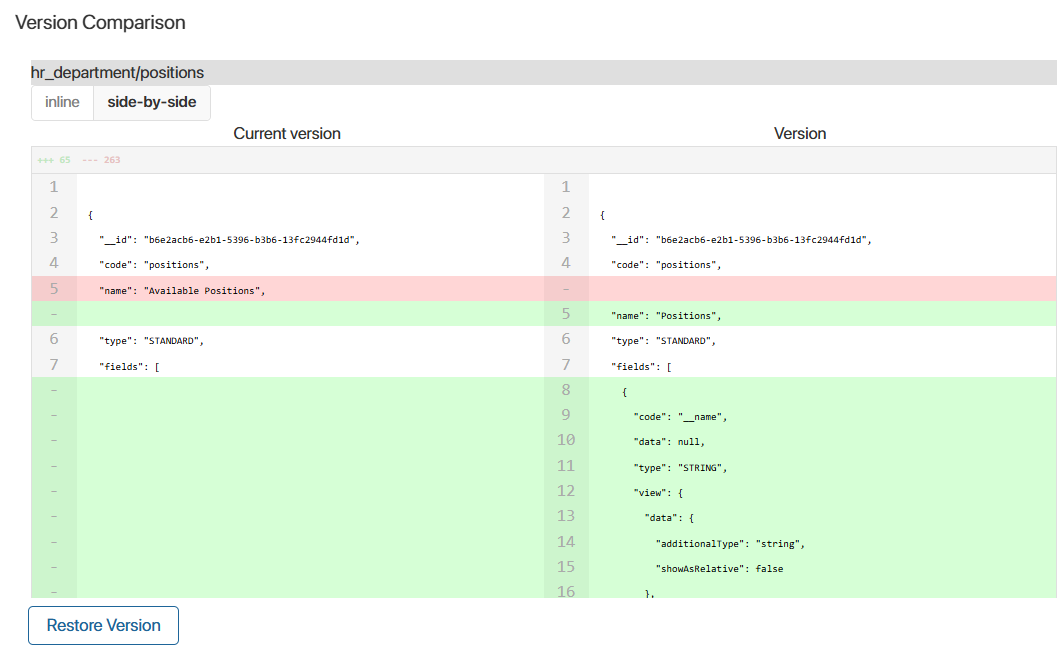
- The side-by-side tab, which displays the contents of both versions in JSON format, opens. Differences are highlighted in color.
- You can also display only the differences between versions. To do this, switch to the inline tab. Here, the content of the current version is highlighted in red, and the target version in green.
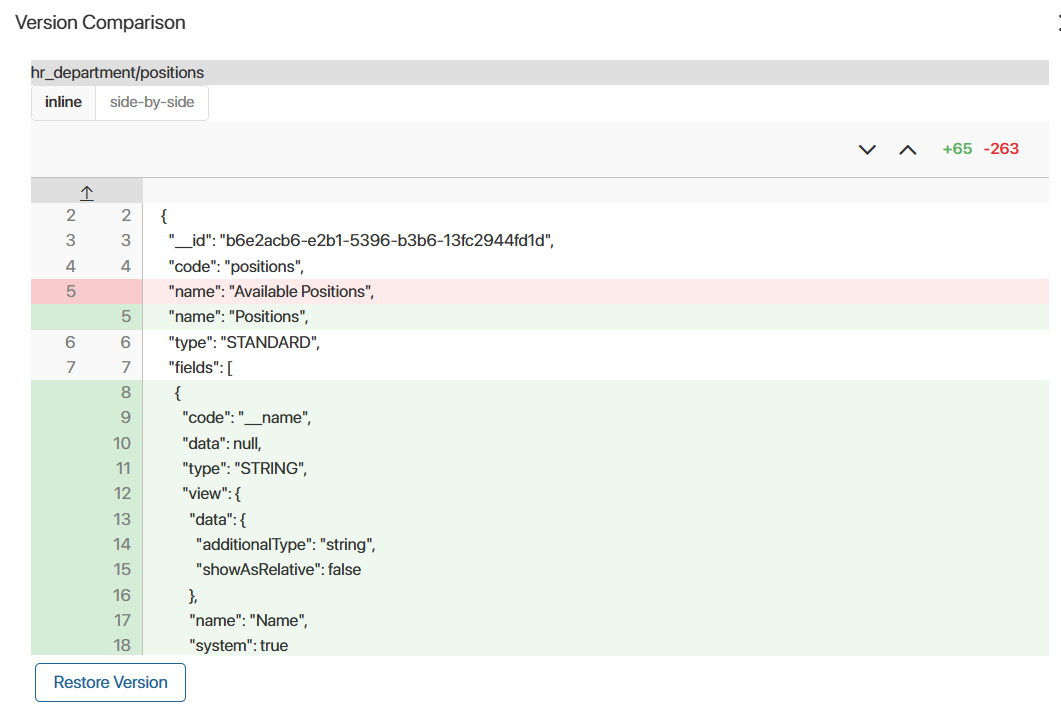
- To make the target version current, click Restore Version.