In BRIX, you can archive system components. These data are not displayed in the interface and are stored on the server side in a separate database table. This optimizes the system and allows you to work only with relevant data.
You can archive components:
- Automatically. or different structures, conditions for selecting objects for archiving are defined in EQL. For example, you can send items in a certain status or events completed more than a month ago to the archive;
- Manually. If an object does not meet the conditions for automatic archiving, a user can send it to the archive using a special button in the object page.
Начало внимание
Archiving is available only in the BRIX SaaS Enterprise and the BRIX365 On-Premises editions.
Конец внимание
Important: data archiving is implemented in a trial mode and may be unstable. To enable it, contact technical support to activate the feature flag.
You can archive:
- outdated and deleted app items of all types;
- closed calendar events;
- interrupted or completed process instances and their process tasks.
Configure archiving of app items
You can enable archiving of outdated and deleted items of apps of all types. They will not be displayed in the system interface, cannot be opened via a link, or restored from the archive. Users will be able to work only with relevant data.
To do this:
- Next to the app name, click the gear icon and select Additional > App Item Archive.
- In the window that opens, select Enable archiving.
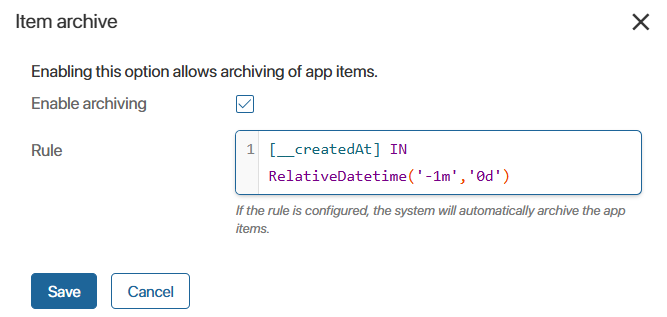
- For automatic archiving, in the Rule field add conditions in EQL, for example, specify the creation or deletion date of items. Items that meet the conditions will be sent to the archive every six hours.
- Click Save.
Please note that archiving of app items cannot be disabled, but you can define new conditions. At the same time, items archived under the previous rule are not restored. - To manually archive items that do not meet the conditions for automatic archiving:
- Grant responsible employees permission to delete items.
- Add the Archive button to the app view form and to the cards of deleted items.
Configure archiving of calendar events
Archiving events with the Closed status or deleted events allows only relevant records to be displayed in users’ calendars. Events sent to the archive cannot be viewed in the system interface, opened via a link, or restored.
To enable event archiving:
- Go to the Calendar workspace and click the gear icon next to its name. Select Event Archive.
- In the window that opens, enable the Enable archiving option.
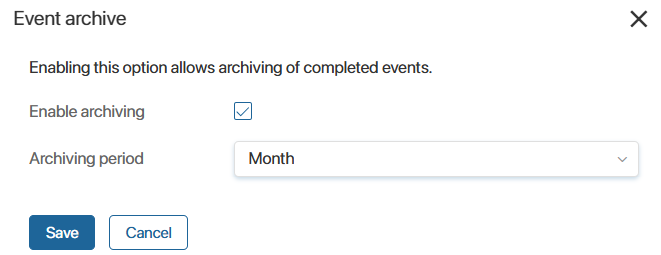
- For automatic archiving, in the Archiving period field select how long a closed event is displayed in the calendar: Month, Six months, Year, 3 years. Events whose period has expired will be sent to the archive every six hours. Later, you can change the event retention period in the calendar. Archived events will not be restored.
- Click Save.
After archiving is enabled, authors of completed events can also manually send records to the archive by clicking the Archive button in the event page. The event will disappear from the calendars of all participants. Please note that recurring events cannot be archived manually.
Configure archiving of business process instances
The configuration is performed in Administration > Archiving of Process Instances. Here you can:
- unlike in case of app items and events, here you can view instances sent to the archive, and restore records;
- set up a schedule for automatic archiving.
To manually archive a process instance, open its card in the process monitor and click the Archive button.
For more details, see Archiving of process instances.