In BRIX, the system administrators can archive interrupted and completed process instances and their process tasks. This helps reduce system load and optimize data handling
Начало внимание
Archiving is available only in the BRIX SaaS Enterprise and the BRIX On-Premises editions.
Конец внимание
Important: data archiving is implemented in an experimental mode and may be unstable. To enable it, contact technical support to turn on the feature flag.
You can archive instances in the following ways:
- Automatically. Configure an archiving schedule for specific business processes and define conditions in EQL to select objects. At the scheduled time, instances that meet the conditions are archived;
- Manually. In the process monitor, open the instance page and click the Archive button.
After archiving, all objects are displayed in Administration > Archiving of Process Instances on the History tab. Here you can view them and restore them from the archive.
Configure automatic archiving of process instances
- Go to Administration > Archiving of Process Instances to the Archiving Schedule tab. In the top right corner, click + Schedule.
- In the window that opens, enter a schedule name that will be displayed in the list.
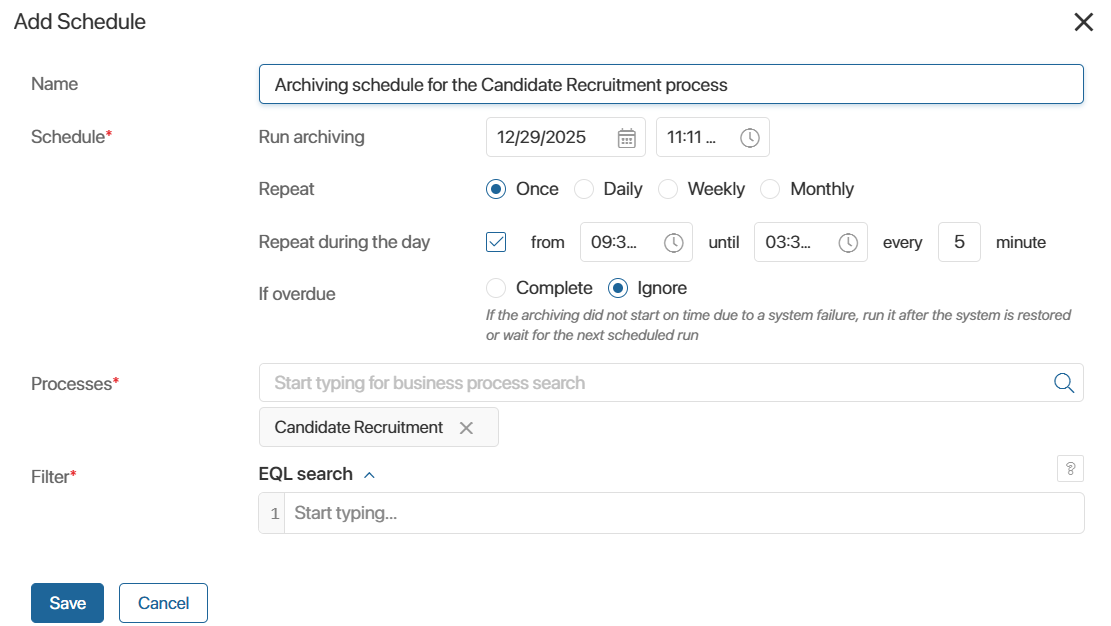
- Set the archiving schedule:
- Run archiving. Specify the date and time from which process instances will be archived automatically. The specified time zone of the company is used when determining the time.
- Repeat. Define the archiving frequency:
- Once: archiving will run once.
- Daily: every day or every few days. Specify the number of days in the period.
- Weekly: every week or every few weeks. Select the day of the week on which instances should be archived.
- Monthly: every month or every few months. Specify the months and days when archiving should run.
- If it is a non-working day: this field appears when configuring periodic archiving. Specify the days on which archiving should run if, according to the schedule, it falls on a non-working day.
- Repeat during the day. Enable this option to additionally run archiving during the day at the specified interval.
- If overdue. Choose when to restart archiving if a system failure occurred at the scheduled time:
- Complete: run archiving immediately after the system is restored.
- Ignore: perform archiving in the next scheduled period.
- Specify the archiving conditions:
- Processes*: select one or more company business processes whose instances will be archived according to this schedule.
- Filter*: define conditions in EQL365 that determine which instances are selected for archiving.
- Click Save.
After that, the schedule will appear on the Archiving Schedule tab with the status Enabled.
You can:
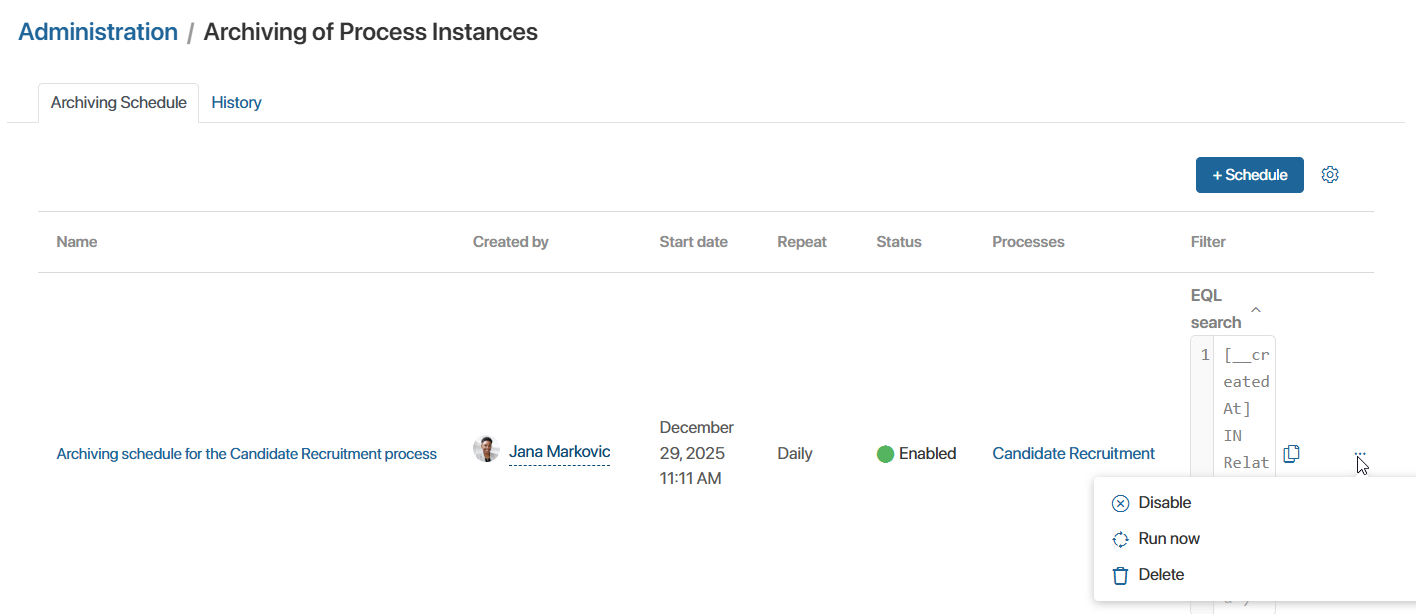
- copy the EQL query, for example, to use it when creating a new schedule. To do this, click the
 icon next to the query;
 - click the three dots icon and choose one of the following actions for the schedule:
- disable archiving according to this schedule, for example, if instances do not need to be archived temporarily;
- run archiving at the current moment, regardless of the scheduled start time;
- delete the schedule.
View the history of process instance archiving
Information about each operation related to archiving business process instances and their process tasks is displayed in Administration > Archiving of Process Instances on the History tab.
The table displays:
- operation date;
- the employee who performed the operation;
- the schedule according to which archiving was performed, or an indication that the operation was carried out manually;
- the names of the business processes whose instances were archived;
- the number of process instances. One record contains information for only 1,000 instances. If more objects are archived, multiple records are added to the table. By clicking Instances (N), you can view their list and, for example, restore an instance from the archive or delete it permanently.
- the number of process tasks. By clicking Tasks (N), you can view their list
- operation status: Archived, Unarchived, or Completed with errors;
- error details, if the operation completed incorrectly. Such records can be removed from the list by clicking the three dots icon and selecting the appropriate action.
To refresh the data in the history, click the Refresh button above the table.
Restore a process instance from the archive
You can restore process instances from the archive, for example, if they were archived by mistake and are still relevant for work.
For an operation with the Archived status, you can unarchive:
- one or more instances: in the table row, click Instances (N) and, in the window that opens, select the required records, then click the Unarchive button;
- all instances: in the table row, click the three dots icon and select Unarchive. The operation status will change to Unarchived, and a new record for the manually performed operation will be added to the history.
The instances will become available for work and will appear in the process monitor.
Please note that if the schedule according to which archiving was performed is still enabled, the instances may be archived again. To prevent this, disable or delete the schedule.