On the article page, you can view complete information about it:
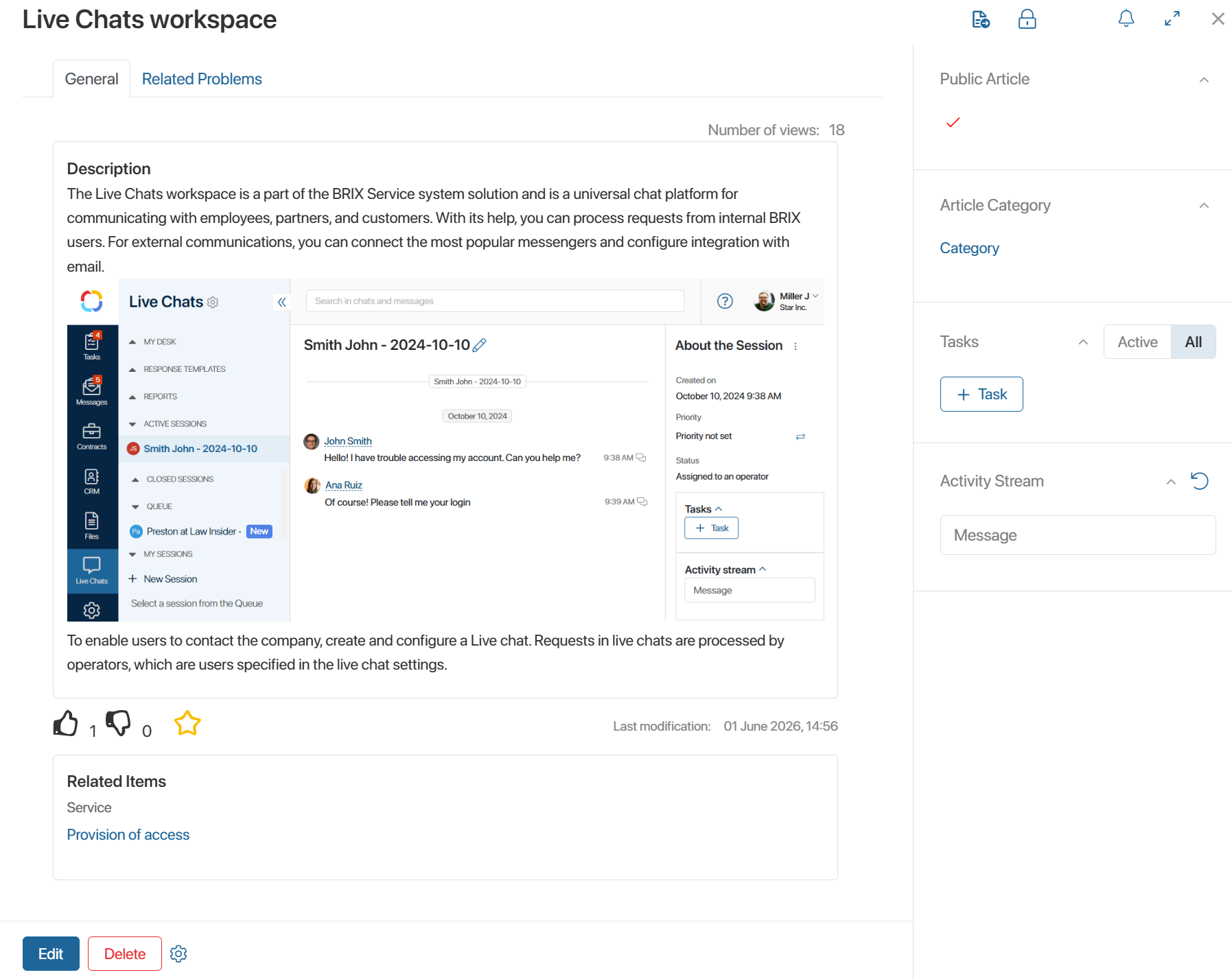
- On the General tab:
- You can see the total number of article views, as well as the date and time of the last modification.
- The Description section displays the final version of the article.
- You can rate an article using the
 buttons. When clicking on the
  icon, the article is added to your favorites. You can access the list of selected articles from the external portal page or from the Knowledge Base page.
- The Related Items section displays a link to the service associated with the article, as well as a list of additional files.
- On the Related Problems tab, you can view a list of workarounds that supplement the article.
- On the right side panel of the page, a publication status indicator shows whether the article is published on the external portal.
Send an article for approval or review
After creating an article, the author can send it to a manager for approval, for example, before publishing on the external portal, or to other operators for review. To do this:
- In the upper-right corner of the article page, click the
 button and select the desired action.
 - In the window that opens, specify the employee who will receive the task to review or approve the new article.
- Click Send.
Once the specified employee completes the task, their resolution will be displayed on the article page.
For more details on reviewing and approving app items, see Ready-made document routes.
Edit an article
Users with edit permissions can modify the main text of the article as well as its parameters. To do this, open the article page and click the Edit button.
When changes are saved, the updated version of the article will also appear in the Articles directory within the Live Chats workspace. If the article is public, it will also be updated on the external Service Desk portal.