For fields of the Users and App types, you can specify which items will be available for employees to select.
For example, on a contract form, an employee selects a client from the Contacts app. To narrow down the list of contacts and hide those the employee shouldn't see, you can set up a filter in the field settings. For instance, show only contacts that were added to the system by the current user.
This filtering can be configured using the Add filter option. It is available when placing the field on an app form, a business process form, or in a widget.
For fields of the App type, additional settings are also available.
Set up the filter
Let’s look at how to configure filtering using the Contacts field in the Contracts app as an example. Only clients from London added by the current user should be available for selection in this field.
To do this:
- Go to the app form settings and select a property of the App type that references the Contacts app.
- In the window that opens, select the Add filter check box, and then click Add Conditions.
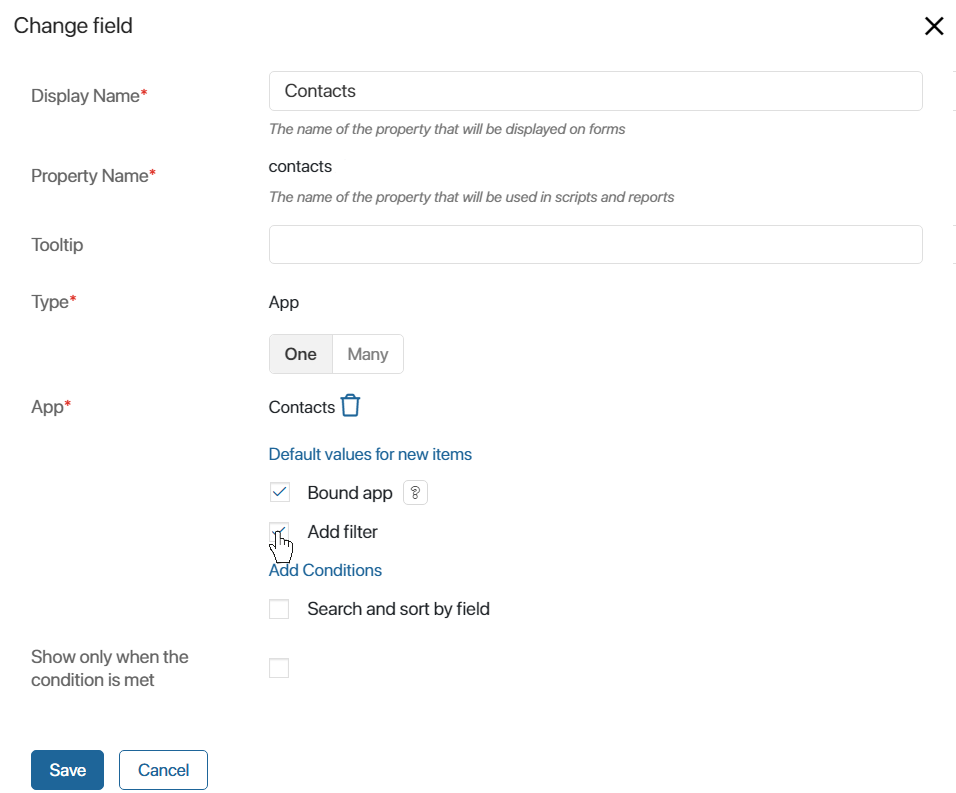
- In the window that opens, configure the filter conditions:
- Click +Filter, then <Undefined>, and select a field from the Contacts app, for example, Author.
- Set the filter value. To do this, next to the Author field, check the Current user option.
- Add additional conditions in the same way. In our example, set a filter for the Address field and specify the value London.
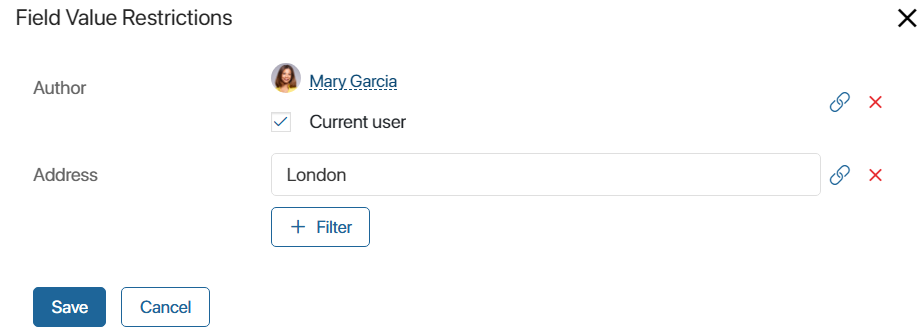
- Click Save.
Now, when a user selects an entry in the Contacts field, only items that match all the conditions are available.
For fields of the Users type, you can configure filtering based on properties from the user’s page. For example, restrict the list of employees by job position or group.
Export an app with a configured filter
When you export an app, the filtering conditions in the Add filter option are retained in the following cases:
- If system components, such as system groups or system app fields, are specified as filtering values.
- If the app with the filtering conditions and the associated app are part of the exported workspace or solution.
When you upload an app with a property of the Users type where a filter is configured, only the specified filter will be retained. Its value, which corresponds to the value of the field on the user page, will not be uploaded. To save the value in the filter, export the app as part of the configuration.
For example, to filter the users in the Responsible for payment field in an invoice, you have created a filter for the Position field. In it, you specified the Accountant record from the company’s org chart. When you export the Invoices app, the created filter will be saved for the Responsible for payment field, but a certain position will not be specified. You need to create the Accountant position in the new company’s org chart and re‑configure the filter.