In this widget, you can find all document versions and compare the versions with each other.
The widget is used:
- In Document-type apps. Added by default to the view form. Widget settings can be modified. For more information on working with versions in the app item page, see Version control and document comparison.
- In standard apps or task pages. You can place and configure the widget to view and compare versions of files added to an app item or task using the Files property. To learn more, see Files data type.
- In the Files workspace. Allows you to manage versions of company files. Widget settings on the file view form cannot be modified. For more information on working with file versions, see Manage and compare file versions.
Edit settings or delete a widget
You can delete a widget from an app form of the Document type app or change its settings. To do this, go to the view form in the advanced mode. and open the view form interface designer. Select the widget in the sidebar of the modeling canvas. Then click the trash can icon to delete the widget or the gear icon to open its settings window.
Main tab
Set the settings:
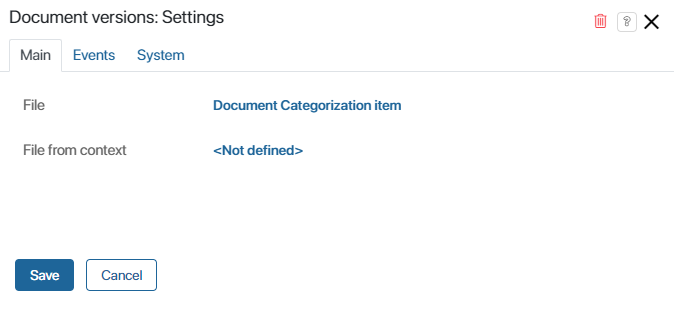
- Context file. Automatically selected based on the app you're working with.
- Show the “Add Version” button. Disable this option to prevent users from saving the comparison result as a new version of the document. For example, you might want to prevent users from changing the document version during the approval process so that the current version won’t be archived.
Please note that users can also add a new version using the button in the top panel of the document view page. This button is not part of the Document Versions widget and is configured separately as a standard Button widget.
To completely prevent adding versions, configure the visibility of this button. For example, you can hide it for documents with the Pending Approval status. To do this, in the widget's system settings, set the button to be displayed on certain conditions using the Visibility option.
Events and System tabs
These tabs are for system settings that are the same for all the widgets. They allow you to configure a widget’s visibility and access to its data, define what happens, when the user moves or hovers the pointer over the widget, etc. Find out more in System widget settings.
Important: on the System tab, the administrator can enable the Read-only > Yes option. In this case, no users will be able to modify the current version of a Document type app item or add new versions. This restriction does not apply if the widget is placed on the file view form in the Files workspace.
Add widget
To add the widget to a form, drag it to the canvas from the right panel of the interface designer or click +Widget. In the pop-up, click on <Not defined> in the File from context field. Select a File property from the context of the app that you are setting up. Click Save.
To make the configured form available to users, click Save and Publish in the top toolbar of the interface designer.