Files is a field type that lets you attach files of any format to an item or task page. For example, you can add invoices to orders or documents to send for approval.
This article explains how to add files to the field, what actions employees can take with attached files, what determines access to them, and how versioning works.
Add files to a field
You can attach one or more files to the field, depending on the settings the administrator chose when configuring it.
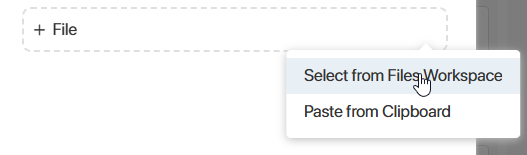
To attach a file, drag it from your computer or click the three dots icon and then add it from the Files workspace or clipboard.
When uploading multiple files, you will see a list displaying the current upload progress along with counters for the total number and size of files. This allows you to assess and adjust the volume of data being transferred. You can either remove unwanted files or cancel their upload by clicking the cross icon next to each file.

Please note that the Mozilla Firefox browser does not support pasting multiple files from the clipboard. In this case, only the first file will be added.
Available file actions
By clicking on the file on an app item or task form, you can open its preview page. On the preview page, you can:
- Download the file to your PC by clicking
 .
. - Print the document by clicking the printer icon.
- Open a menu with more options by clicking the three dots icon:
- Create Shortcut. Place a link to a file in the selected folder in the Files workspace. This helps you organize data and quickly find the documents you need. Select an option, then navigate to the folder where you want to create a link to this file and click +Paste Shortcut or press Ctrl+V keys.
- Copy Link. Copy the link to the file's preview page to the clipboard to share it with a colleague. Only users with view permissions can open the file via the link.
- Compare with File. Upload a file from your computer to compare it to the current version of the file in on the item or task page. The option is available for .doc and .docx files. Only files of the same formats can be compared.
- Compare with Version. This action is available if the file version history for documents from the File-type properties is enabled and configured in the system. The option will be displayed for .doc and .docx files on the item or task page when you add multiple versions. Only files of the same formats can be compared.
- Create Copy. You can save a copy of this file to a folder in the Files workspace. All the actions available for files will also become available for this file.
- Open the side panel by clicking the information icon
 . Here you can see:
- A link to the app item whose card contains the file.
- File properties: the author, the creation and modification dates, and the size.
Configure file access
Access to the file is determined by the access settings of the app item to the context of which the Files‑type field has been added. The system administrator configures these settings.
If you have the Assign permissions access level, you can grant other users additional permissions for the item so they can work with the file.
File versioning
For files uploaded to the Files field, version history is available.
начало внимание
For the version history to become available, the system administrator has to enable the allowAddVersionFileFields feature flag. To learn more, see Modify BRIX parameters. If you are using the SaaS edition, to enable the feature flag, please contact your BRIX sales rep.
конец внимание
To add a new file version to the field:
- Upload the file from your PC when editing the app item.
- Or attach the version in the course of a business process via the Assign Value and Edit App Item activities.
All uploaded versions of the file are saved in the system. To display the list of versions on a task page or app item page, add the Document versions widget to the form, and in its settings, specify the property that stores the file.
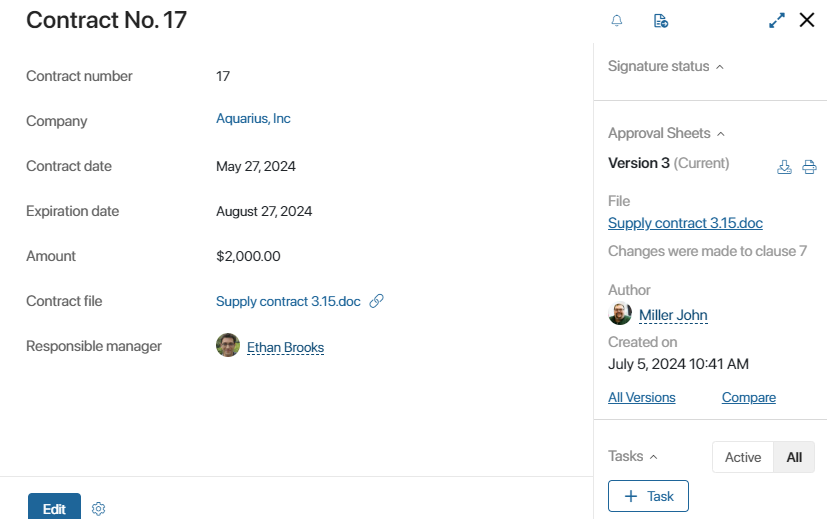
File versioning details
New file versions are added depending on the field settings the administrator chose and on how the file is uploaded:
- If the field accepts only one file, replacing the existing file saves the uploaded file as a new version of it.
- If the field accepts multiple files, uploading a file with the same name and format as an existing file adds it as a new version.
- If a file is written to the field during a business process or script run, no new version is created when the file is identical to the latest version.