In BRIX, you can track your company's financial resources, forecast revenue, monitor your sales team's current performance, and adjust revenue plans based on employee results. For these actions, you can use the Incoming Payments workspace.
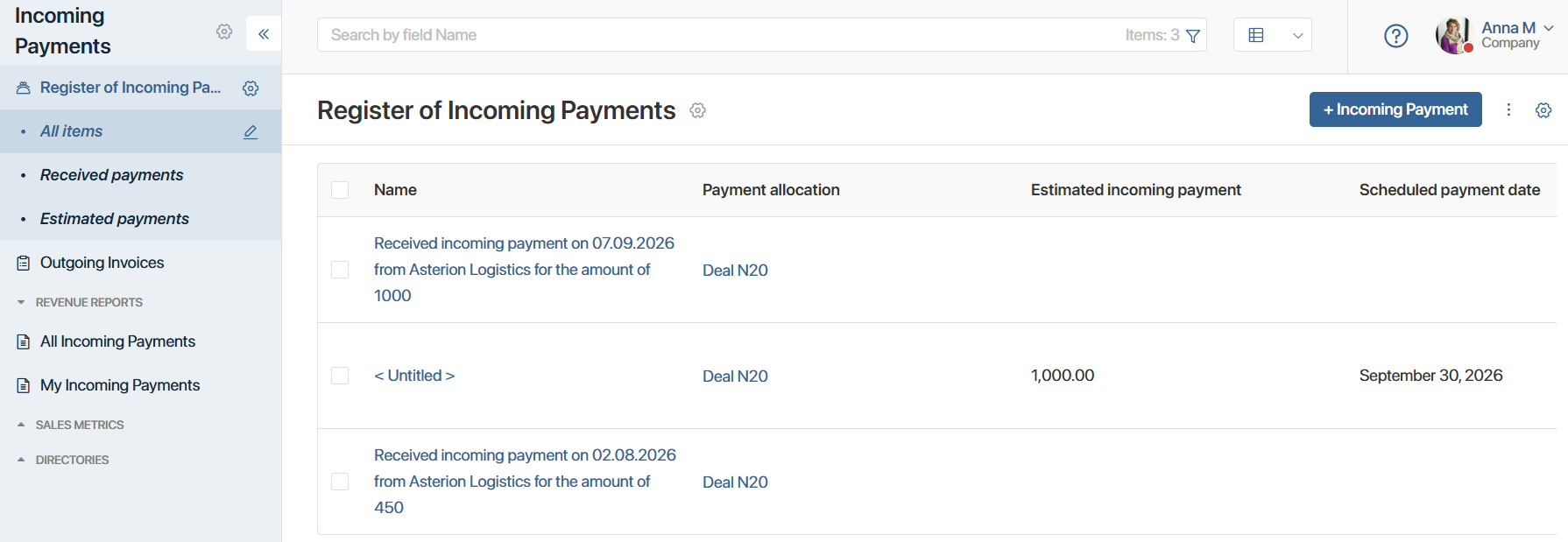
How the workspace is organized
The workspace includes:
- The Register of Incoming Payments app, which stores records of all the company's estimated and actual incoming payments.
- The Outgoing Invoices app, where invoices for contractors are generated and stored.
- Revenue Reports, which show statistics on the achievement of financial goals in clear charts and tables built from data in the Register of Incoming Payments and Sales Goals apps. These reports include:
- The All Incoming Payments page: statistics on all sales goals and incoming payments for company executives.
- The My Incoming Payments page: individual metrics for employees included in sales teams.
- The Sales Goals app, where the company's sales plans are created for a specific period. Goals can be set at three levels: for the company, for a sales team, or for an individual employee.
- The Revenue Items directory, which stores records of the ways funds are received. Revenue items are used to group incoming payments within the workspace, for example, by type of service provided.
- The Responsibility Center directory, which stores information about the financial responsibility centers that manage the company's cash flow.
- The Currencies directory, which stores records of the currencies the company works with. Added currencies are used when creating a new incoming payment, as well as for setting sales goals and generating outgoing invoices.
- The Payment Allocation contract, where you add and configure the apps that can be used to create incoming payments.
Initial workspace setup
Before you start working in the workspace, complete the following setup:
- Make sure that in the CRM workspace, the Sales Teams directory is filled in, and that all users who will work with incoming payments are included in groups according to your company's organizational structure.
- Add apps for payment allocation to limit the list of apps that can be used to create a planned incoming payment.
- Specify the currency that will be used as the default in the workspace, for example, dollars.
- Select the period that will be used to generate sales goals.
- Add the Revenues widget to the view form of the payment allocation app.
- Fill in the Revenue Items, Responsibility Centers, and Currencies directories, as well as Sales Teams.
Working in the workspace
Once the workspace is set up, the workflow looks like this:
- A manager, for example the CFO, creates long-term goals for revenue for the company, its departments, and individual employees.
- A sales manager creates an estimated incoming payment to plan their work according to the personal and overall sales goals set. Incoming payments can be added for items in any app in the system, for example, deals or contracts. The item's page will show all payments planned and received from the contractor.
- The accountant then creates an outgoing invoice to send to the contractor for payment of the estimated incoming payment.
- Once the client submits payment, a received incoming payment is created and linked to the estimated one.
- You can view the results for the selected period and current progress toward sales goals in the income reports.
This lets employees indicate the likelihood of payment, track payment stages, monitor outstanding debts, and keep a history of income received.