Currency and Period Settings is a settings page where users of the Administrators group can:
- Select the currency to be used when creating incoming payments and outgoing invoices for a contractor.
- Specify a period for planning and setting sales goals in the company.
By default, the currency is set to Dollar, and the period is set to Month. To change these settings:
- Open the settings page in one of the following ways:
- Go to Administration > Currency and Period Settings.
- To the right of the Incoming Payments workspace click the gear icon and select Currency and Period Settings.
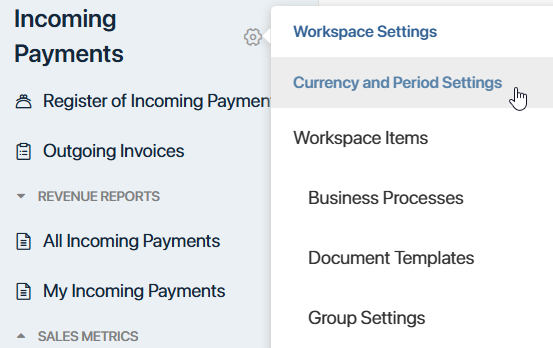
- On the page that opens, specify the settings:
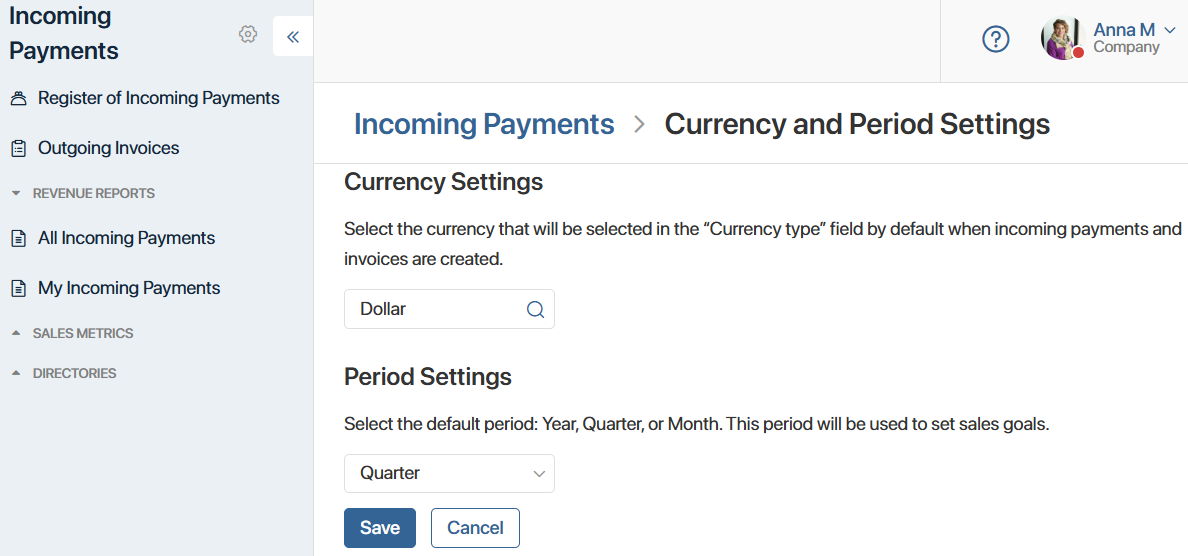
- Currency Settings. Select a currency from the list that will be set as default on the creation forms of incoming payments and invoices. You can select app items from the Currencies directory.
Note that changing the base currency resets the exchange rates set for other currencies. To update them, go to the Currencies and edit all its app items.
- Period Settings. Select the period from the drop-down list that will be used to create sales goals. The available options are Year, Quarter and Month.
- Click Save.
The selected currency will then be displayed in the Currency type field on app item creation forms. Users can manually change the field value on the form by selecting a currency from the drop-down list. All currencies stored in the Currencies are available for selection.
The period selected in the settings will be displayed on the sales goal creation form. This value cannot be changed manually.