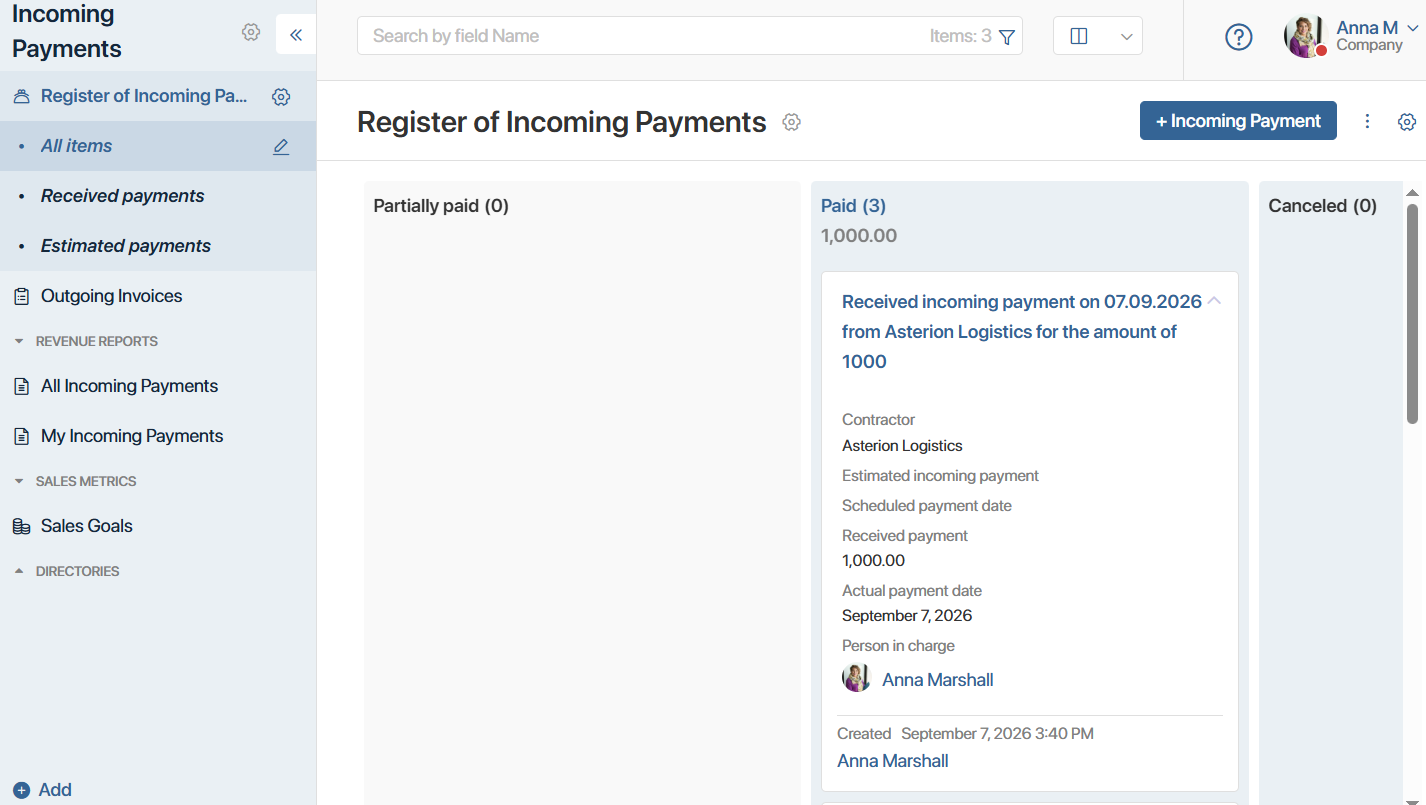
The Register of Incoming Payments app contains all planned and received payments created from items in source apps, such as deals or contracts.
Using the folder tree configured in the app, all payments are sorted into the following pages:
- Estimated payments. Planned payments from customers. Created by sales reps to track personal sales goals.
- Received payments. Payments added when a payment is partially or fully paid. They are used to generate revenue reports and analyze sales team performance.
- All items. All created planned and actual incoming payments.
Displaying incoming payments
By default, all incoming payments are displayed as a table showing the incoming payment source, amount, payment date, and responsible sales rep. You can configure the table display to add columns or change sorting settings.
You can also display incoming payments as tiles and a Kanban board, which provides a clearer view of the status of each record:
- Pending. Payment is expected.
- Partially paid. A partial payment has been made.
- Paid. The customer has paid the full amount.
- Canceled. A canceled estimated payment for which no received incoming payment was created by the estimated payment date.
Users of the Administrators group can edit and add new incoming payment statuses and enable manual status changes from the payment page. For more information, see Status field.
Create an estimated payment
- You can schedule a payment from a contractor in two ways:
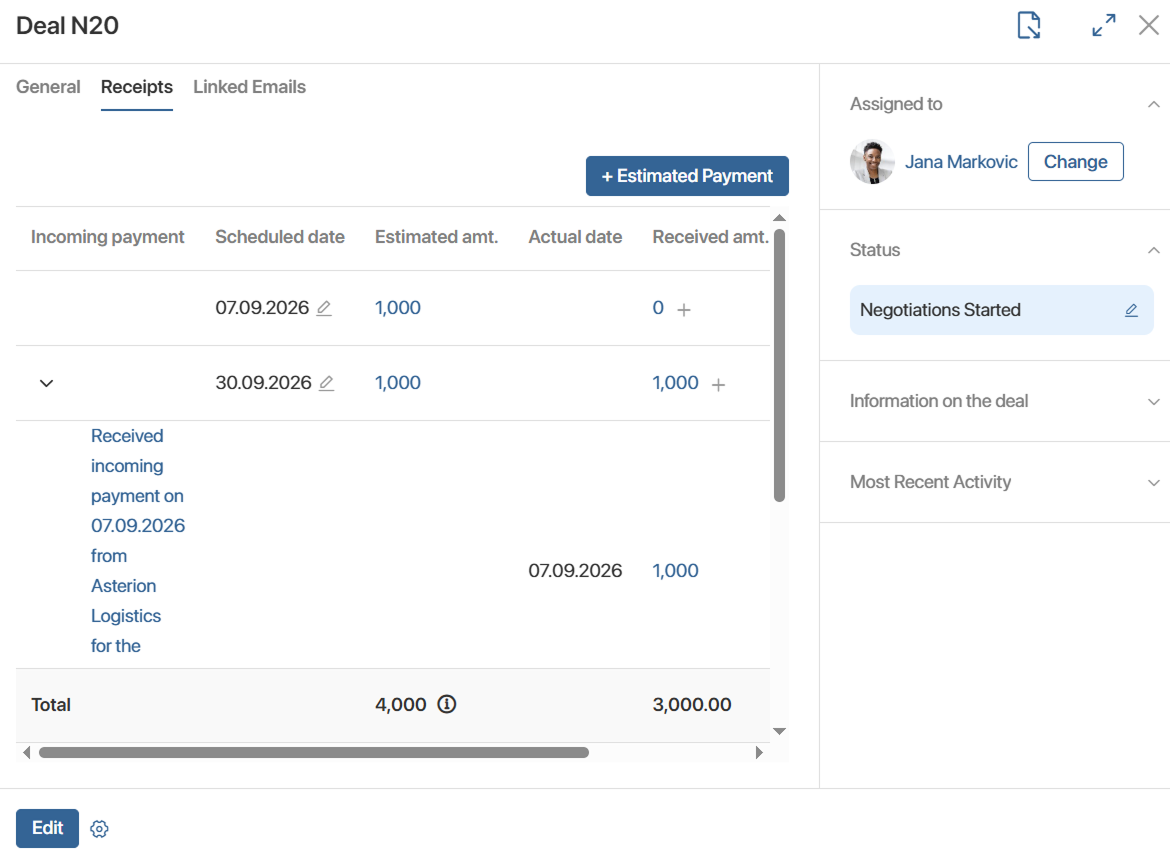
- Go to the Revenues tab, and click + Estimated Payment.
- Open the source item page and click + Estimated Payment.
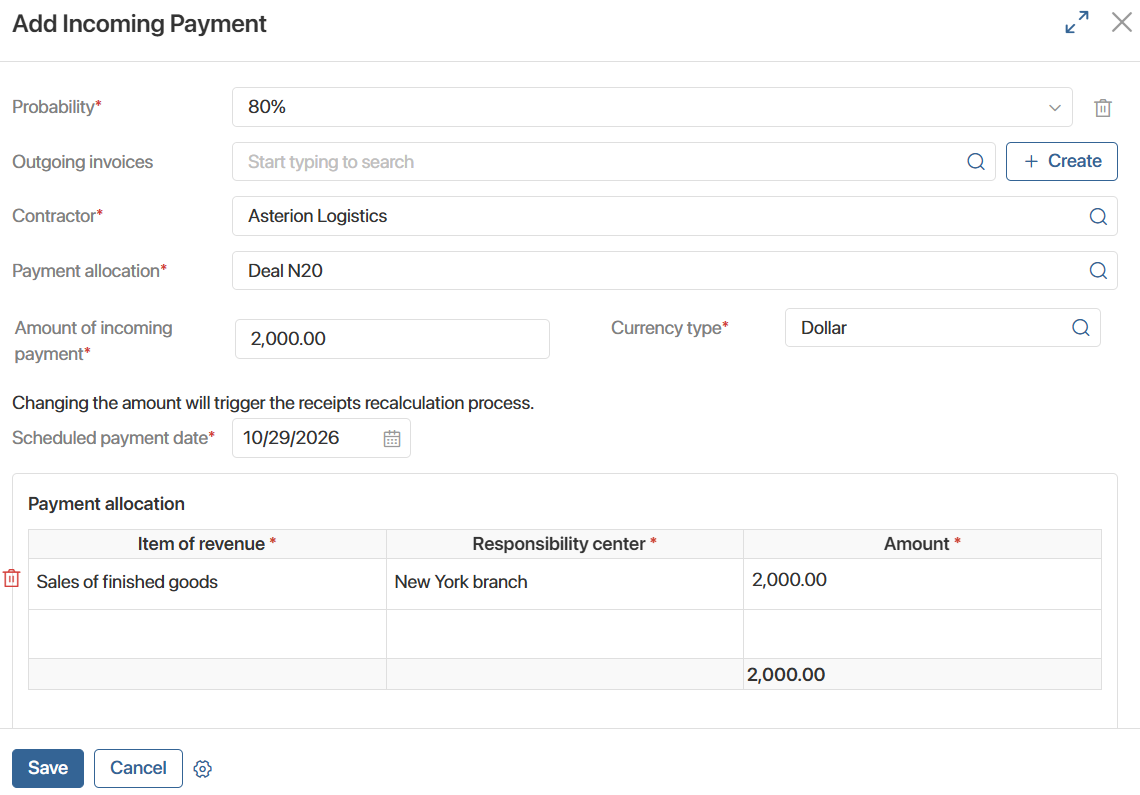
- In the window that opens, fill in the fields:
- Estimated/Received*. Select Plan. Additional fields will appear on the form.
- Probability*. Enter the probability of receiving the payment from the customer as a percentage.
- Outgoing invoices. Click the magnifying glass icon and select a record from the Outgoing invoices. Or click + Create, to add a new app item. You can specify multiple invoices in the field or leave it empty and add an invoice later when creating a received incoming payment.
- Contractor*. Click the magnifying glass icon and select a contractor record from the Companies.
- Payment allocation*. Click the magnifying glass icon and select the source app item for which you are creating the payment.
- Amount of incoming payment*. Enter the payment amount from the customer.
- Currency type*. The default currency configured in the workspace settings is entered automatically. You can edit it by selecting a record from the Currencies directory.
- Scheduled payment date*. Specify when the payment from the customer is expected.
- Payment allocation. Enter the payment details in the table columns. Click the magnifying glass icon in the Revenue item* and Responsibility center* columns and select records from these directories. Then fill in the Amount*. Enter the full payment amount in the table. A single planned payment can be allocated across multiple revenue items and responsibility centers.
- Person in charge*. Specify the person responsible for the payment. The current user is selected by default.
- Click Save.
The created item will appear in the Register of Incoming Payments app with the Pending status.
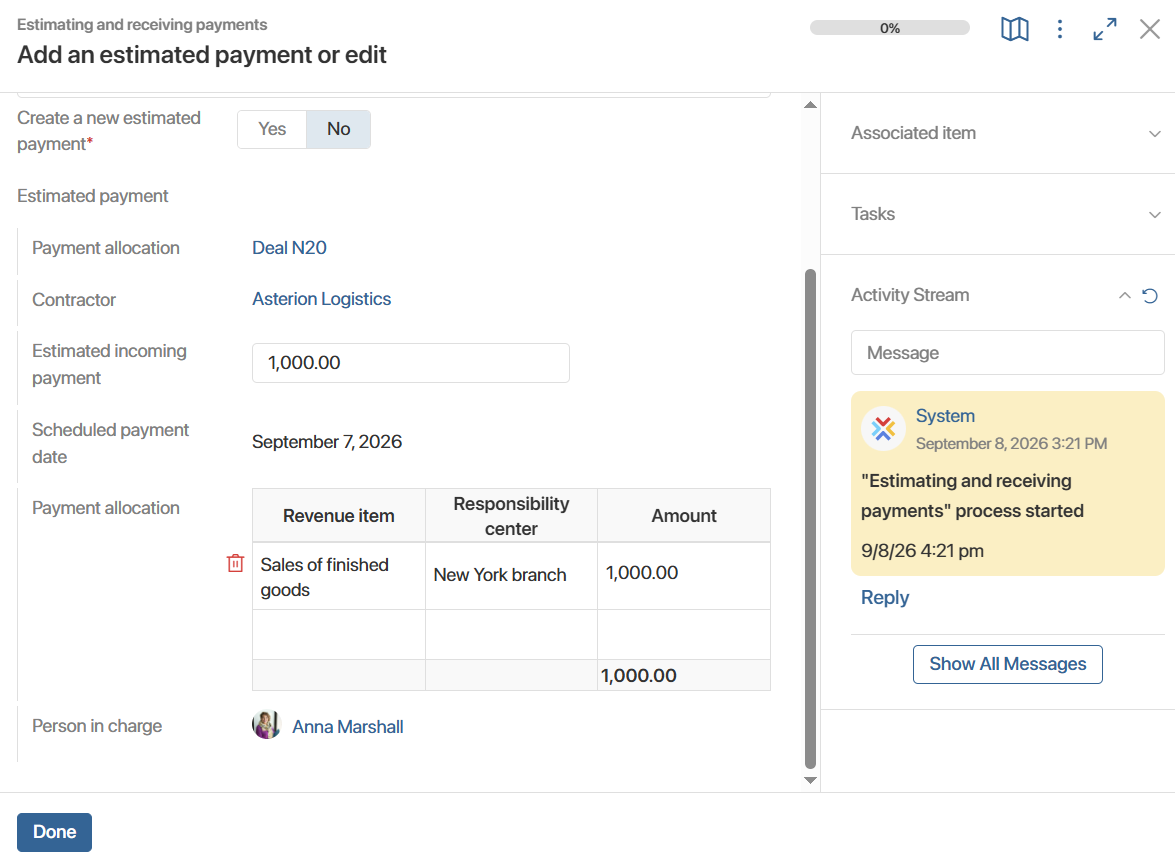
The responsible sales rep will also receive a notification that the process has started: Estimating and receiving payments. During the process, the system checks that an actual payment and invoice have been created. For more information, see Payment processing process.
Create a received incoming payment
A received payment is linked to an estimated payment after the customer makes the payment.
- You can add a received payment in two ways:
- Go to the Register of Incoming Payments app and click + Incoming Payment.
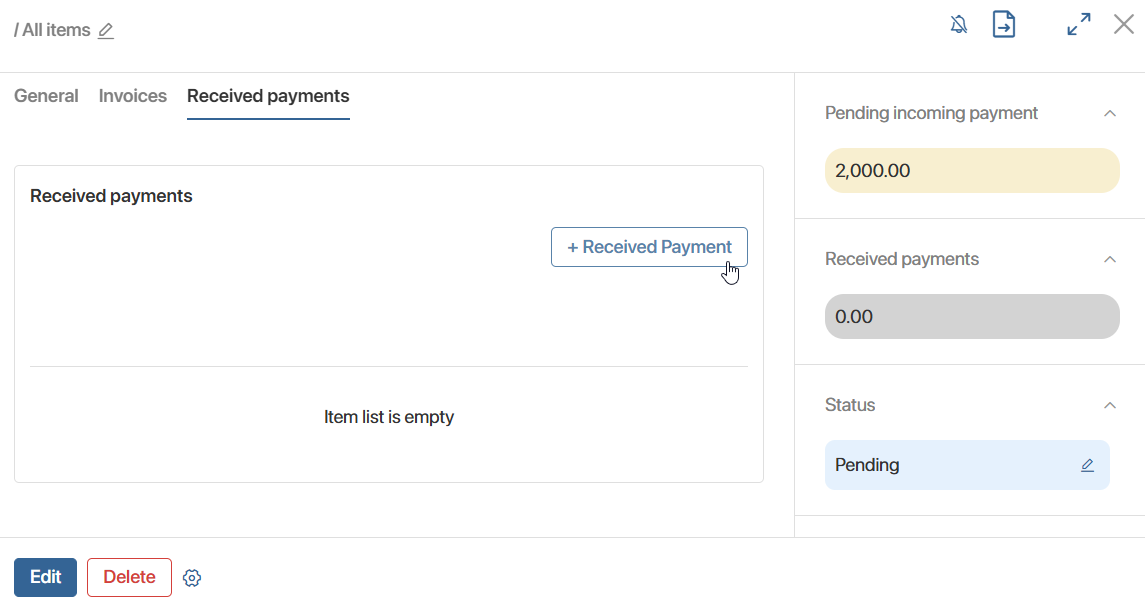
- Open the estimated payment page, go to the Received Payments tab, and click + Received Payment.
- The form that opens is similar to the estimated payment creation form. Fill in the received payment details:
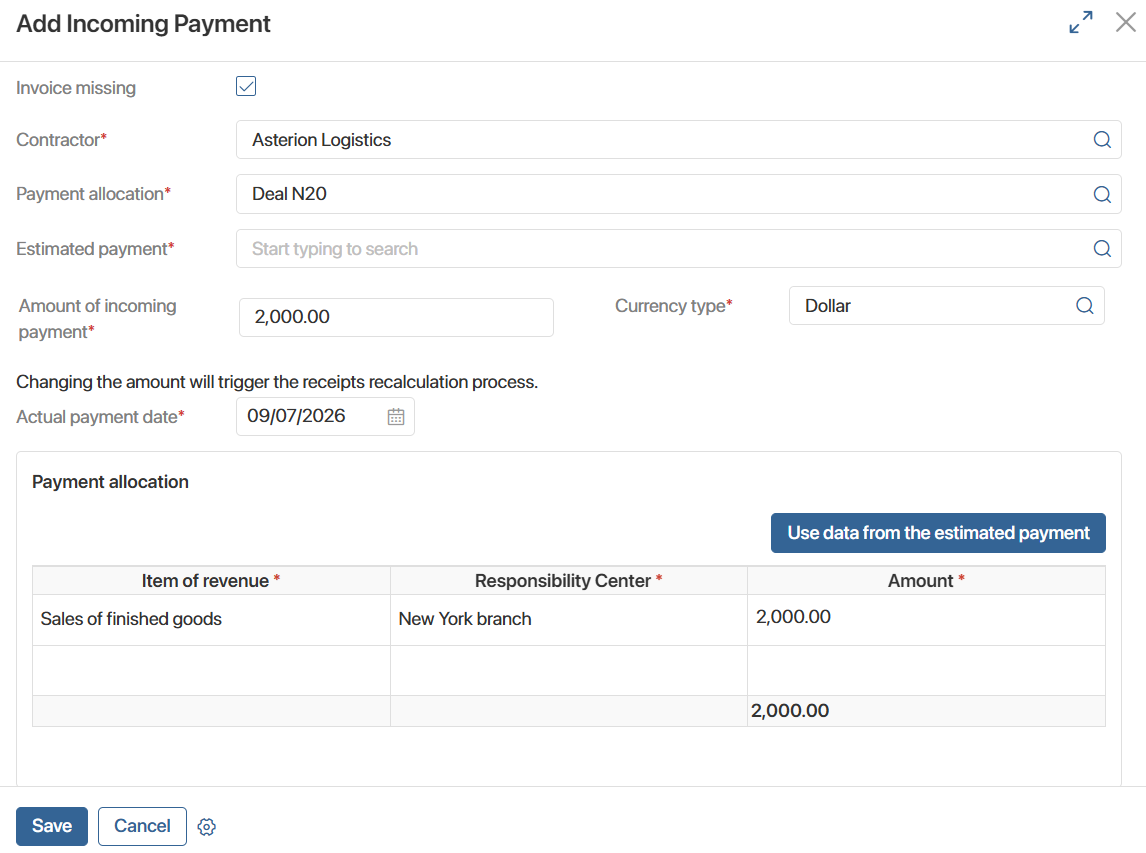
- In the Estimated/Received* field, select Received. If the payment is created from the estimated payment page, the field is filled in automatically.
- In the Invoice filed, click the magnifying glass icon and select the app item from the Outgoing invoices app or add a new item by clicking +Create.
- If the invoice has not yet been issued to the customer, select Invoice missing. In this case, enter the payment details manually.
- In the Actual payment date*, the current date is entered automatically. You can edit the date.
- Fill in the columns in the Payment allocation table. If the actual payment, its revenue item, and responsibility center match the data specified when the payment was planned, click Use data from the estimated payment.
- In the Person in charge* field, the current user is entered automatically. You can change this value.
- Click Save.
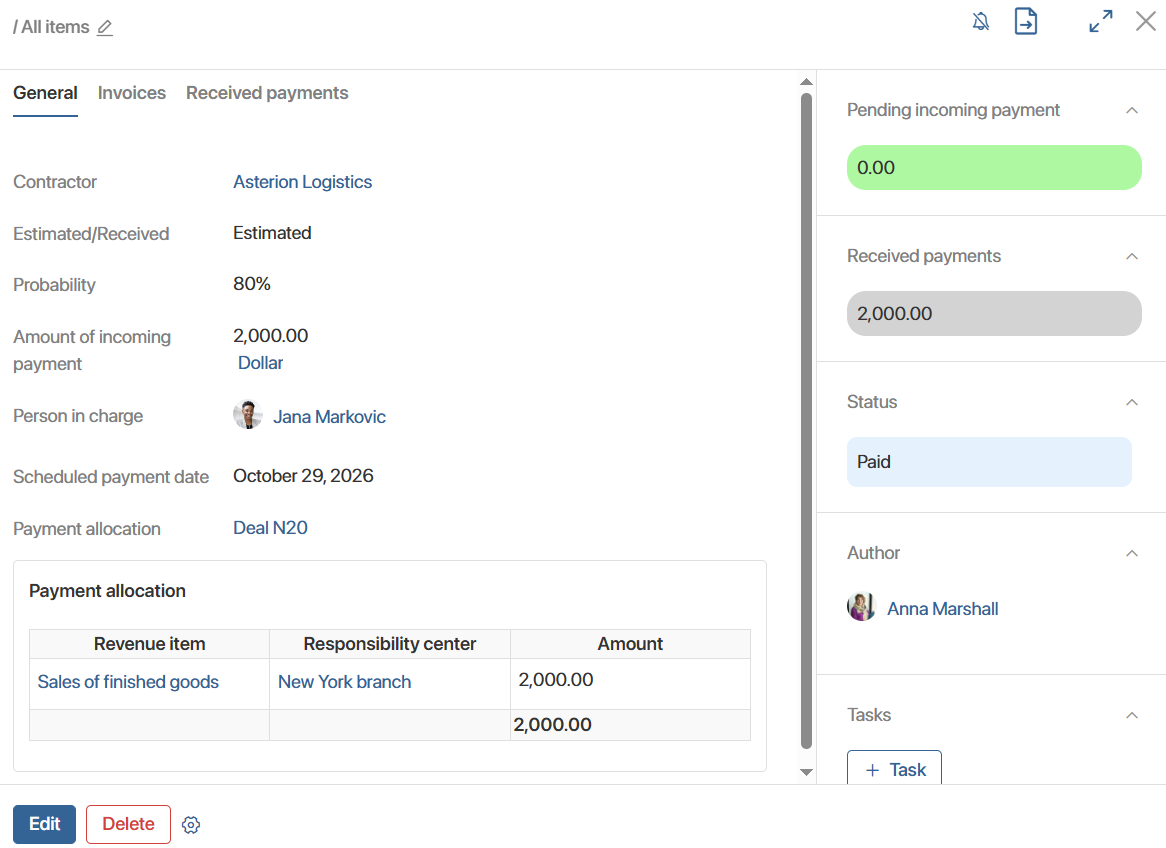
The created item will appear in the Register of Incoming Payments app, as well as in the linked estimated payment page.
The sales rep who created the received payment will receive a notification when part or all of the planned amount is paid.
Depending on the amount paid by the contractor and allocated by the sales rep, the actual receipt will have the status Partially paid or Paid. You can view it in the register of incoming payments and in the side panel of the linked estimated payment.
Edit an estimated payment
Users with editing permissions can change payment parameters. To do this, open the payment page and click Edit.
Payment processing process
When an estimated payment is created, an instance of the preconfigured Estimating and receiving payments process starts. During the process, the employee responsible for the receipt will receive the following tasks and notifications in #Activity stream:
- A notification that the process instance has started.
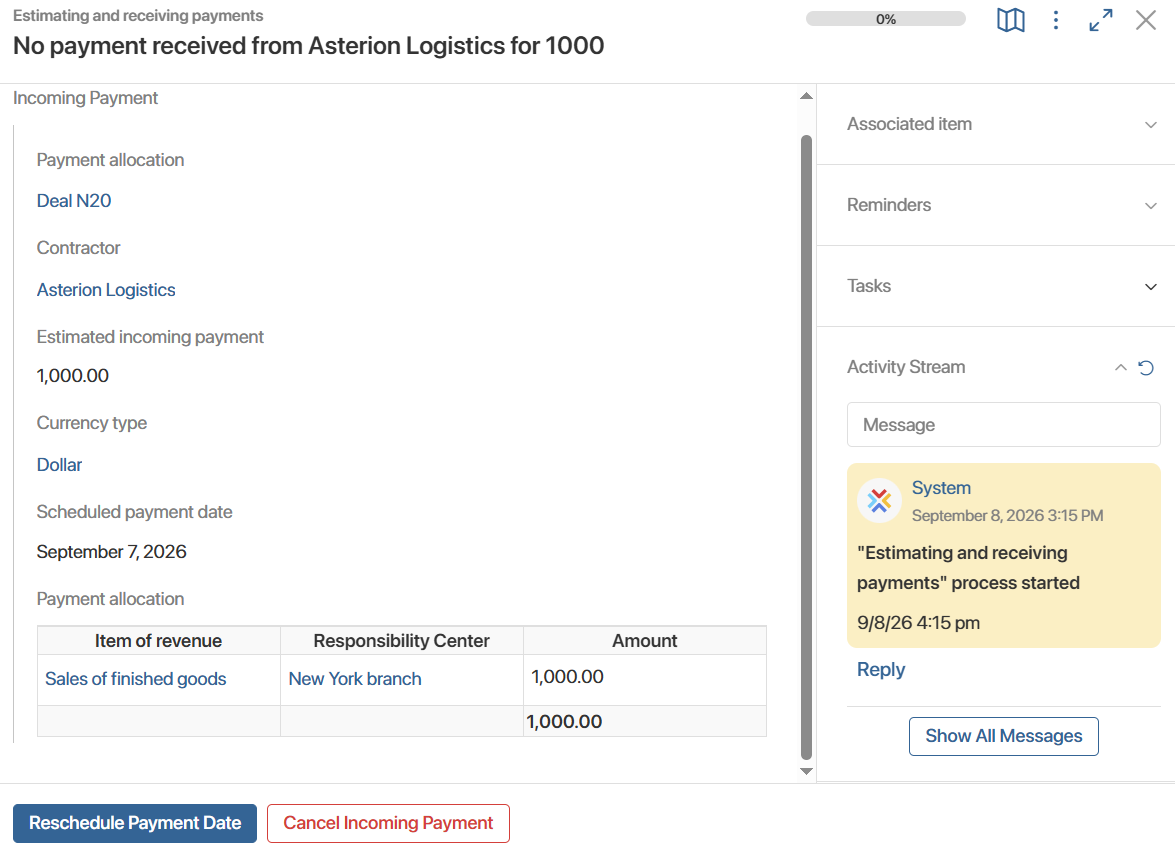
- If no received payment has been created, by the planned date, the employee will receive a monitoring task. They can change the payment date or cancel it.
- A notification that the payment has been fully or partially paid when a received payment is created.
- If the received payment amount exceeds the estimated amount, the responsible person receives a task to modify the estimated payment or create a new one.