Payment allocation is an app in the system whose items you can use to schedule incoming payments. The Receipts widget on an item page displays both estimated and received payments associated with that item.
By default, the Deals app is set for payment allocation. When you finalize a deal, you can create an estimated incoming payment for it. It will appear on the deal's page, on the Receipts tab, and in the Register of Incoming Payments app.
Set up an app for payment allocation
You configure payment allocation apps using the Contract which can store items from different apps in a single interface. Apps added to the contract become sources.
начало внимание
Only users of the Administrators group can add source apps to the Payment Allocation contract.
конец внимание
To add a new source to the Payment Allocation contract, follow these steps:
- In the Incoming Payments workspace, go to the Payment Allocation app and click the gear icon to the right of its name.
- From the menu, select Source settings. On the page that opens:
- Add any app in the system to the contract. To do this, click Select App and choose an app from the list.
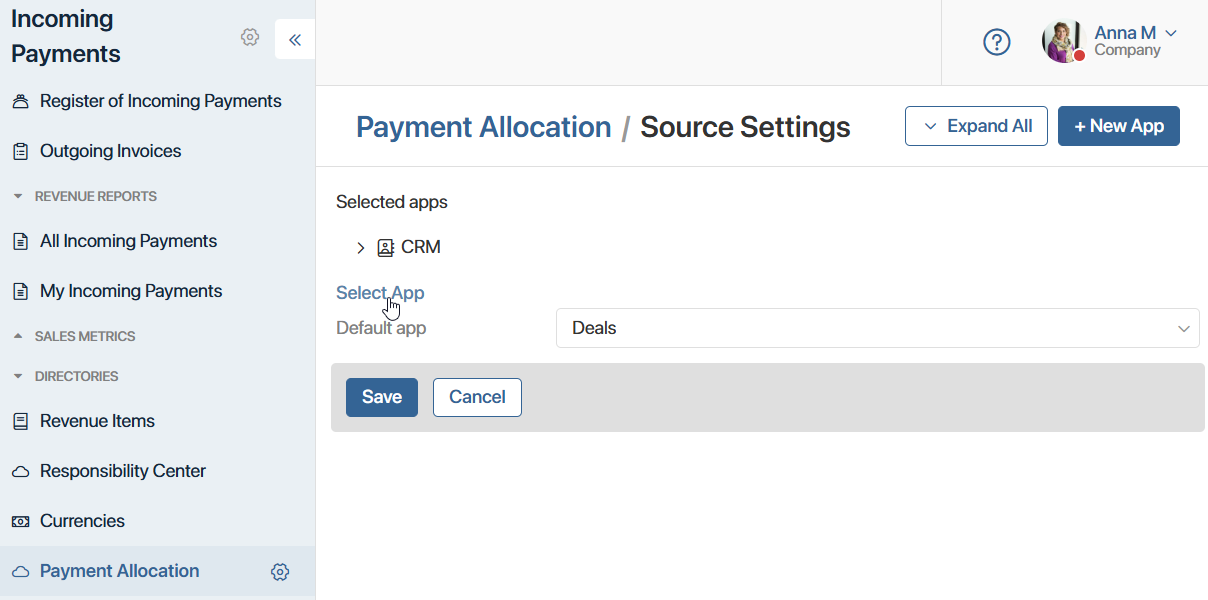
- Or create a new app, by clicking the + New App button. It will be added to the Incoming Payments workspace and become a source. This app's fields will be similar to the contract fields and will automatically map to them.
- Map the fields of the existing app to the properties of the source app. To learn more, see Add a source app.
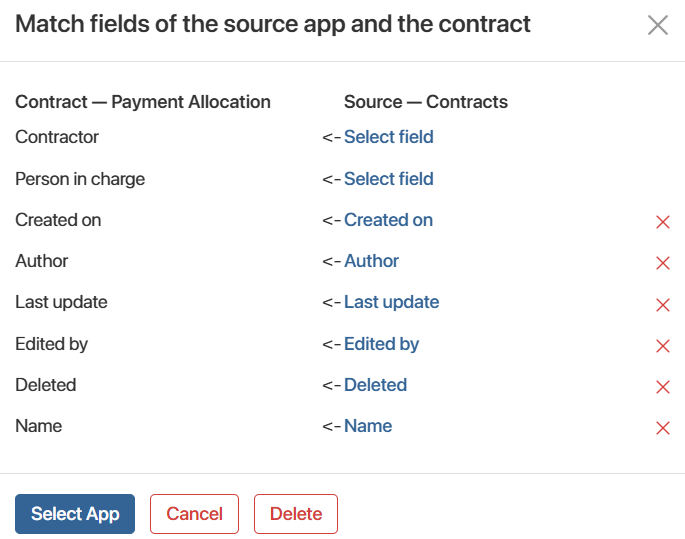
- Click Select App.
Linked apps will appear on the Payment Allocation > Source Settings page.
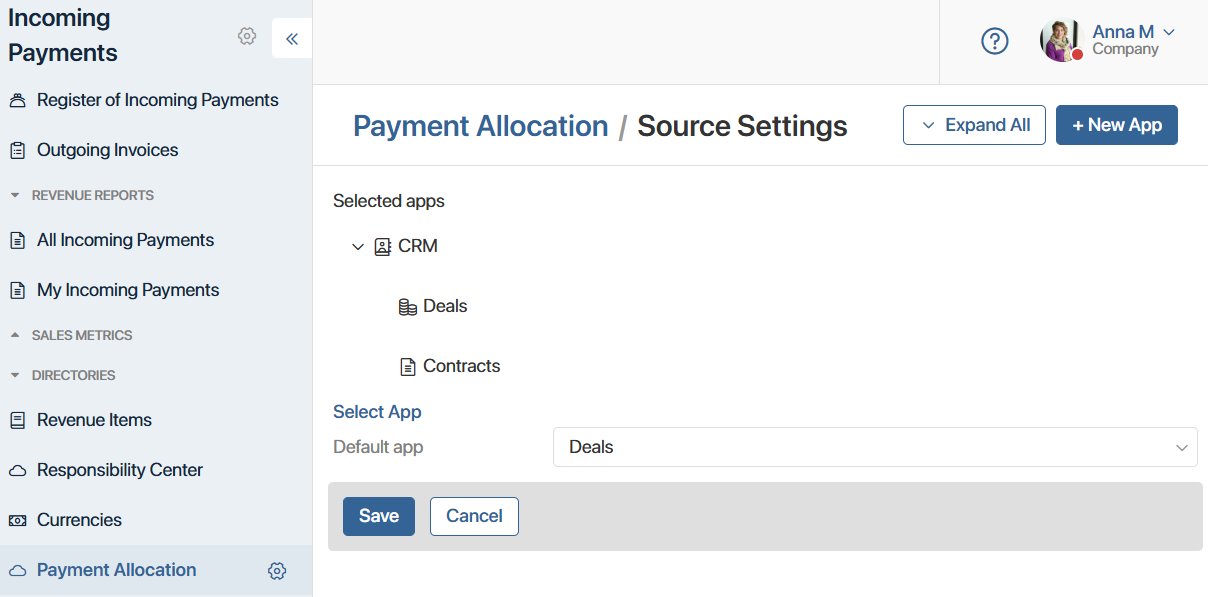
You can add an unlimited number of sources to the contract.
Note that the source app's fields must match the contract's properties by type. If you didn't map all the fields when adding a source, or mapped some of them incorrectly, that source will be highlighted in red in the list of apps. To fix this, click the app in the list to return to the field-mapping window and check your settings.
- Click Save.
The items from the added source app will now appear on the contract page. When you create items in the source, they will be automatically added to the contract.
Remove a source
To unlink a source app from the contract, open the field-mapping window as described above and click Delete.
If you delete the app from the workspace where it was created, its items will no longer appear in the contract. However, all existing incoming payments created under the deleted basis will remain in the system.