If a connection to a messenger or email fails, new messages will not reach the live chat, and replies will not be sent to customers.
Re-establishing the connection depends on the channel type:
Whether you can receive messages sent while offline depends on the channel and the reason for disconnection.
Reconnect a messenger
Here is how to restore a channel connection. The steps vary depending on how the disconnection occurred: with an error notification or without a detected error.
Refresh connection when an error is detected
The system administrator receives a notification in their #Activity stream when a messenger connection fails. To restore the connection:
- Go to Administration > Live Chats and open the live chat settings.
- On the Messengers and Inbox tab, click the pencil icon next to the channel with the error.
- In the window that opens, click Connect.
Refresh connection without a detected error
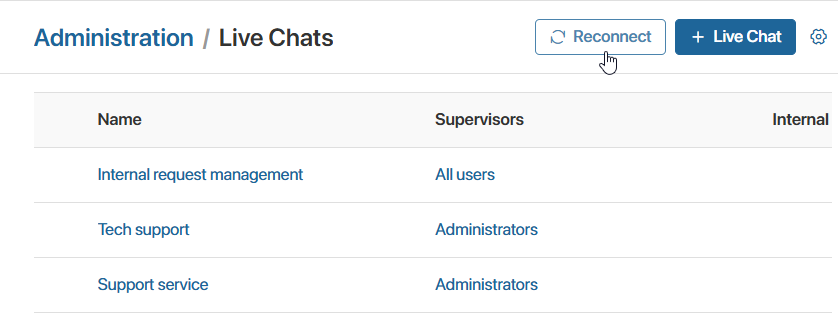
If you did not receive an error notification, but the live chat stopped receiving messages from the messenger, refresh all connections.
To do this, go to Administration > Live Chats and click Reconenct.
Receive missed messages
Once the connection is restored, whether you receive messages sent while disconnected depends on the channel:
- For WhatsApp, TelegramBot, and custom messenger channels, accumulated messages will not be delivered to the live chat.
- For Telegram, messages sent in the last 24 hours will arrive in the live chat.
Reconnect email
Email connections restore automatically after temporary glitches. Additional actions are required if:
- The channel status changed to Error.
- The connection broke due to a password change in the email service.
Refresh email connection when an error is detected
In BRIX On-Premises, you can configure the email reconnection frequency and attempt limits in the mailer service parameters. If these limits are exceeded, the channel status in the live chat settings changes to Error.
In this case, the system administrator receives a notification in their activity stream. To restore the connection, follow the same steps as for refreshing a messenger connection when an error is detected.
Refresh email connection after password change
If you change your password in the email service, the connection drops because the email connection settings still store the old password.
To restore the connection and deliver emails sent during the outage to the live chat:
- Open the Messengers and Inbox tab in the live chat settings.
- Wait until automatic reconnection attempts finish and the channel status changes from Active to Error.
- Click the pencil icon next to the channel and enter the new password in the connection settings.
- Click Connect.
Receive missed emails
Here is when accumulated emails are delivered to the live chat after connection recovery:
Emails will reach the live chat |
Emails will not reach the live chat |
|
|
|
|
|
|
If emails do not arrive, check the server logs for the mailer service for the period of the outage. Make sure automatic reconnection is running.
To receive error notifications faster, configure the mailer service settings as follows:
- reduce the reconnection check interval in the ELMA365_MAILER_DLM_CHECK_CONNECTIONS_SECONDS parameter.
- reduce the number of attempts in the ELMA365_MAILER_IMAP_MAX_RECONNECT_ATTEMPTS parameter.