You can configure multiple channels in a live chat to communicate with customers and partners, including various messengers, like WhatsApp, and email.
If a channel is no longer needed, system administrator can remove it from the live chat settings.
Delete a channel from a live chat
- In the live chat settings, on the Messengers and Inbox tab, click the trash can icon next to the channel name.
- In the window that opens, specify whether to delete the sessions created through the channel along with it.
- Click Delete.
A deleted channel cannot be restored, but information about it is retained in the system and remains available for viewing.
View data for a deleted channel
You can view information about a deleted channel, for example, to copy its settings when creating a new channel.
If a live chat contains deleted channels, you will see the Deleted tab above the list of all channels. Here you will see:
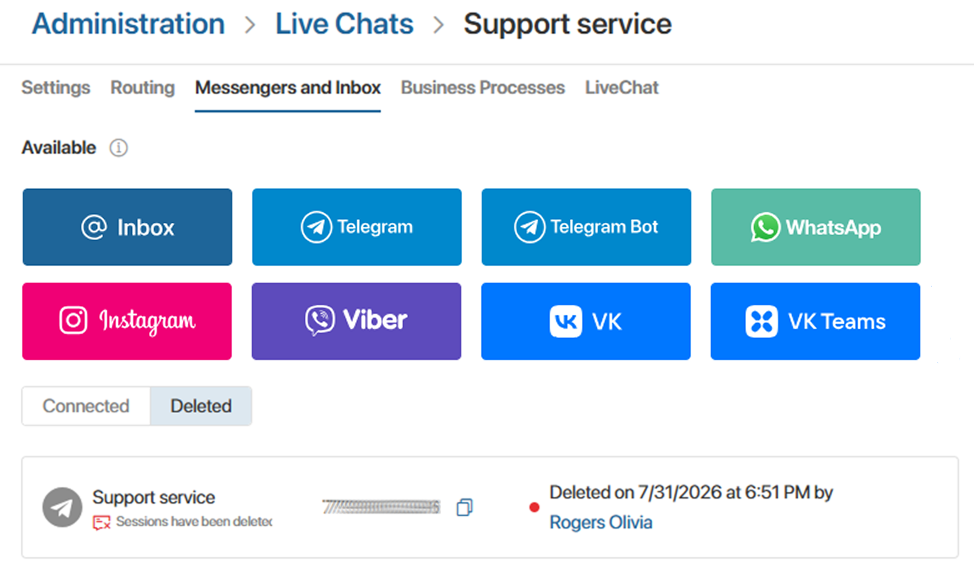
- Whether sessions from the channel were retained or deleted.
- Connection details, such as an email address, phone number, and so on.
- Who deleted the channel and when.
View sessions from a deleted channel
If you retained the sessions when deleting the channel, they are automatically closed and available for viewing only. Employees who have access to a session can:
- Find it by name using the search in the Live chats workspace.
- View the conversation from the app item page linked to the session if the app form contains the configured Live chat messages widget.
Users can view messages and session information, but they cannot continue the conversation, add data to the request page, start a business process for it, and so on.
Additionally, when you reconnect a Telegram account to the same live chat, the chat history from closed sessions is synchronized. Operators will see messages from the deleted channel in new sessions with the customer, but they won’t be able to quote those messages. If you connect the account to a different live chat, the chat history won’t be transferred.