The Activities tab on the Reports and Charts page shows how employees’ estimated time compares to their actual time worked. Here you can also view shift types and schedules for the selected period. The report consists of three tabs.
Report
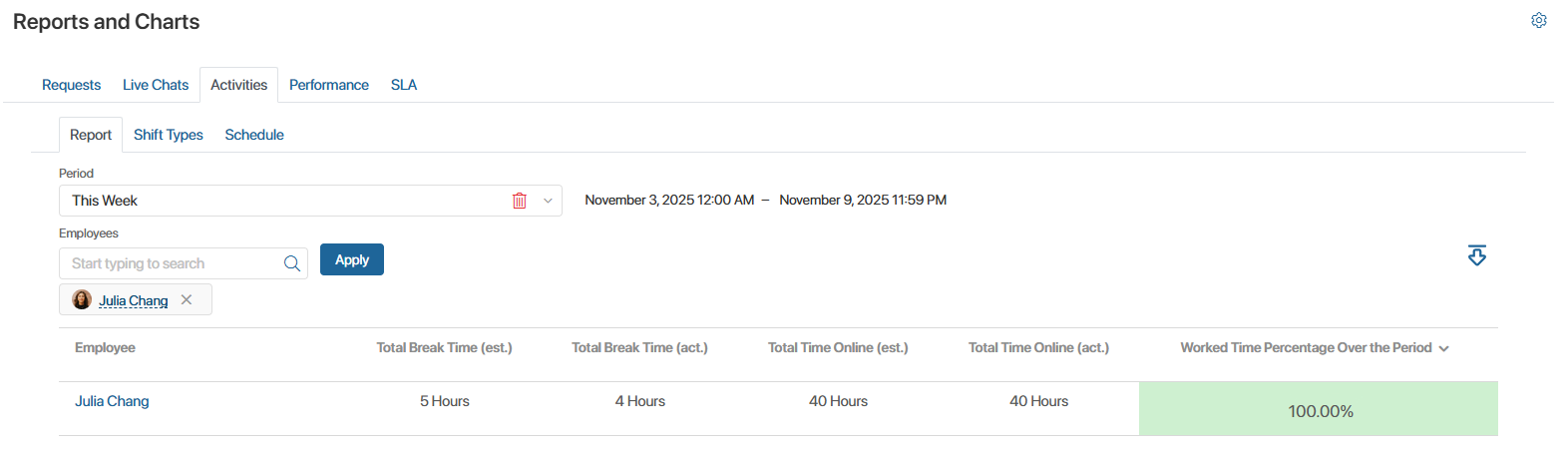
This is a basic report for comparing estimated and actual employee working hours. It includes:
- Planned working and rest time calculated from the employee’s work schedule.
- Actual hours worked by the employee, calculated from the activities marked on the main page.
The percentage of time worked is calculated based on the ratio of estimated and actual work and rest time.
By default, the report is generated for all employees for the current week. You can select a different period or set it manually, as well as view the work statistics for a specific employee. To do this, select the user and click the Apply button.
To download the report to your computer in .xlsx or .pdf format, click the  icon.
icon.
Shift Types
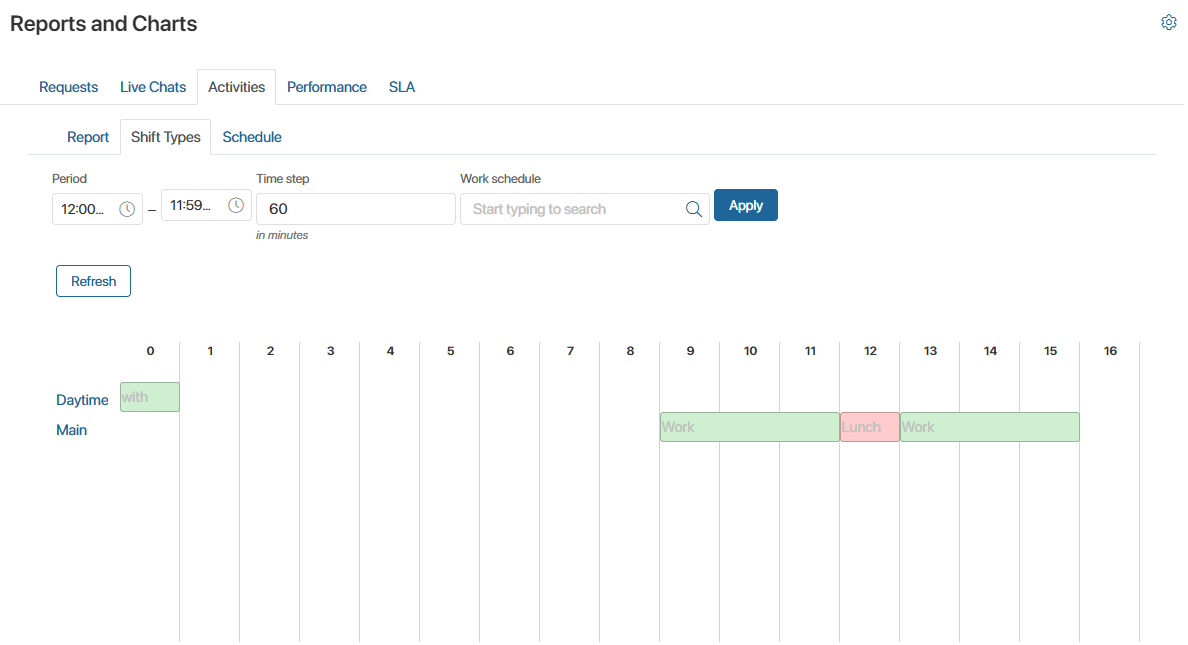
On this page, you can manage the working shift types that are used to create employee work schedules.
Shifts are created in the Shift Types app and represent work and non-work activities that are distributed by the hour throughout the day.
The report timeline displays all activities for each shift. This is useful if you need to visually compare all existing shifts with each other.
You can:
- Edit the shift type by clicking on its name.
- Change the activities allocation throughout the day by moving them along the scale.
- Decrease or increase the activity duration. To do this, click on the activity and enter its duration in minutes in the window that opens.
To save the changes you have made, click on the Save button at the top of the page.
Please note that changes to the shift type will be reflected in the work schedule, but will not affect the schedule according to which the employee works. This allows you to manage shifts without changing work processes.
For example, you are only planning to transfer employees to new working hours. In this case, you can view all existing shift types in the report and adjust them. To apply the changes to the schedule, assign updated work schedules to employees.
For greater clarity, you can change the format of the report: specify the desired time period, change the time step, or select shifts for a specific work schedule.
Schedule
In this report, you can clearly view and compare the schedules that Customer Service operators work according to.
The timeline displays working and non-working activities, which are distributed by hours in a shift and assigned to an employee as a work schedule.
By default, the report displays the schedule for the current week for all company employees. You can select or set a different period, as well as generate a report for selected employees.
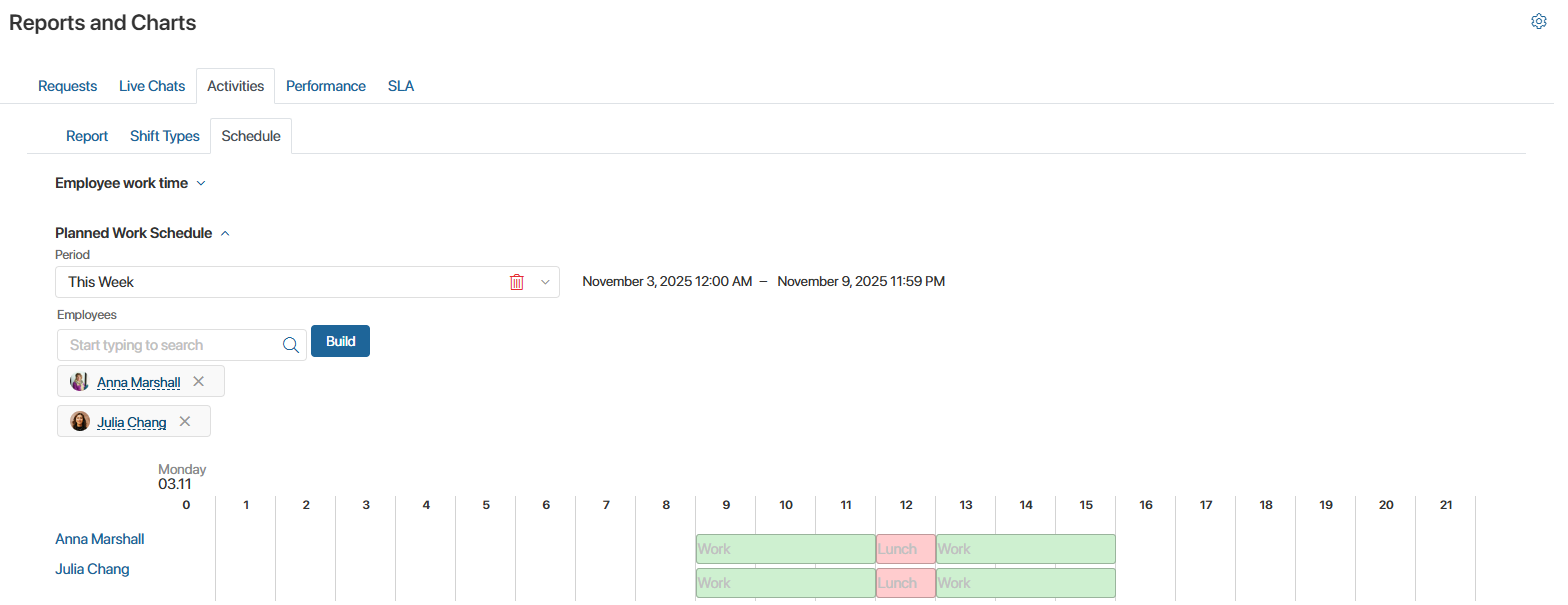
If necessary, changes can be made to the report. For example, some employees may need to come to work earlier or later than usual. You can move their activities along the scale, adjusting the start and end times of the working day. The changes will be reflected in the employees’ schedules, but will not affect their assigned work schedules.
To completely change the employees’ working hours, create a new work schedule, update and reassign the existing one, or use the Shift Types report.