The widgets are placed by default on task pages created from the Tasks workspace.
The executor is always displayed on the sidebar. Information about the previous executor appears if the task is manually reassigned or a substitution is set up for the initial executor.
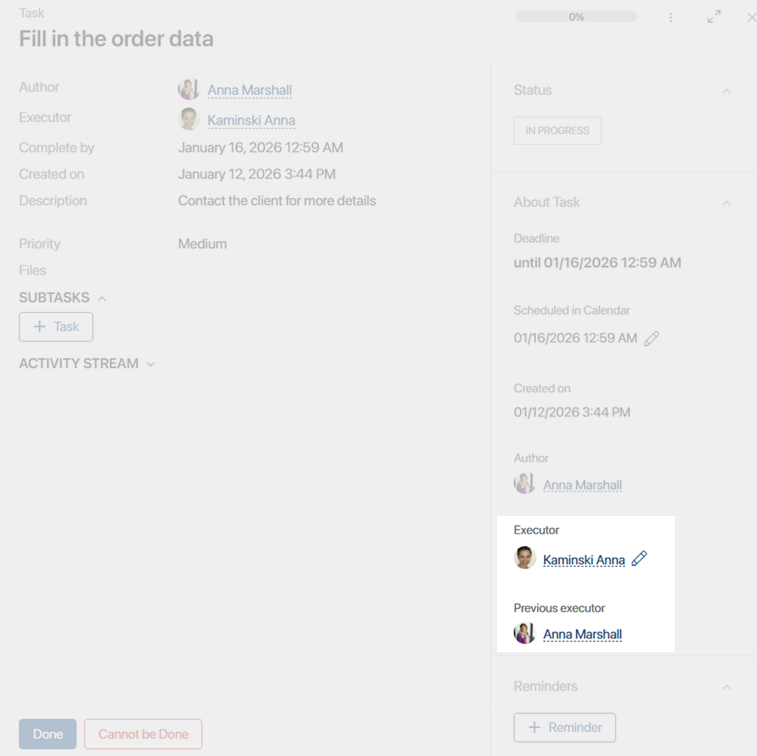
You can drag and drop widgets onto the task form which is assigned in the course of a business process.
Add a widget to a task form
You can configure both widgets in the same way. Let's see how to add a Task executor widget:
- Open the required business process in the designer. Double-click the activity in which you want to create a custom form, for example, the Task block.
- Open the task form template in the interface designer and drag the widget from the sidebar onto the modeling area.
- In the window that opens, you don't need to configure the Main tab. The Context field is intended for system processes, so leave it blank.
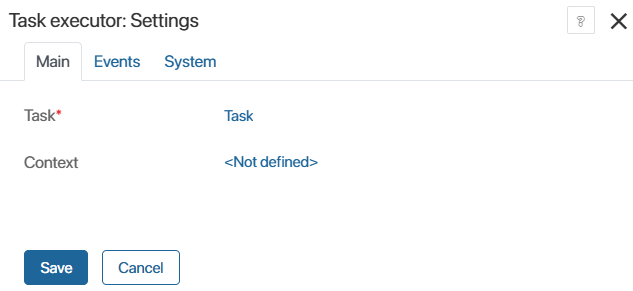
- On the Events and System tabs, you can change the widget's system settings.
- In the widget settings window, click Save. Then save and publish the business process.