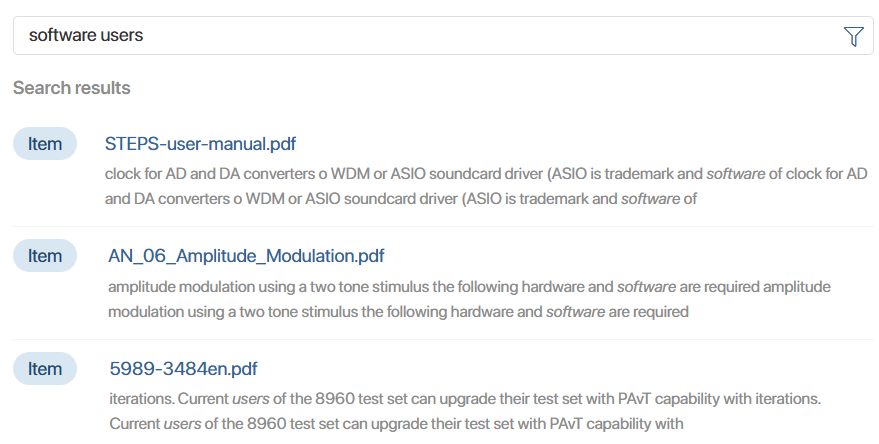
Full-text search is available to users on a page configured by the system administrator. For example, such a page could be located in a separate Full-Text Search workspace.
You can search for items in the apps selected by the system administrator when setting up the solution. The search results will display matching items from these apps to which you have access.
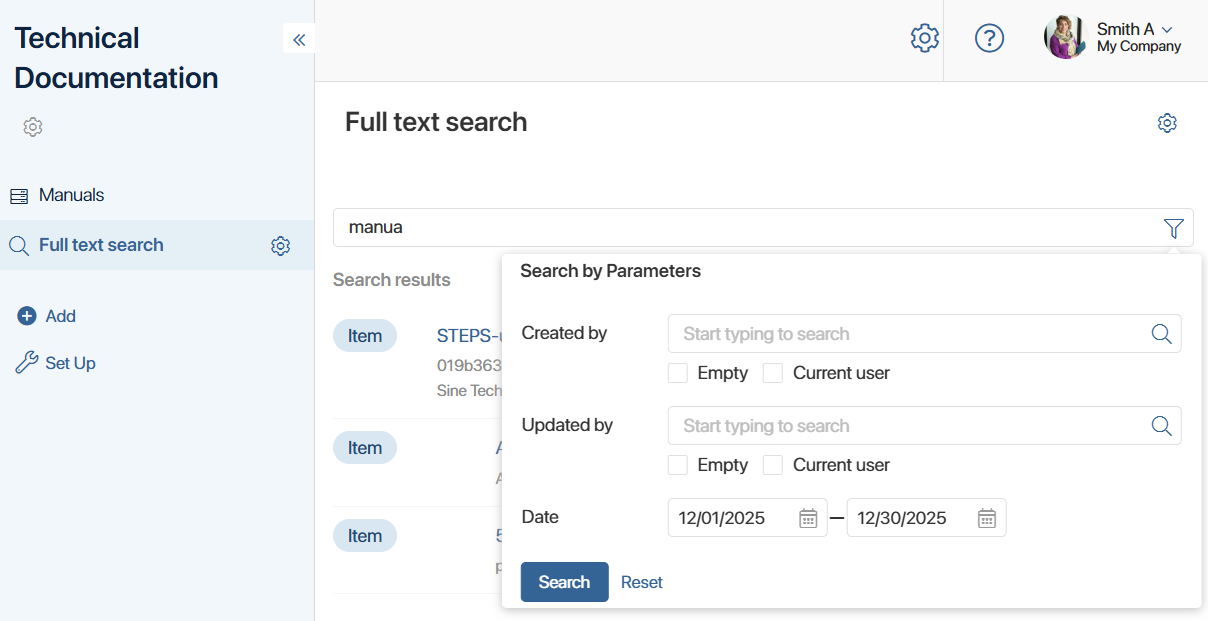
To perform a search, start typing a word in the search bar and press Enter. You can narrow down the search results using the following methods:
- Use a parameter filter, specifying the author of the item creation or update, or the item creation date.
- Search for matches only by full words, by disabling the Fuzzy search option in the filter settings window. By default, the search is performed by word fragments entered in the search bar.
The search results will be displayed as a list of links to documents with a brief excerpt for each containing the requested word. This text may appear in an app item field or within the body of a document. Click a link to open the document page.
If the required item is not among the results, refine your query by using a more precise multi-word phrase.
Please note that search results include close word forms, meaning the search is performed not only for exact matches but also for possible forms of the word.