After activating the solution, the following are available in the system:
- The settings page in the Administration workspace.
- The Full-Text Search widget.
Select apps and their properties for full-text search
Define which apps and their properties will be included in the full-text search. To add an app:
- Go to Administration > Full-Text Search and click + App in the upper right corner of the page.
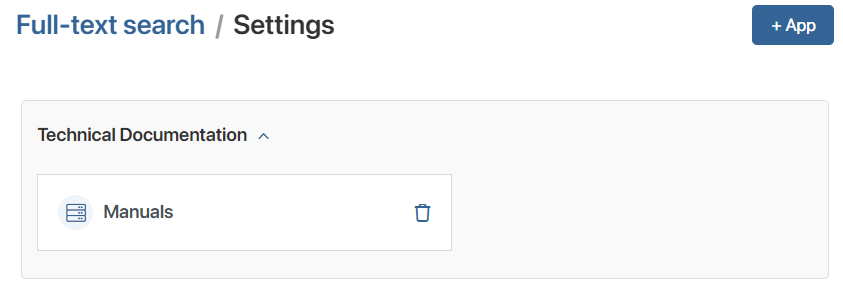
- In the window that opens, select the app whose items will be included in the search.
- A list of app properties will be displayed. You can exclude those that you do not want to use for full-text search, such as system properties.
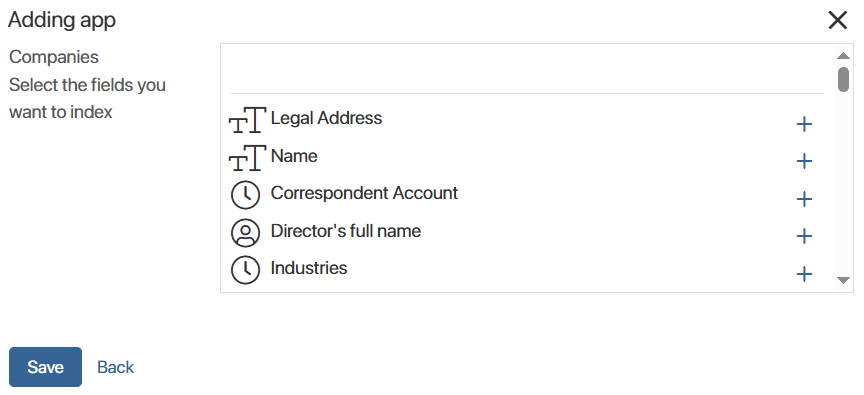
Please note that you cannot edit the list of indexed properties. To make changes, delete the app on the Administration > Full-Text Search page and then re-add it.
Create a page with a full-text search widget
After activating the solution, add a page with a full-text search widget in any workspace where users will find it convenient to search. For example, you can create a separate workspace with such a page. To do this:
- In the main left menu, add a workspace called Full-Text Search.
- Create the search page in this workspace.
- In the page settings, select Widget Builder. The page template will open in the interface designer.
- Drag and drop the Full-Text Search widget to the design area. No further configuration is required for the widget.
- Publish the changes to the page template.
- Configure access permissions to the Full-Text Search workspace or the visibility of the page where the search widget is located.
The initial setup of the solution is complete. Users with access permissions can now search for data in the selected apps in the Full-Text Search workspace.