Duplicate search in the CRM workspace can be used to find related app items and automatically copy data from one record to another. This is convenient if your sales reps record data about one customer in multiple apps.
For example, a lead page stores information about a potential order, and a company page stores customer data. These records don't need to be marked as duplicates. Duplicate search can be used to find related records and automatically overwrite outdated data on the lead page or fill in empty fields.
To do this:
- The system administrator maps the app fields to be synchronized in a duplicate search rule.
- A sales rep uses duplicate detection to copy data from one app item to another.
Please note that this feature is only available for CRM workspace apps with preconfigured duplicate search rules. Therefore, you can only configure data copying:
- From a company to a lead.
- From a company to a deal.
- From a lead to a deal.
- From a deal to a lead.
Configure data synchronization in a duplicate search rule
The system administrator configures data copying by mapping app fields in a duplicate search rule.
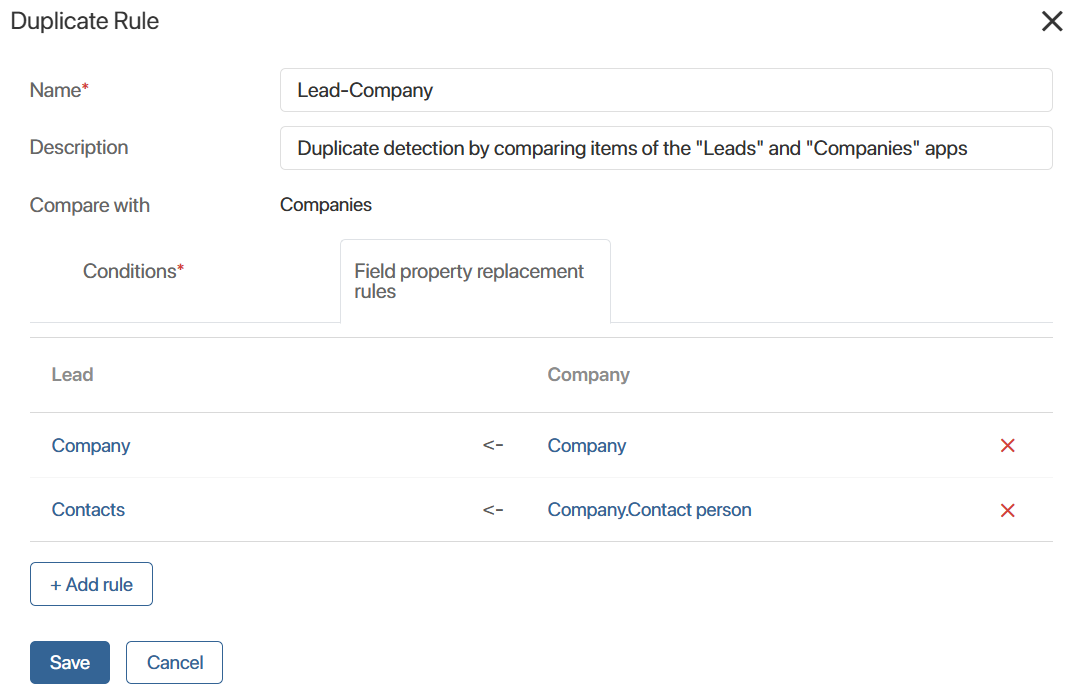
For example, in the Lead‑Company rule, they specify which lead fields to fill and which company properties to use as the data source. When an HR employee applies data copying, the values in all specified lead fields will be overwritten.
To configure synchronization:
- Next to the CRM workspace name, click the gear icon and select Duplicate Settings.
- Open one of the preconfigured duplicate detection rules that compare items from different apps: Lead‑Deal, Lead‑Company, Deal‑Lead, or Deal‑Company.
- Go to the Field property replacement rules tab.
- Click + Add Rule and set the data update rules in the table:
- In the left column, specify the app field to which the data is written.
- In the right column, select the property of another app to copy information from.
- Save the rule settings.
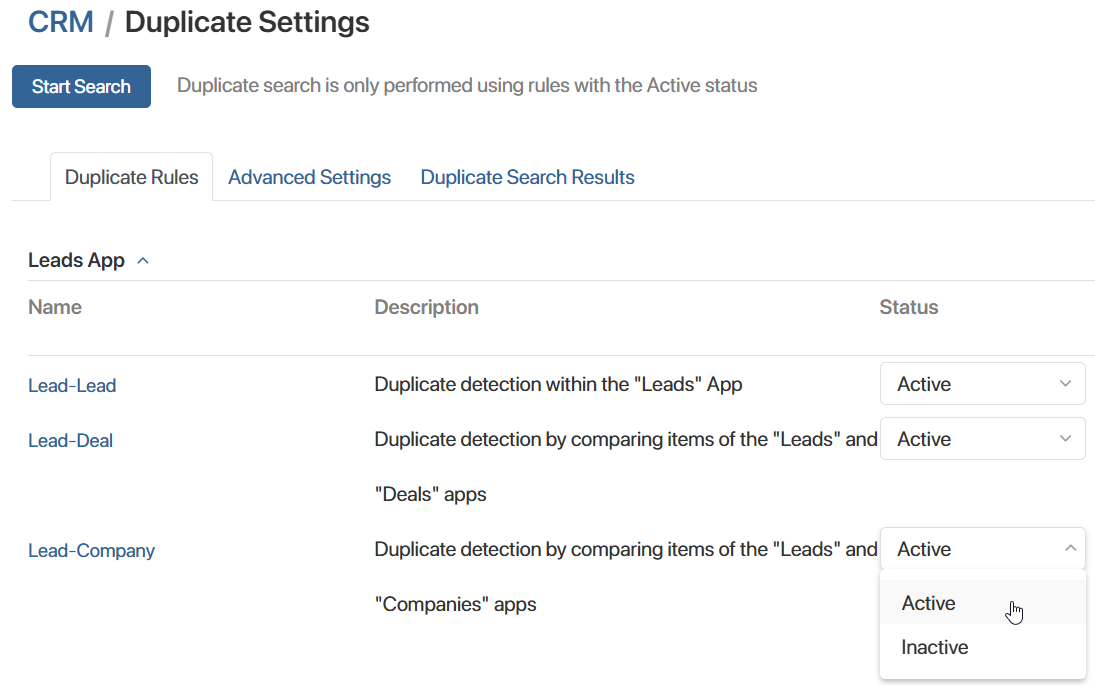
- Enable the rule by setting its status to Active.
- At the bottom of the page, click Save.
Copy data when searching for duplicates
Once the duplicate search rule is configured, copying data from one item page to another is available for any duplicate processing method:
- When navigating to the duplicate list from the item page.
- In the duplicate settings on the page with the similar item detection results.
Let's say the administrator enabled the Lead‑Company rule, configuring data synchronization for the Contacts field. A sales employee added up‑to‑date contact information to the company page. Using the duplicate search, they can automatically fill in the Contacts field on the linked lead page or overwrite the outdated value.
The lead and company with matching information are determined based on the conditions specified in the duplicate search rule: item names are compared, as well as work phone numbers, email addresses, and contact names.
Automatic data copying is available if the employee has the following permissions:
- View company.
- Edit lead.
To sync data from an item page:
- Go to CRM > Leads and open the page in which you want to update the information.
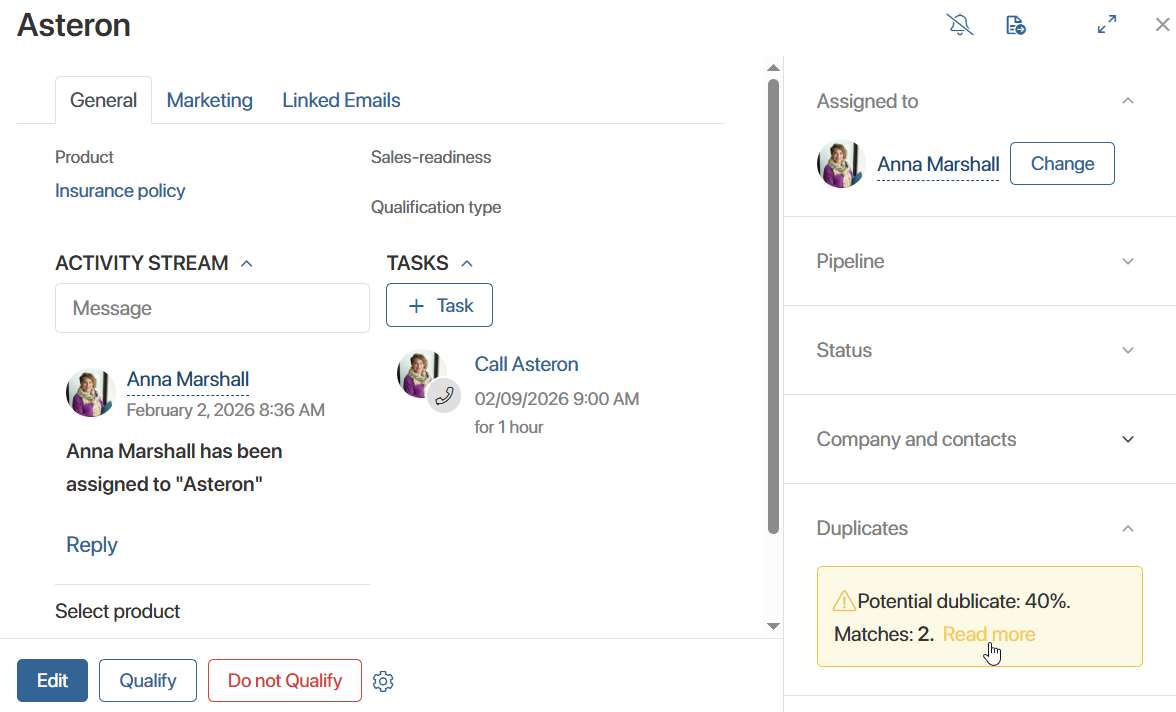
- In the sidebar of the page, in the Duplicates block, click the Read more link.
If the lead and company pages do not have enough similar data to be automatically identified as potential duplicates, you’ll see a message stating that no matches were found. Manually specify the related company by clicking the Mark as duplicate link in the Duplicates block, then + Add Item manually.
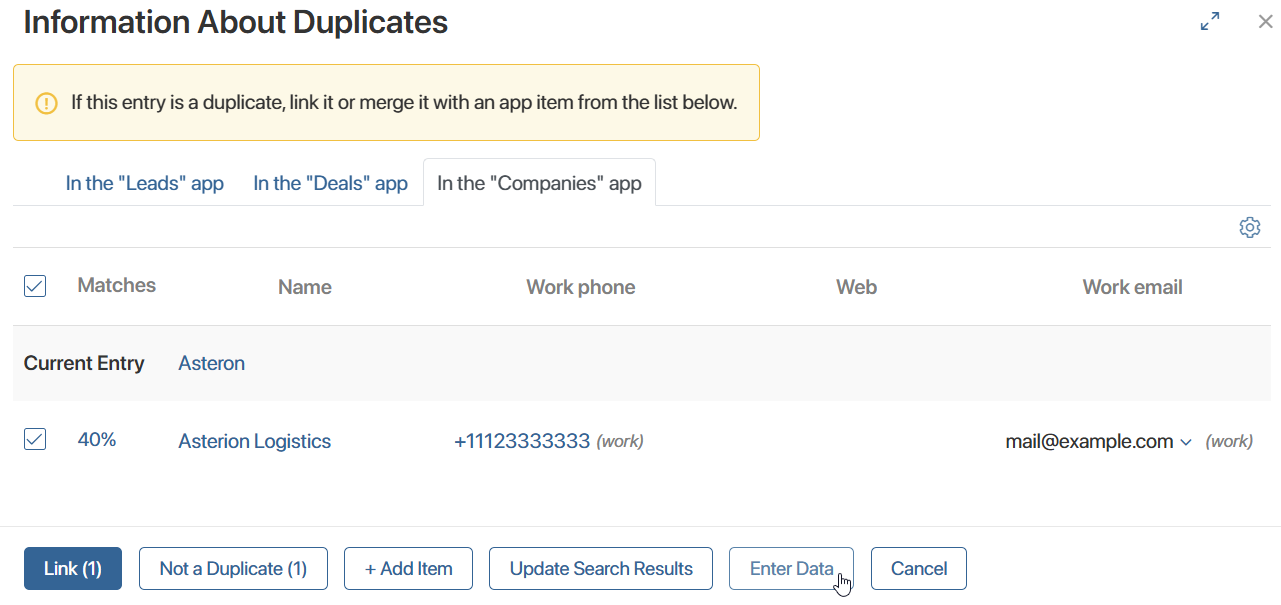
- In the In the Companies app tab, check the box next to the account name and click the Enter Data button.
- In the window that opens, you will see which lead fields will be automatically overwritten, and the updated information. To complete the data copying, click Confirm.
Now both records related to the same contact will have the latest information.