In the Service Desk solution, you can automatically determine the processing scenario for a request: select a processing route, apply SLA standards, merge similar requests into a master request. To do this, request processing rules are configured.
How processing rules are applied:
- The administrator creates a rule in SD Rules > Rules and defines the conditions for its execution. The conditions use field values from the Requests app.
- The responsible employee specifies the rule when configuring request processing parameters:
- SLA standard.
- Request processing route.
- Merging similar requests into a master request.
- Business rule for automatically populating request fields with specified values.
- When a request enters the system, the field values on its form are compared with the conditions defined in the rule. If the request matches them, the configured processing scenario is automatically applied.
For example, you want requests for email access to be resolved within one hour. To do this, create a rule and set the conditions to the Email service and a subject containing a request for email access. Then, when configuring the SLA standard, set the resolution time to 1 hour and select this rule.
When a request with values matching the rule conditions enters the system, the specified SLA standard will be applied, and the resolution time will be set automatically.
начало внимание
Only the system administrator can create rules for processing requests.
конец внимание
Configure request processing rules
- To make the Requests app properties available when creating a rule, set up a token and specify it in the SD Rules workspace.
- Create a rule and define conditions for checking requests.
- Specify the created rule when configuring request processing parameters.
Step 1. Configure the link between the Requests app and the SD Rules workspace
- Go to Administration > Tokens and click the + Token button in the upper-right corner.
- In the window that opens, specify the responsible employee, enter a token name, and set its expiration date. Click Create.
- Copy the generated token value.
- Go to the SD Rules workspace.
- Click the gear icon next to the workspace name and select Additional Parameters.
- On the page that opens, paste the copied token value into the API token field.
Step 2. Create a request processing rule
To add a rule and define conditions for checking requests:
- Go to SD Rules > Rules and click the + Rule button in the upper-right corner.
- In the window that opens, fill in the fields:
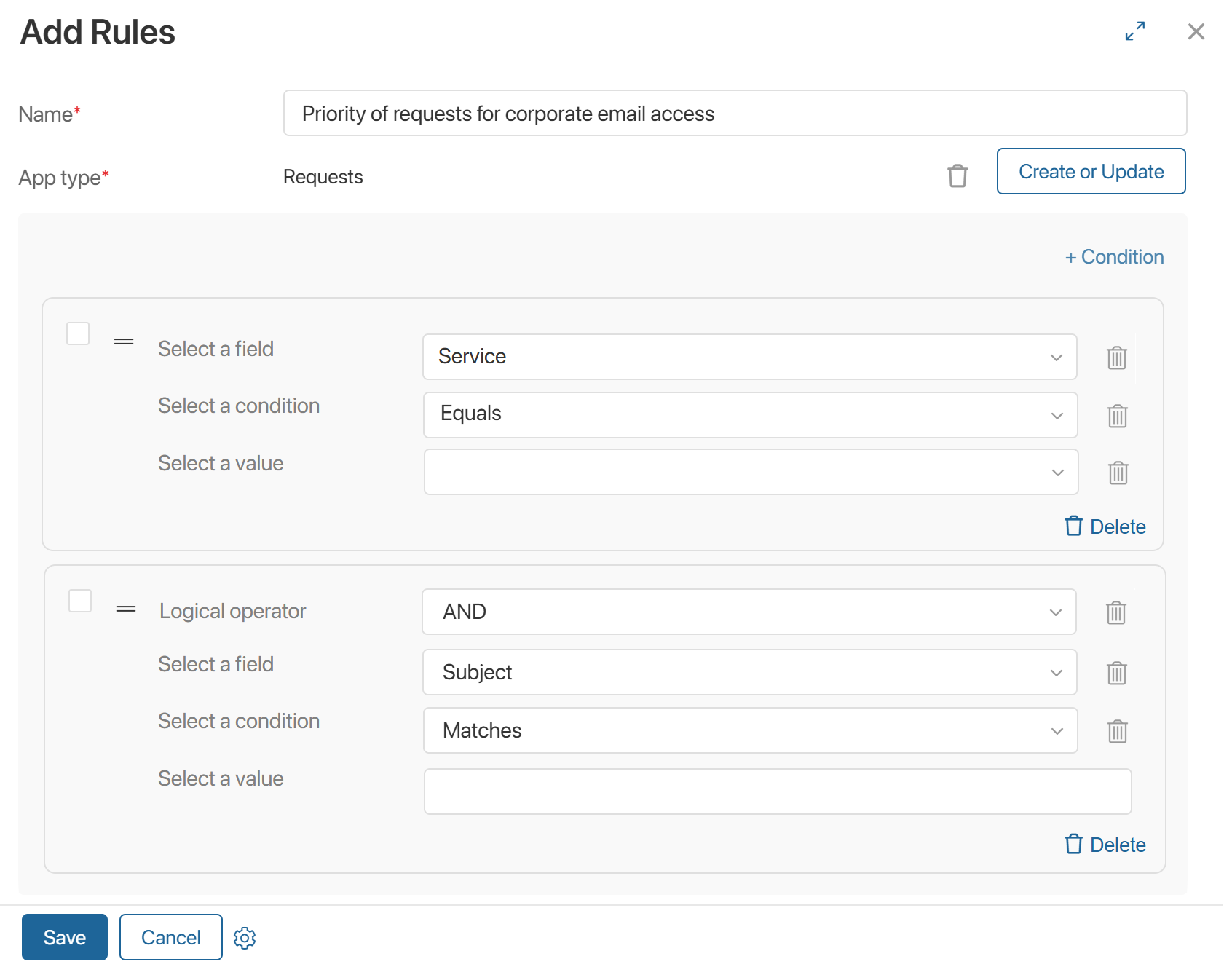
- Name*. Enter the rule name.
- App type. Click + Select Type and select the Requests app.
- To add conditions, click the Create or Update button that appears, then click + Condition.
- Enter the condition parameters:
- Select a field. A property from the Requests app to be checked.
- Select a condition. The comparison operation for checking the condition.
- Select a value. The property value.
- To create an additional condition, click + Condition again. A field will appear for selecting a logical operator used to evaluate multiple conditions:
- AND. Both conditions must be met for the rule to apply.
- OR. At least one condition must be met.
- OR NOT. The first condition must be met, or the second condition must not be met.
- AND NOT. The first condition must be met, and the second condition must not be met.
- You can group multiple conditions together so they are evaluated as a single condition. To do this, select them and click the Group button.
- Save the rule.
The created record will appear on the Rules app page.
Step 3. Apply the rule when configuring request processing parameters
For the created rule to apply to requests that meet the specified conditions, specify it when creating or editing:
- SLA standard.
- Request processing route.
- Merging requests into a master request.
- Business rule for automatically populating request fields with specified values.