Every company has its own client-service procedures. The Customer Service solution supports making changes to the app forms and business process logic in order to comply with your company’s requirements.
App forms
On the request page and other app items of the solution, you can hide or add fields. Read more about this in App item form. You can also add directories required for your work.
Business processes
You can tailor business processes to your needs. You may delete or add operations in the business process, change task completion deadlines, or configure their forms. To do this:
- In the Customer Service workspace, select the app and click the gear icon next to its name.
- From the menu, choose Business Processes.
Learn more about business process modeling in the Business process design section.
On the app page, you can add a button to launch a configured business process. For more information, see Manage buttons on app item pages.
Statuses
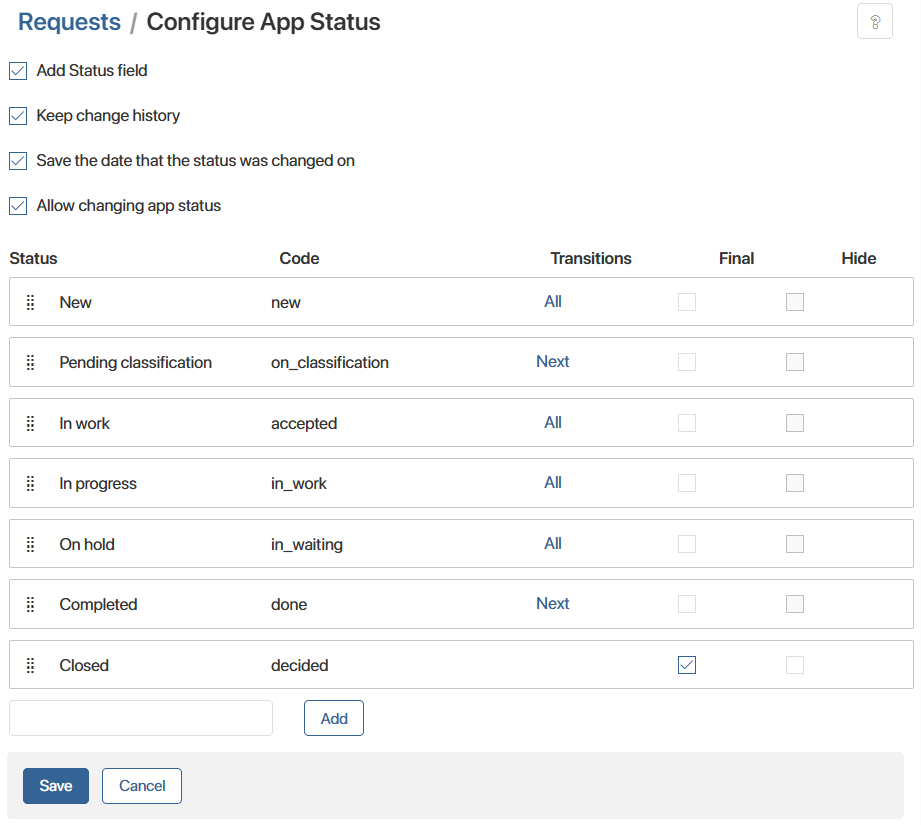
To track the current status of a request, it is convenient to use statuses. You can add your own statuses, allow or forbid users to set them manually. For more details, see Status field.
App folders
In the Requests app, you can configure the folder list displayed in the left menu: add or delete folders, rename them, set access rights for each folder. For more details, see Folder tree in the folder hierarchy.
CS change history module
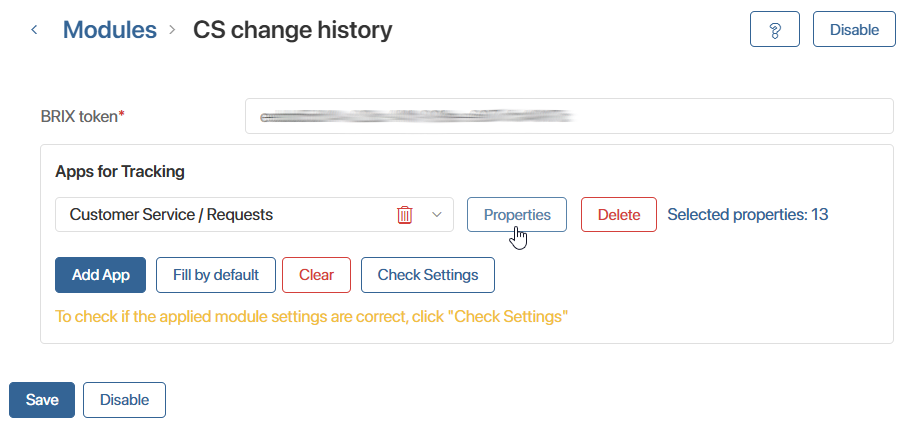
The solution includes the pre‑configured CS change history module. It allows you to display the history of work with a request on its page under the History tab — for example, status changes and attribute modifications. If you have extended the list of attributes, add the additional attributes in the module settings as follows:
- Go to Administration > Modules and select the CS change history module.
- Add the names of the additional attributes by clicking Properties.