After installing a locale for an additional language, you can proceed with translating the configuration. If you’re using a language available by default, you can start translating the configuration right away.
Choose the translation level based on your company’s needs:
- Configuration level. Allows localizing all system and custom components in a single .po file.
- Component level. Allows:
- Translating only part of the system into another language, such as a specific workspace.
- Overriding translations defined at the configuration level for a specific component, for example, setting a different translation for a field.
To learn more about what each translation level includes, see Localization and multilingual translations. For examples of how to choose suitable translation levels for your needs, see Localization scenarios.
начало внимание
In system versions prior to 2026.6, component-level translation is unavailable by default. To activate this feature, contact BRIX technical support.
конец внимание
Step 1. Go to the translation upload page
To obtain localization .po files and upload translations, the system administrator needs to open the translations page:
- For translation at the configuration level, open the Administration workspace and go to the Translations page.
- For translation at the component level:
- For a workspace, click the gear icon next to its name and select Translations from the menu.
- For a module, go to its settings and open the Translations tab.
Step 2. Translate resources
- Generate the resource file by clicking the Export .po File button. If there are many resources, this may take some time.
Note that if a translation for a specific language is already completed and needs to be updated, follow the steps in the article on updating existing translations instead.
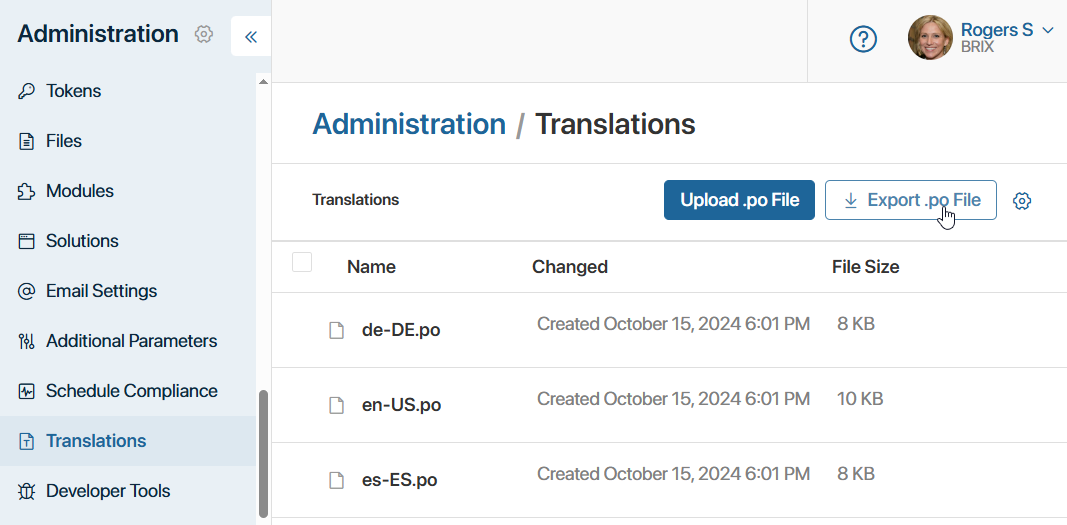
- en-US.po for English (United States).
- en-UK.po for English (United Kingdom).
- tr-TR.po for Turkish (Turkey).
The file contains a list of original workspace resources (msgid) and empty lines for their translations (msgstr), for example:
msgid "My Legal Entities"
msgstr ""
msgid "Legal entity"
msgstr ""
msgid "Name"
msgstr ""
msgid "Full name"
msgstr ""
msgid "Legal Address"
msgstr ""
msgid "Actual address"
msgstr ""
- Translate the resources from the .po file into the target language. We recommend using dedicated software, such as Poedit, to prevent potential errors.
Note: The file must not contain any untranslated strings. If a source string does not need to be translated (for example, it’s a field code), copy the original text and paste it as the translation.
We recommend saving translated .po files locally on your computer. They can be useful in case of data loss in the system, for example, after updating system workspaces.
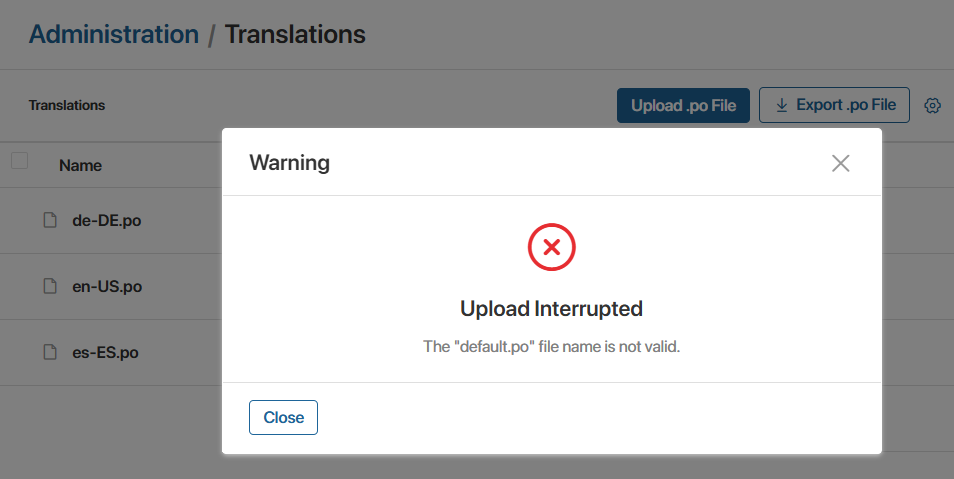
- Upload the translated file back to the Translations page by clicking the Upload .po File button.
Note that if the file name does not match the locale code, an error will occur.
After completing the configuration, we recommend that you check the translation and fix any errors if necessary.
The uploaded translations will automatically apply to the interface for users who have selected the corresponding language in their profile settings.