Starting with system version 2026.2, you can configure a child process to launch when a parent process step is executed. This allows you to use data from the associated task of the parent process in the context of the child process. To do this, use the __task system property in scripts.
This method is configured on the Start Process tab and is available for the following activities:
- Task.
- Create App Item.
- Edit App Item.
- Approval.
- Send Document/App Item.
- Approval Route.
- Document Registration.
- Sign.
When to use the Start Process tab
Launching a subprocess simultaneously with a parent process step can be used, for example, in the following cases:
- For customizing email notifications. For example, sending special alerts when a task is assigned to specific users.
- For transferring task data (due date, assignee, etc.) to an external object when it is created.
- To simplify the process flow. For example, move repetitive actions when configuring a complex task in a separate process.
Начало примечание
Note
When a subprocess is started from a parent process step, two operations are performed simultaneously: a task for the main process is created and a subprocess from it is launched. If the task is assigned to multiple executors, the subprocess is launched for each of the assigned tasks. This scenario is acceptable for a small number of executors.
However, we do not recommend launching a subprocess from a task that is assigned to hundreds or thousands of users. Your infrastructure may not be ready for this load. In this case, it is better to use the Start Process activity in a parallel branch and handle your scenario in a single process for all users.
Конец примечание
Use case for launching a child process simultaneously with a parent process step
The Start Process tab is configured identically in all blocks in which it is available. Let's look at its settings using a Task activity as an example.
Let's assume that warehouse employees are involved in processing equipment installation orders. They are external users and receive a task to check the availability of the necessary components through an external portal. Since external users may not access the portal regularly, tasks can be missed or completed late.
To ensure timely completion of a task, we'll set up an automatic notification when it's assigned. In our use case, the notification will be sent by email. If your company has messenger integration configured, you can send messages via the messenger.
In the email, users will see the name of the received task and a link to it on the portal where the warehouse employees work with the tasks. Since multiple portals can be configured in the system, we'll generate the link to the required portal dynamically.
Let's look at how to do this.
Preliminary settings
- The Order Management workspace contains the Orders app and an external portal activated.
- The My Tasks widget is placed on the portal page.
- Warehouse employees are registered in the system as external users and invited to the portal. They are also added to the Warehouse group created in the Order Management workspace.
- There are two processes associated with the Orders app:
- Main process: Order processing. Here, in the settings of the Warehouse swimlane, the warehouse employees are specified. This swimlane contains the Task activity for checking equipment availability at the warehouse.
- Child process: Notification for warehouse employees about the task on the portal. This process is configured to receive task data from the parent process and generate an email notifying warehouse employees about the assigned task. This process runs simultaneously with the task assignment in the parent process.
Step 1: Run the child process together with the task in the main process
On the modeling page of the Order processing process, let’s configure an email notification to be sent during the assignment of the Check equipment availability at the warehouse task.
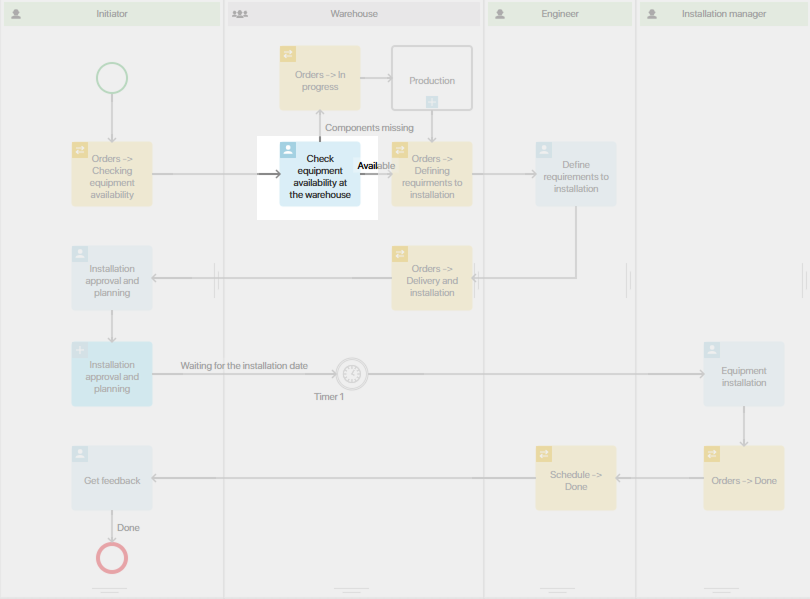
To do this:
- Open the settings for the Check equipment availability at the warehouse block and go to the Start Process tab.
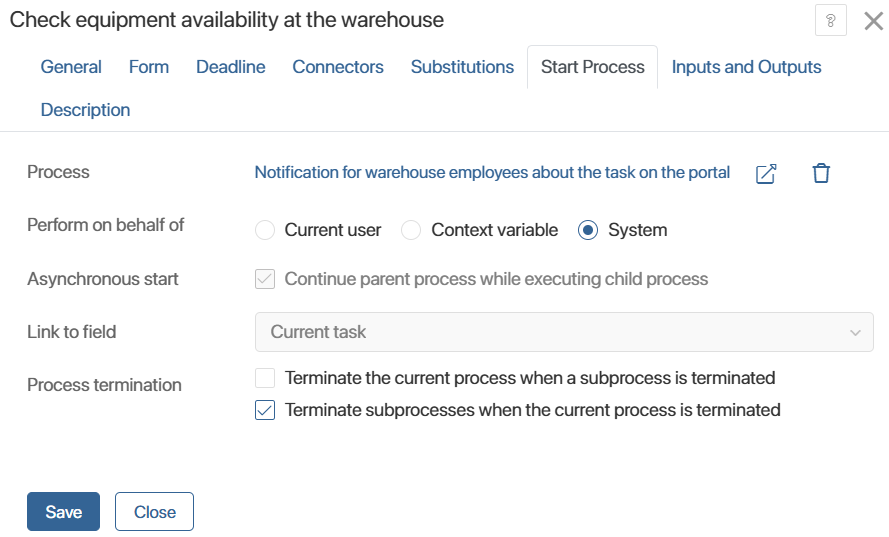
- Fill in the fields:
- Process. Select the published process that will be called within the parent process.
- Perform on behalf of. Select who will be shown on the instance page as the process initiator.
- Asynchronous start. Only asynchronous start is available, meaning the subprocess runs in parallel with the parent process. Because of this, retrieving output variables from the child process to the parent process is impossible.
- Link to field. Automatically creates a link to the current task, allowing you to access its data in the subprocess's scripts. To do this, use the __task system property. In our example, in step 2, we'll pass the child process's name, ID, and executors to use this information to generate an email alert.
Also, the associated activity stream for the linked task will display events occurring within the subprocess, such as errors or task reassignments. - Process termination. Set rules for terminating process instances. These will only apply to the current process and will not affect the parent process from which the subprocess is launched.
For more information on the Process, Perform on behalf of, and Process termination options, see the Start Process article, as they are configured and function identically.
- On the Inputs and Outputs tab, you can map context variables of the same type. This will send their values from the parent process to the child process when the latter is launched. This is not required in our example.
System properties of the task, such as its ID, name, and performers, are not available in this mapping. We will obtain them in the script via the __task system property. - Save the Task activity settings and publish the process.
Step 2: Retrieve linked task data in the child process
Let's set up an email notification for warehouse employees. They will receive it when they are assigned a task to check equipment availability. The message will include the task name and a link to it on the portal. Since this data is a system property of the task, not a context variable of the parent process, we can only obtain it using a script.
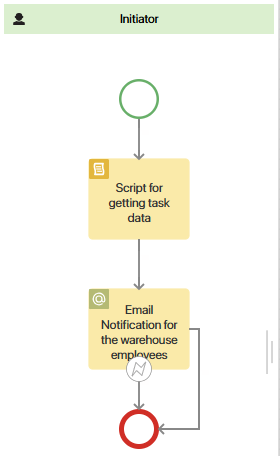
To do this:
- In the context of the child process, create the following variables:
- Warehouse staff (variable code: warehouseStaff). Users (Many) type to obtain the task performers and their email addresses.
- Task name (variable code: name_task). String (String) type to obtain the task name from the parent process and pass it to the email notification.
- Portal link (variable code: link_portal). String (String) type to generate a link to the assigned task and add it to the email notification.
- In the Script block, create the generateEmail() function to obtain the data from the parent process that will be needed in the notification.
Example script for preparing data for email generation
async function generateEmail(): Promise<void> {
|
- Go to the Email Notification activity settings and specify:
- In the Recipient* field, click the {+} icon and select the Email field in the Warehouse staff context variable. We will use this variable to retrieve the task performers using a script. Example: {$warehouseStaff.email}.
- Email subject.
- In the Message* field, add context variables that will be used to receive the task name and generate a link to it via the script. Example message: "You have been assigned the "{$name_task}" task on the portal. Please follow the link to complete it: {$link_portal}."
Where:
- {$name_task} is the Task name context variable which stores the name obtained via the script.
- {$link_portal} is the Portal link context variable which stores the task link generated via the script.
- Save the block settings and publish the process.
Now, when warehouse employees are assigned the Check equipment availability at the warehouse task in the parent process, the child process will be launched. The script will determine the task name and assignees within it, and a link to it on the external portal will be generated. This data will then be sent to warehouse employees by email. They will be able to click the link in the email to access the task page.