In BRIX, you can manage versions of configuration structures, including solutions, workspaces, apps, widgets, and other structures. You can create, store, restore, and compare archived versions with the current version. This makes it possible to quickly return to a previous configuration if an error occurs.
For example, a system administrator creates a workspace and adds apps, processes, widgets, and forms. Once the components work correctly, the administrator can capture the first working workspace version and continue development. If a later change causes an error that would take a long time to diagnose or fix, the administrator can quickly restore the previous version.
This article describes version management for solutions, workspaces, and modules. The same general principles apply to all three structures.
For details about versioning apps, widgets, business processes, and other structures, see Versioning of structures in BRIX.
Contents of solution, workspace, and module versions
A solution, workspace, or module version is a set of versions of the versioned structures it contains.
Parent structure |
Child structures whose versions make up the version of the parent structure
|
Solution |
Workspaces, modules, widgets, processes, and company-associated pages. The version also stores the solution name, description, and paid status. |
Workspace |
Apps, widgets, processes, and workspace-associated pages. |
Module |
Widgets, processes, and API methods. Versioning is not supported for other structures included in the module and its settings, so they are not included in the version. When an archived version is restored, these other structures and settings will not be modified or deleted. For more information, see Create a custom module. |
Rules for creating solution, workspace, and module versions
- A version is created automatically when a solution, workspace, or module is imported or updated. A workspace version is also created when the workspace is copied.
- You can manually capture a solution, workspace, or module version at any time, for example, after the first working version is ready and before development continues.
- When you capture a parent structure version, the current versions of its child structures are stored in it. New versions of child structures are not created.
Начало примечание
Note
Solution, workspace, and module versions have the following specific behavior compared with other structures:
- You can create solution, workspace, and module versions manually. Versions of other structures are created only automatically.
- When a solution is imported or updated, versions of its workspaces, modules, and API methods are not created. Versions of other structures are created only if their settings have changed.
Конец примечание
Work with versions on the Developer Tools page
To manage versions of configuration structures, go to Administration > Developer Tools and select Configuration Version Management.
Note:
- Structure versioning is available if the allowVersionsSnapshots feature flag is enabled.
- The Configuration Version Management page is available starting from system version 2026.3 if the exp_exchange_enable_packageVersions feature flag is enabled and the exchangeSrv service migration has been completed.
For more information about enabling feature flags in On-Premises deployments, see Modify BRIX parameters. If you use the SaaS deployment, contact your BRIX rep.
The Configuration Tree is displayed on the Configuration Version Management page. It contains all structures that support versioning: system and custom solutions, workspaces, modules, and pages added at the company level, together with their child structures.
Expand a structure to view the structures it contains. Each structure type is represented by a specific icon in the tree. Hover over an icon to see its type: solution, workspace, module, app, page, widget, process, or API method.
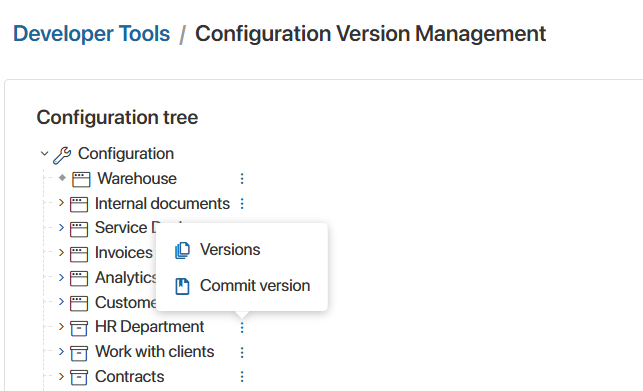
Click the three dots icon next to a solution, workspace, or module name to open available actions:
- Versions: open the version history.
- Commit version: create a new version.
For other structures, only the Versions option is available. This allows you to open the version history of any item in the configuration tree.
How structures are displayed in the Configuration Tree
Any structure is displayed in the tree at the configuration level or at the level of the parent structure that includes it. Built-in workspaces are an exception, since an individual built-in app can be added to multiple solutions. In this case, the built-in workspace is displayed at the configuration level as well as at the level of the solutions to which individual built-in apps have been added. |
Capture a structure version
You can manually capture a solution, workspace, or module version at any time:
- During development or before and after changing child structures. For example, capture a workspace version, add an app or update an app-level process, and then capture another workspace version.
- When exporting or updating a structure.
The procedure for manually creating a version of a solution, workspace, or module is the same. Let’s look at how to manually create a version of a workspace:
- In Developer Tools > Configuration Version Management, select a workspace in the configuration tree. Hover over the three dots icon and select Capture Version.
- The provided window shows the current version name if a version was captured earlier. Fill in the fields:
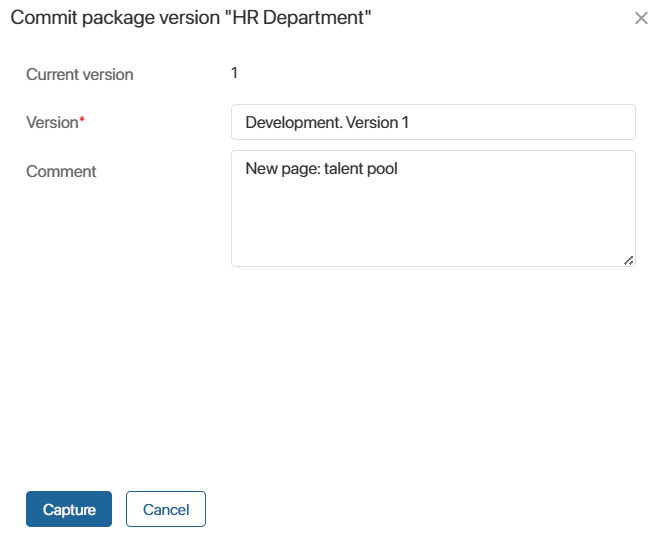
- Version*. Enter the name displayed in the structure’s version list. When the structure is later exported and imported into another company, this name identifies the captured version in the import window and in the imported structure’s version list.
- Comment. Enter additional information displayed in the structure’s version list.
- Click Capture.
View version history and manage versions
To open the list of solution, workspace, or module versions, select the structure in the configuration tree, hover over the three dots icon, and click Versions. In the opened window, the following information is displayed for each version:
- Version number and name specified when the version was created or edited.
- Date and time when the version was created.
- User who created the version.
- Comment.
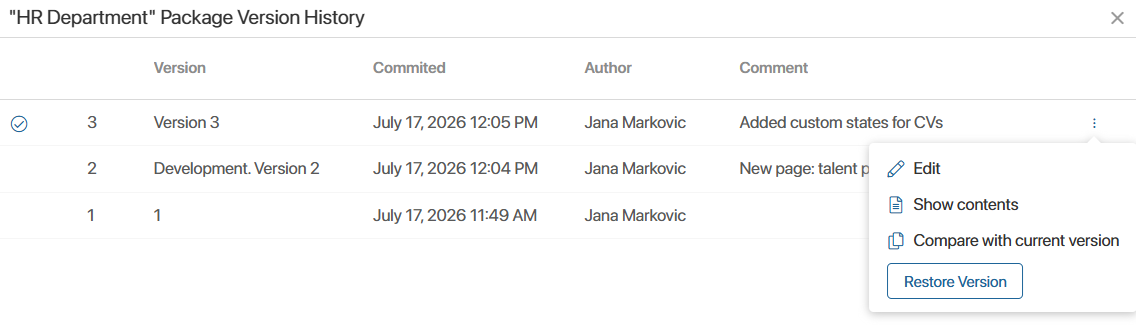
Click the three dots icon next to a selected version to open the available actions menu:
- Edit to change the version name and comment.
- Show Contents to display the contents of the solution, workspace, or module version as a tree: apps, pages, widgets, and processes.
- Compare with Current to compare the selected solution, workspace, or module version with the current version.
- Restore Version to make the selected version the current version.
Current structure version change indicator
In the version history, you can see whether the current solution, workspace, or module version matches the state in which it was created. The current version is marked with:
- A checkmark icon
 means that the contents and versions of child structures have not changed since the version was created.
 - An exclamation mark icon
 means that changes have been made to the structure contents:
- An app or page was created.
- The version of an app or page was changed, for example, a property was added to the app context.
- A widget or process inside the structure was published.
- A child structure was deleted.
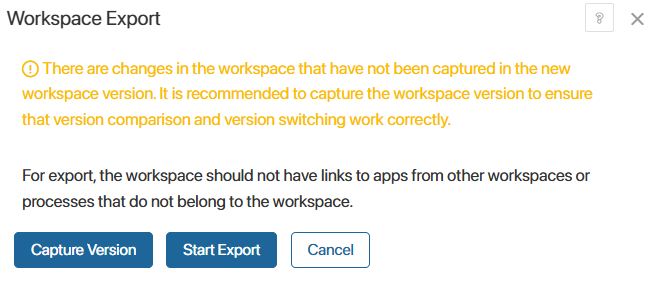
If the current solution, workspace, or module version has been changed when restoring an archived version, exporting, or updating the structure, you will see a warning. To continue working with solution, workspace, or module versions correctly, capture the current structure version and then continue the started operation.
Compare structure versions
When you select Compare with Current, two trees are displayed: the selected solution, workspace, or module version and the current solution, workspace, or module version. The following actions are available:
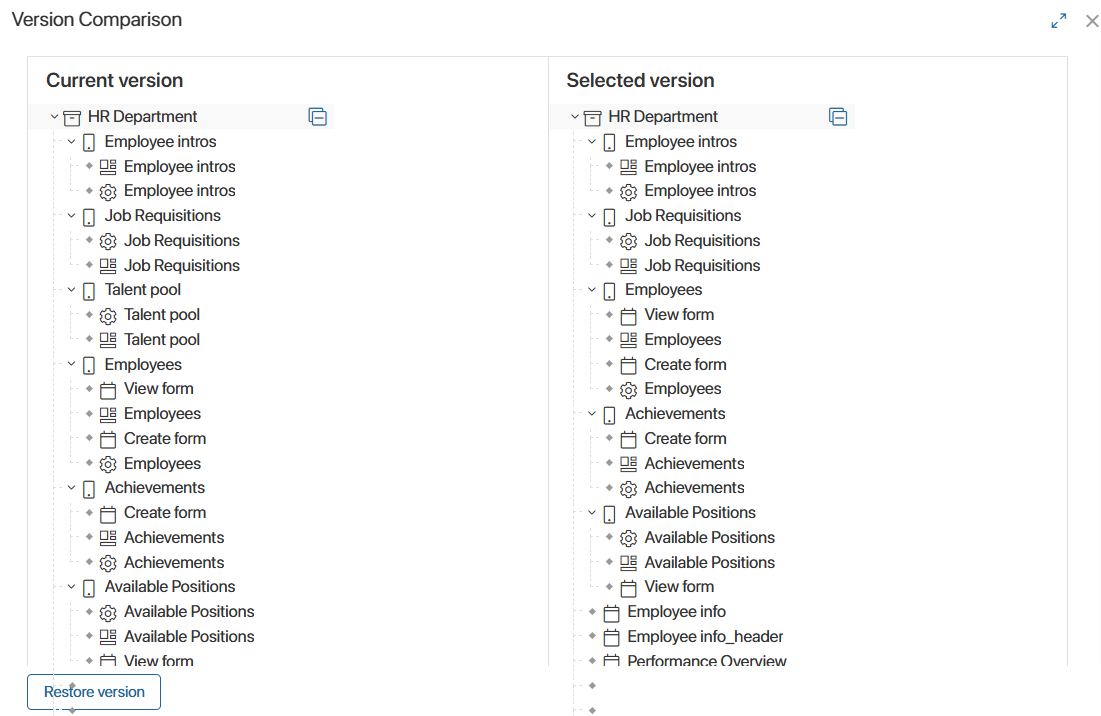
- Expand the tree structure to compare the contents of the two solution, workspace, or module versions.
- Compare versions of any child structure: the contents of the selected structure from each version are displayed in a separate window in JSON format. To do this, click the three dots icon next to the structure and select Compare.
Restore a structure version
You can make an archived solution, workspace, or module version current and restore the state of all child structures to the state they had when the archived version was created. To do this:
- In the solution, workspace, or module version list, select the required version. Click the three dots icon and select Restore Version. This option is also available in the version comparison window.
- In the opened window, confirm creating a new version based on the selected version.
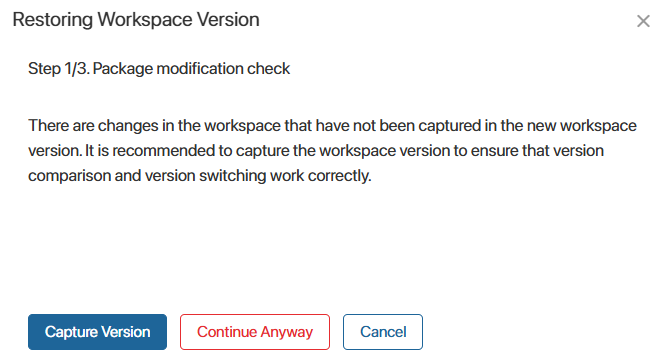
- The system checks whether the current version contains changes. If changes are found, you will see a warning. To ensure correct solution, workspace, or module version management in the future, click Capture Version.
- The solution, workspace, or module version and the versions of its structures will then be restored.
Information about the restored version will be added to the comments of the created solution, workspace, or module version and the new versions of its structures.
Solution version restoration behavior
- You cannot restore a solution version if it contains a child structure, such as a workspace, module, page, or custom app, that is currently used in another solution. A warning appears when the version is checked.
For example, the Orders custom app is included in the version of Solution 1 being restored, but it is currently part of Solution 2. The version of Solution 1 cannot be restored because a custom app can be part of only one solution. - If the current solution version contains a workspace, module, page, or individual system app that is absent from the version being restored, that child structure is not changed or deleted and remains in the solution after restoration.
For example, the current version of a solution contains the External Users built-in app, while the version being restored does not. After the version is restored, the app will remain part of the solution
Workspace version restoration behavior
If a child structure exists in the current workspace version but is absent from the version being restored, it is soft-deleted. This allows you to restore a workspace version containing the structure later.
For example, an app was added to a workspace and included in its current version, but it did not yet exist in the archived version. When the archived version becomes current, the app is soft-deleted and no longer appears in the workspace menu.
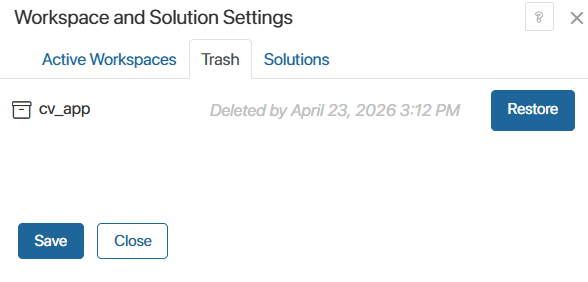
You can manually return the app to the workspace. In the workspace menu, click the wrench icon, open Trash, and click Restore.