The request for change page stores all important information about it. The page consists of the following tabs:
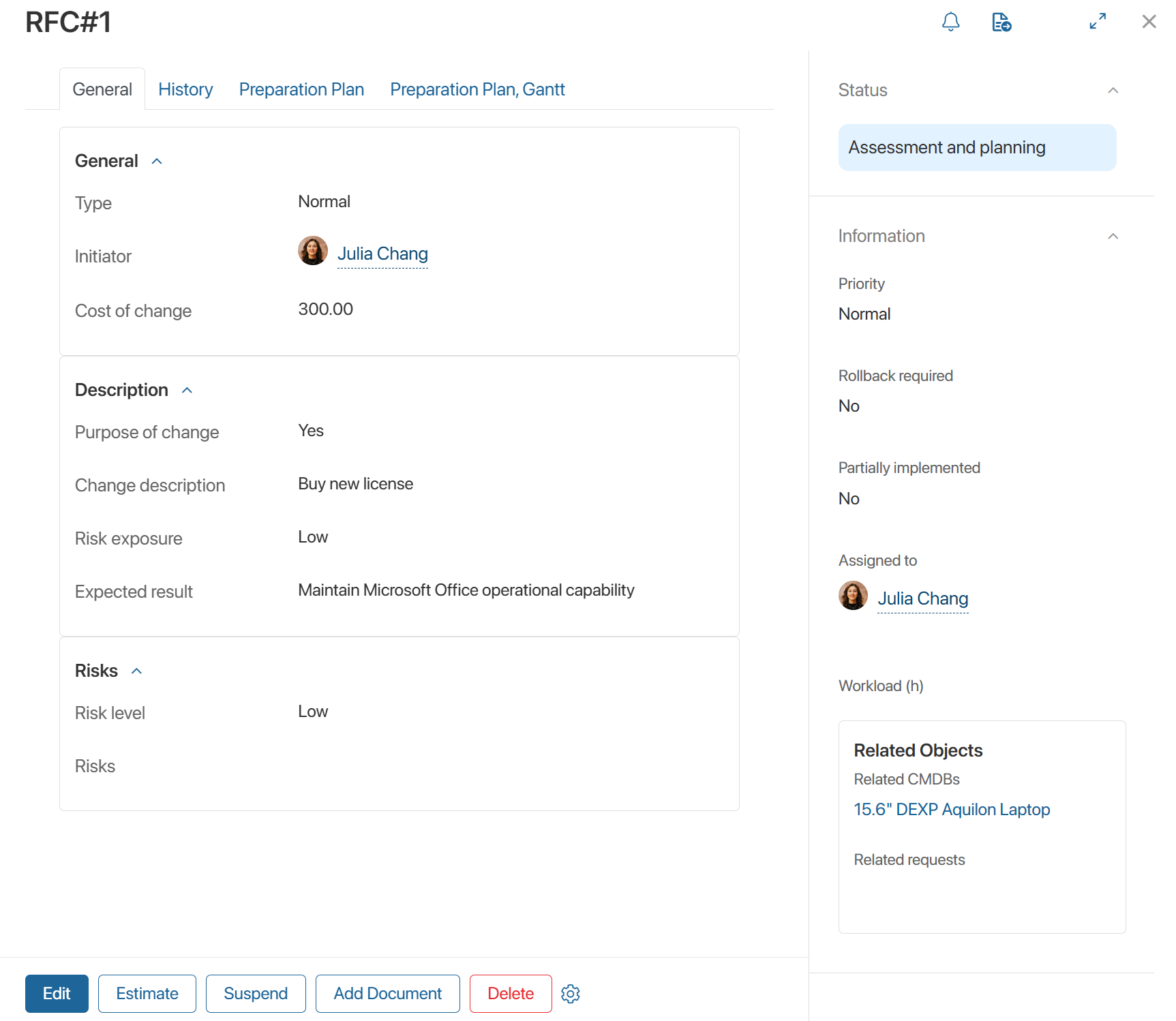
- General. You can view the information specified when the request was created.
- History. The table records changes made to the request page, such as status changes, field edits, and so on. The data on this tab is displayed if the system administrator has enabled and configured the History of ServiceDesk Apps module.
- Documents. This tab is displayed if files have been added to the request during work on it. A list of attached documents is displayed.
- Preparation Plan. The change implementation plan, a list of tasks that need to be completed to implement the change. The tab displays a table listing the stages of work on the request, tasks, assignees, deadlines, completion dates, and comments with results. This data can be used to track change implementation progress.
- Preparation Plan, Gantt. This tab is displayed if an implementation plan has been set for the RFC. The sequence of planned tasks is presented as a diagram, which can be used to track the order and deadlines of work.
The side panel of the page displays the following information:
- Change implementation priority.
- Rollback required indicator. The responsible employee sets this value when closing the request.
- Partially implemented indicator. The responsible employee sets this value when closing the request.
- Assignee responsible for the request.
- Time allocated for change implementation, planned by the responsible employee during workload estimation.
- Requests, services, and problems linked to the RFC.
- Approval sheets.
- Request status.
- Activity stream and task list.
Edit a change request
You can modify the information specified when the request was created. To do this, open its page and click the Edit button.
Update the data and save the changes.
Add a document to a change request
You can attach documents that appear during change implementation, such as technical documentation or contracts with contractors, to the request without editing the RFC page. They will appear on the Documents tab.
To do this, click the Add Document button on the request page and upload the file.