You can send a request for approval to a responsible person, such as a department head, or send it to another user, such as a fellow operator, to inform them about the ticket.
Send a request for approval
You can send a request for approval if its status is New, Pending Classification, or Accepted:
- Go to the Requests app and open the request page.
- On the top toolbar of the request page, click the
 icon and fill in the fields in the window that opens:
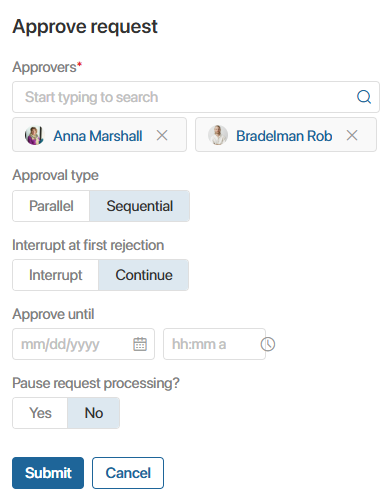
- Approvers*. Select the employees who will receive the approval task. If you select multiple users, additional options appear below to configure the approval logic.
- Select the approval type:
- Parallel. The request is sent simultaneously to all employees listed in the Approvers* field. Choose this option when the order of approvals does not matter.
- Sequential. Employees receive the approval task in the exact order listed in the Approvers* field. Once one employee makes a decision, the task moves to the next person.
- Specify the action to take upon the first rejection:
- Interrupt. The approval process stops, and the request receives the Rejected resolution.
- Continue. The approval process continues, even though the request receives the Rejected resolution.
- Specify the approval deadline.
- To exclude the approval period from the request processing time calculation, select Yes in the Pause request processing? field.
If you leave this set to No, the approval time will count toward the SLA processing time.
- Click Send.
Approvers receive the task, and the request status changes to In Approval.
Send a request for information
You can send a request for information purposes regardless of its status. To do this:
- Go to the Requests app and open the request page.
- On the top toolbar of the request page, click the
 icon and configure the settings in the window that opens:
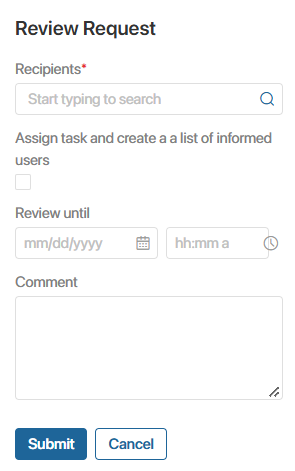
- Select the recipients.
- To send an actual task to recipients and record it in the request's side panel, enable the Assign task and create a list of informed users option.
Leave this option disabled to send users a notification with a link to the request in their #Activity stream without generating a list of informed users. - Enter the review deadline and a comment.
- Click Send.