In the Customer Service solution, you can publish useful articles that will enable customers to find answers to typical questions on their own.
Create article categories in Customer Service
To make it easier for users to find articles in the knowledge base, group them into categories, for example, by the name of the services provided.
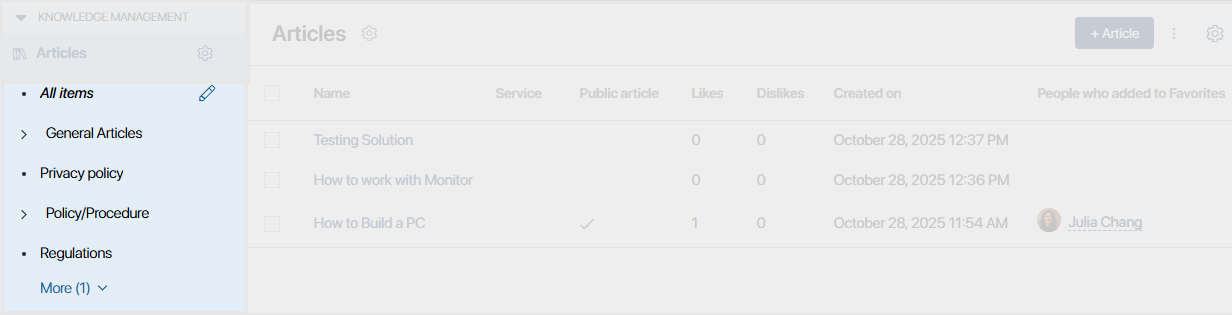
Click the +Article Category button and enter a name. Specify the parent category to form a hierarchical structure. Click Save.
Now, when creating an article, the operator will be able to specify the category where it belongs.
Create an article in Customer Service
- Go to the Articles directory and click the +Article button in the upper right corner.
- In the opened window, fill in the fields:
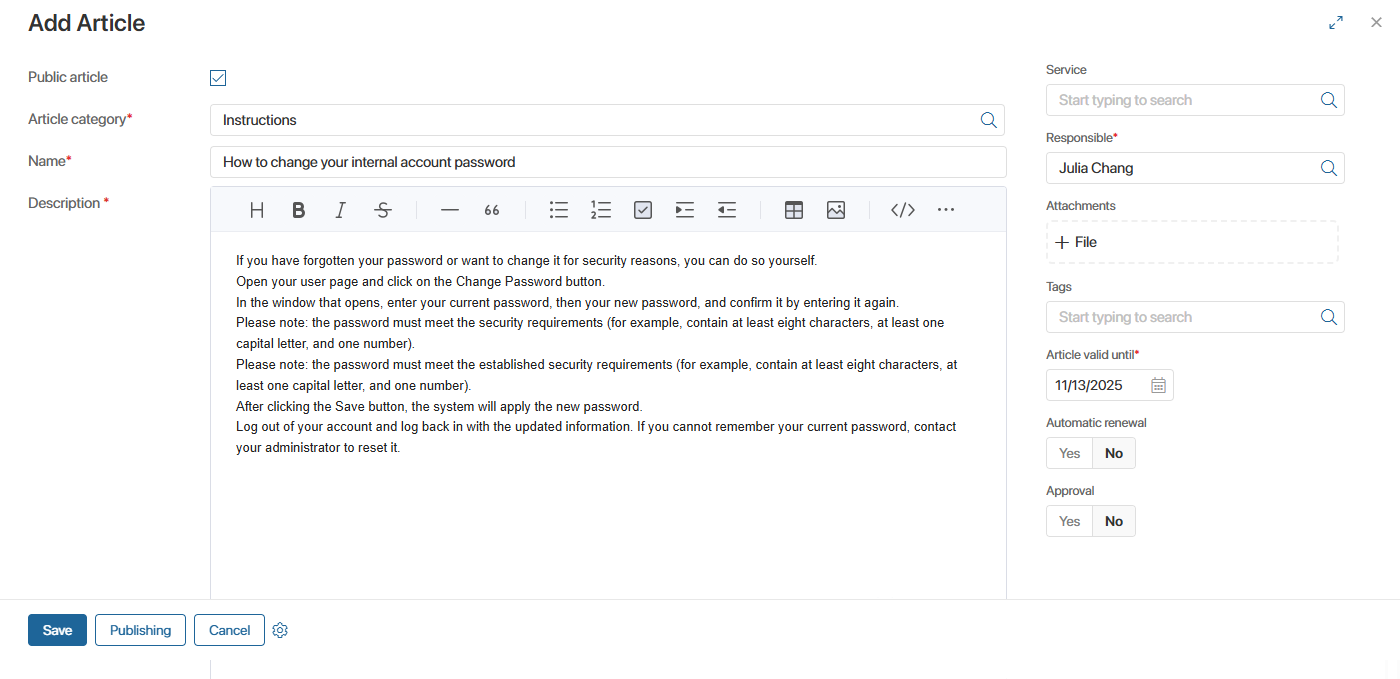
- Public article. If this option is selected, the article will be displayed on the external portal. If the option is not enabled, the article will only be available in the Articles directory.
- Article category*. Specify the category to which the article belongs. Categories help to group articles in the directory and on the external portal.
- Name*. Enter the article title.
- Description*. Add the text of the article. You can use Markdown markup language or a WYSIWYG editor. Please note that this field will be unavailable if the Customer Service Markdown Editor module is disabled.
- Service. Indicate the service to which the article relates. For example, instructions for filling out a complaint relate to the Complaints service.
- Product. Select the Products directory item in the CRM workspace to which the article belongs.
- Attachments. Attach additional files, for example, sample return forms.
- Tags. Words or phrases from the Tags directory related to the article topic. Tags can be used to search for articles by their parameters.
- Article valid until*. The date when the article is removed from the external portal.
- Automatic renewal. After the expiration date, the article will remain published without any time restrictions.
- Approval. To send an article for approval prior to publication, select Yes and specify the approver. The article will be published on the portal only after its approval.
- Click Save.
After that, the created article will be saved in the directory. If the article is marked as public, it will also appear on the external portal.
By default, a folder hierarchy is configured for articles, so you can add more folders to divide articles by topic.