This article explains how to set up a report, which is a page displaying summary information on items from a single app. Such reports are created using widgets in the low-code designer. You can configure data visualization that best suits your needs.
As an example, let's create a separate page in the Contracts workspace and set up a report for a single app. We will display contract statistics in a table, including contract amounts, statuses, and responsible employees.
Step 1. Configure app context and create a page
- Ensure the app whose data will be used for the report has the necessary fields. To do this, go to the Contracts workspace. Next to the Contracts app name, click the gear icon and select Form Settings. In the app context, add the following properties:
To learn more about configuring app fields, see Example: Create an app and set up its properties.
- Create a page where the report will be displayed. In the Contracts workspace, click + Add and select Create. In the settings window, select the Page tab, enter a name, and select a suitable icon. Click Create.
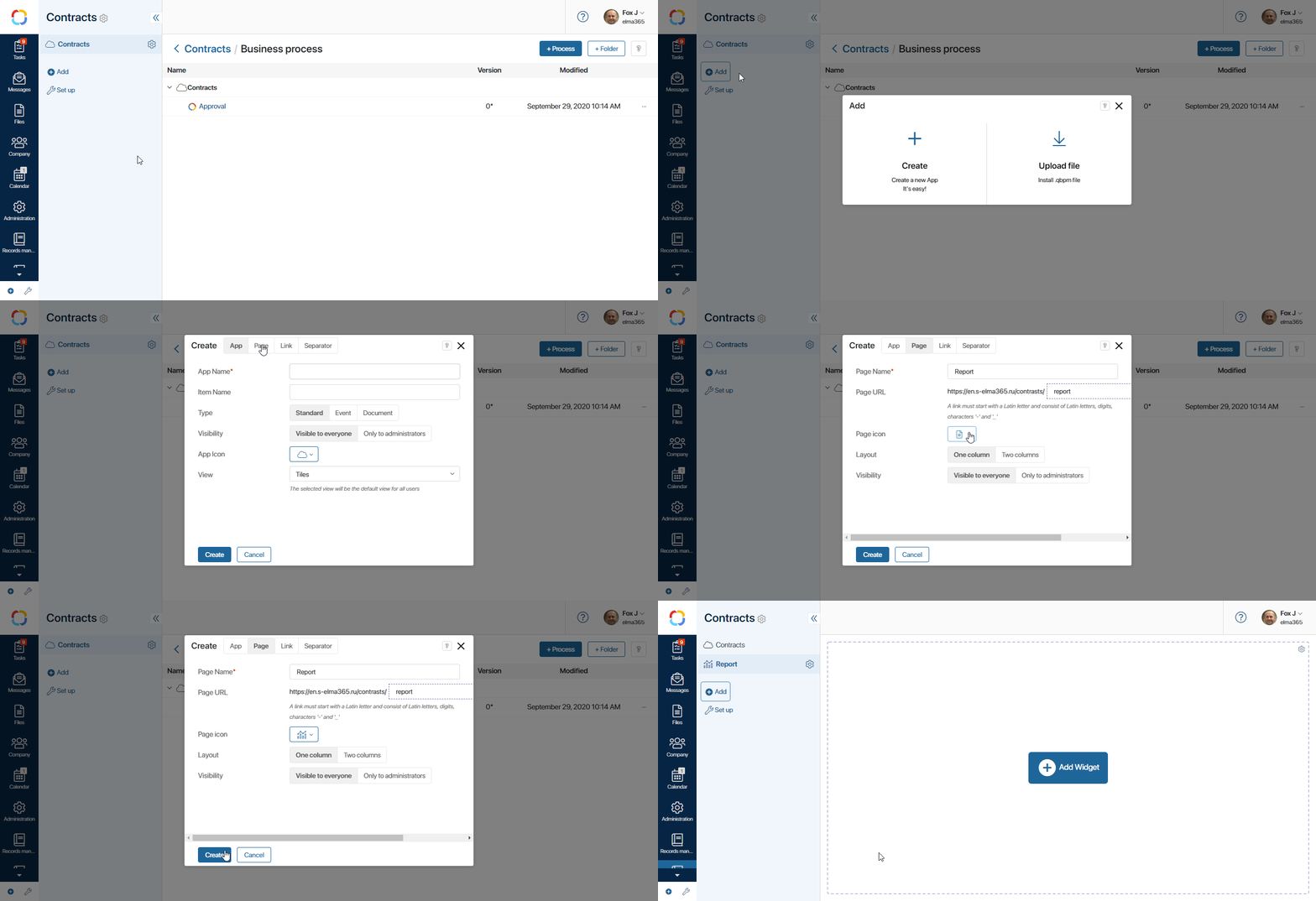
Step 2. Configure the report widget in the Low-code designer
To visualize the data, let's set up a tabular report on the added page. To do this:
- In the upper-right corner of the page, click the gear icon and select Designer.
- In the opened Low-code designer, the Code widget is added to the modeling canvas by default. Delete it to create your own widget.
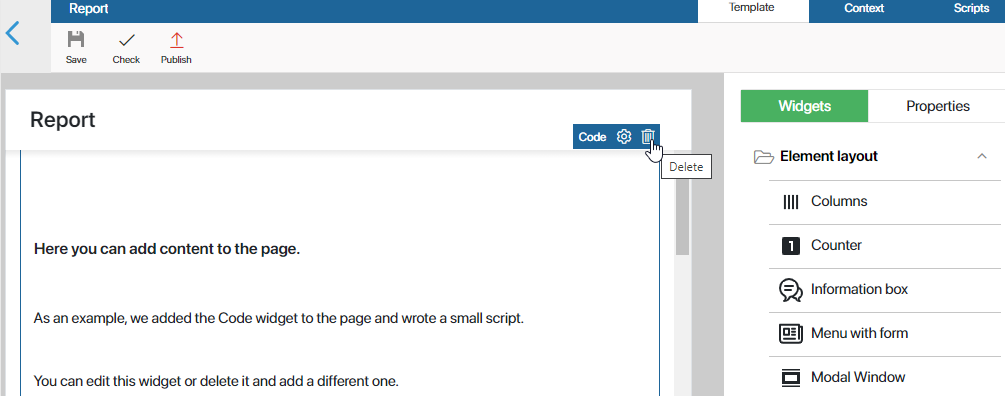
- From the right toolbar, drag the Table widget onto the canvas. A window with its settings will open.
- Select the Contracts app as the table data source and fill in the remaining fields:
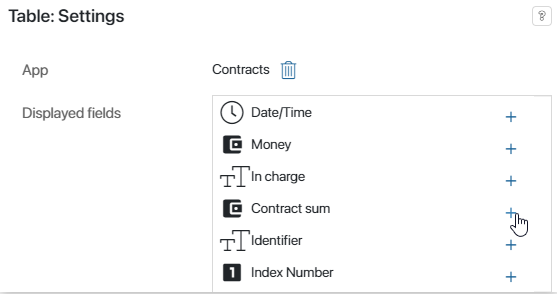
- Displayed fields. Contract fields to display as table columns. Select Responsible person, Contract amount, and Status.
- Sorting field. The property used to determine the order of items in the list. Additionally, you can enable sorting by the specified field in ascending order.
- Filter fields. App properties that can be used as filters for the report. Select Status to sort and search contracts by a specific stage of work.
- Aggregation fields. One or more fields, each of which will automatically calculate the sum of all values displayed in the corresponding columns. Select the Contract amount field so that the report shows the total sum of all contracts in the app.
- Show item refresh button. Enable this option to display a button for updating data above the tabular report.
- Display item count. Choose how many items to display in the search bar above the table: Exact, Approximate, or Do not display. Select Exact to show the total number of found contracts.
- Save the widget settings.
In the designer window, you will see a layout of the table with data. If necessary, you can edit it by clicking the gear icon to add or remove columns or configure additional filters.
- When all settings are complete, save and publish the page.
Step 3. Verify report operation
Make sure the statistics are displayed correctly and are available to users.
- In the left menu of the Contracts workspace, go to the created Report page.
- Check the table. It should contain a list of contracts with their name, responsible person, amount, and current status displayed in separate columns.
- Test the configured filter in the search bar using one of these methods:
- Enter the name of the desired status and press Enter.
- Click the filter icon, select one of the options in the Status field (for example, Approved), and click the Search button.
Make sure only contracts at the specified stage are displayed in the table.
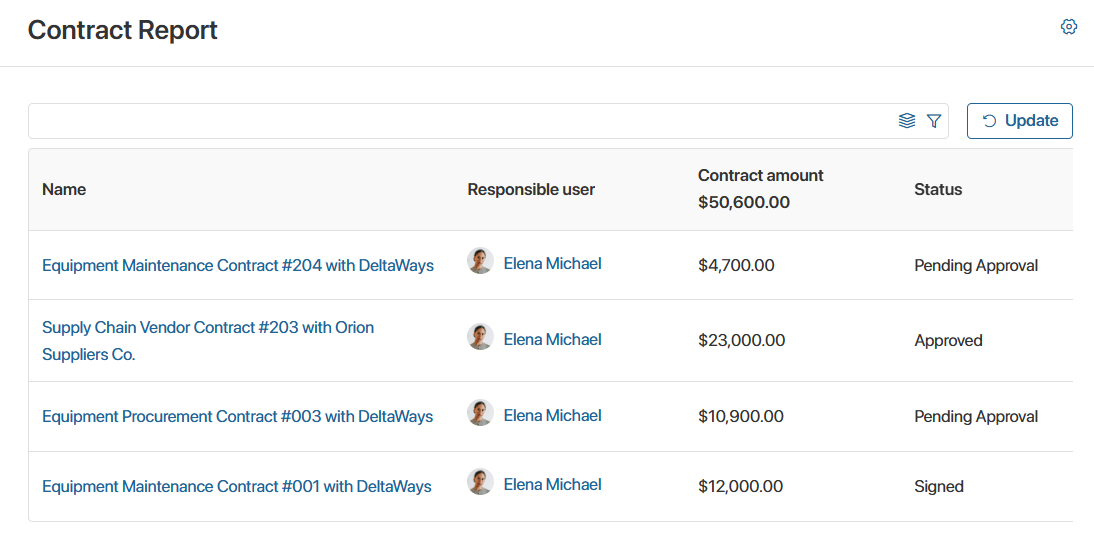
What's next
A basic tabular report based on data from a single app is now configured in the workspace. You can also create more complex reports using other tools.
начало примечание
Useful articles:
- Chart. How to configure clear data visualization from a source using a chart or diagram.
- Reports in BRIX. How to configure a component that allows you to aggregate data from multiple sources on a single page, such as two apps and their business processes, and display them in a table.
- Example: Set up statuses and process monitoring. How to set statuses in an app and track item movement along the route.
конец примечание