You can build a custom approval route for an individual app item by filling out a designated table. In this table, you define stages, assign approvers, and select the approval type: Parallel, Sequential, or First Response.
Depending on the initial configuration set up by your administrator, you will complete this table in one of two ways:
- When creating or editing an app record. Set up the approval route alongside the app's standard fields. Then, simply click the process start button on the form to submit the item for approval.
- During a business process. If you are responsible for defining the route, you will receive a task to configure the approval stages in the table.
Once configured, designated approvers at each stage will receive a task to review and approve the item.
Working with approval routes involves the following user actions:
- Set up a table-based approval route.
- Start the table-based approval route via a button. This action is required if the route is set up on the item's view or edit form, and the process is started manually.
- Track the route approval progress and view the history of previous approvals.
Configure a table-based route for an app item
Depending on the initial configuration, you can define an approval route either on the item create or edit form or within a task assigned to you during a business process.
Below is how to fill out the approval route table when creating a contract.
Configure each stage manually:
- Enter a name for the stage.
- Select the approval type and specify the approvers.
- Click + Add Approval Stage to create the next step.
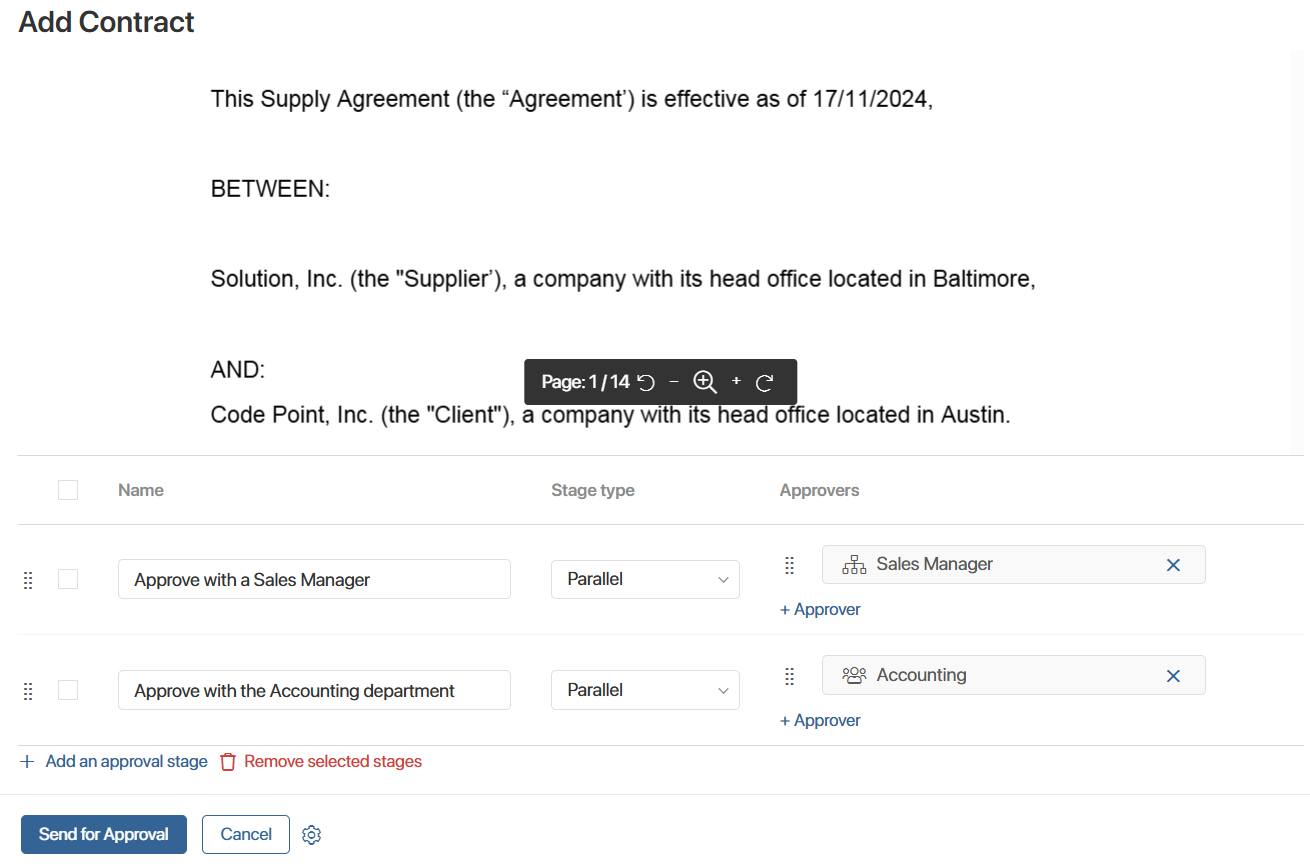
You can edit the route:
- Change the sequence of stages. Click the
 icon to the left of the desired stage and move it.
 - Change the order of the participants in the sequential approval process. Click the icon to the left of the approver and move it.
- Delete unnecessary rows. Check the boxes to the left of the stage names and then click Remove selected stages.
Start the approval route via a button on the app form
If the route is ready, start the execution process via a button, which the system administrator can configure:
- On the contract creation or editing form. In this case, the item will be saved, and then the process will start, during which the contract will go through the approval route.
- On the contract view form. Here you can start the process at any time. For example, create a contract, configure a route for it, and save it. Then you can open the contract page and send it for approval.
The system administrator sets the name of the process start button. For example, on the contract creation or editing form, you might see a Send for Approval button instead of a Save button.
Track approval via the table-based route
Depending on the initial configuration, you can:
- Track approval progress directly on the contract page—for example, on a dedicated Routes tab.
- Review approvers' decisions within a follow-up task assigned to you during the business process.
You can view the overall status of the route, individual stage details, and the decisions and comments left by approvers. All approval data updates in real time.
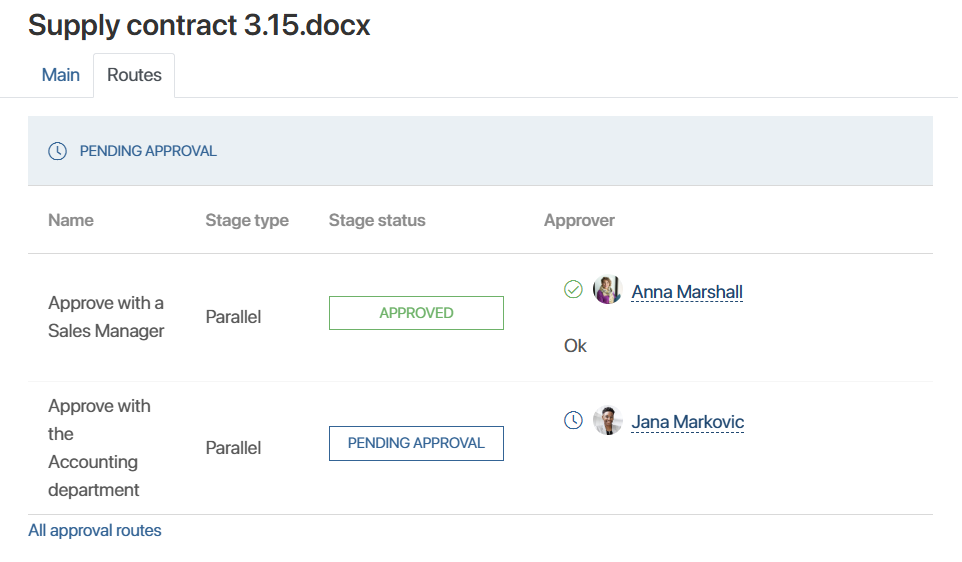
Statuses of the table-based route execution:
- Pending Approval. Assigned when the route is started.
- Approved. Applied if the contract is approved at all stages.
- Rejected. Assigned if at least at one stage a negative resolution was made on the contract.
- Canceled. Used in case the process is interrupted by the system administrator.
The route stages can have the same statuses.
The approval process participants' resolutions are marked with icons:
 Approved.
 Rejected.
 No resolution yet.
 The approval task has been canceled at a stage with the First Response type.
If the approver adds a comment, its text will appear under the author's name.
Completed and current approval tasks for the route will be displayed on the side panel of the contract page, just like other business process tasks.
You can view the results of all routes through which the current contract was submitted for approval. To do this, click All approval routes below the table displaying the progress of the current or most recent route.
How route approval works
- The next stage begins after all approvers at the previous stage have made their resolutions.
- Approvers can view resolutions submitted by other employees on the item page.
- If at any stage at least one rejection is received:
- The stage of any type and the entire route will continue.
- Upon completion, the stage and route will be assigned the Rejected status.