After setting up and testing an AI agent, grant users access so they can interact with it in BRIX. To do this, configure rules that specify:
- Which BRIX pages display the widget to open a chat with the AI agent.
- Which groups, users, and organizational chart items can interact with the AI agent.
Once these rules are configured, users can open a chat with the agent by clicking the icon in the bottom-right corner of the specified pages.
Important: You only need to configure access for AI agents that users will interact with directly in the chat. If you created a specialized AI agent that functions solely as a tool or sub-agent for other BRIX AI components, you do not need to add rules for it.
Configure access rules for AI agents
Only users included in the Administrators group can configure access rules for AI agents. To make an AI agent chat available to employees:
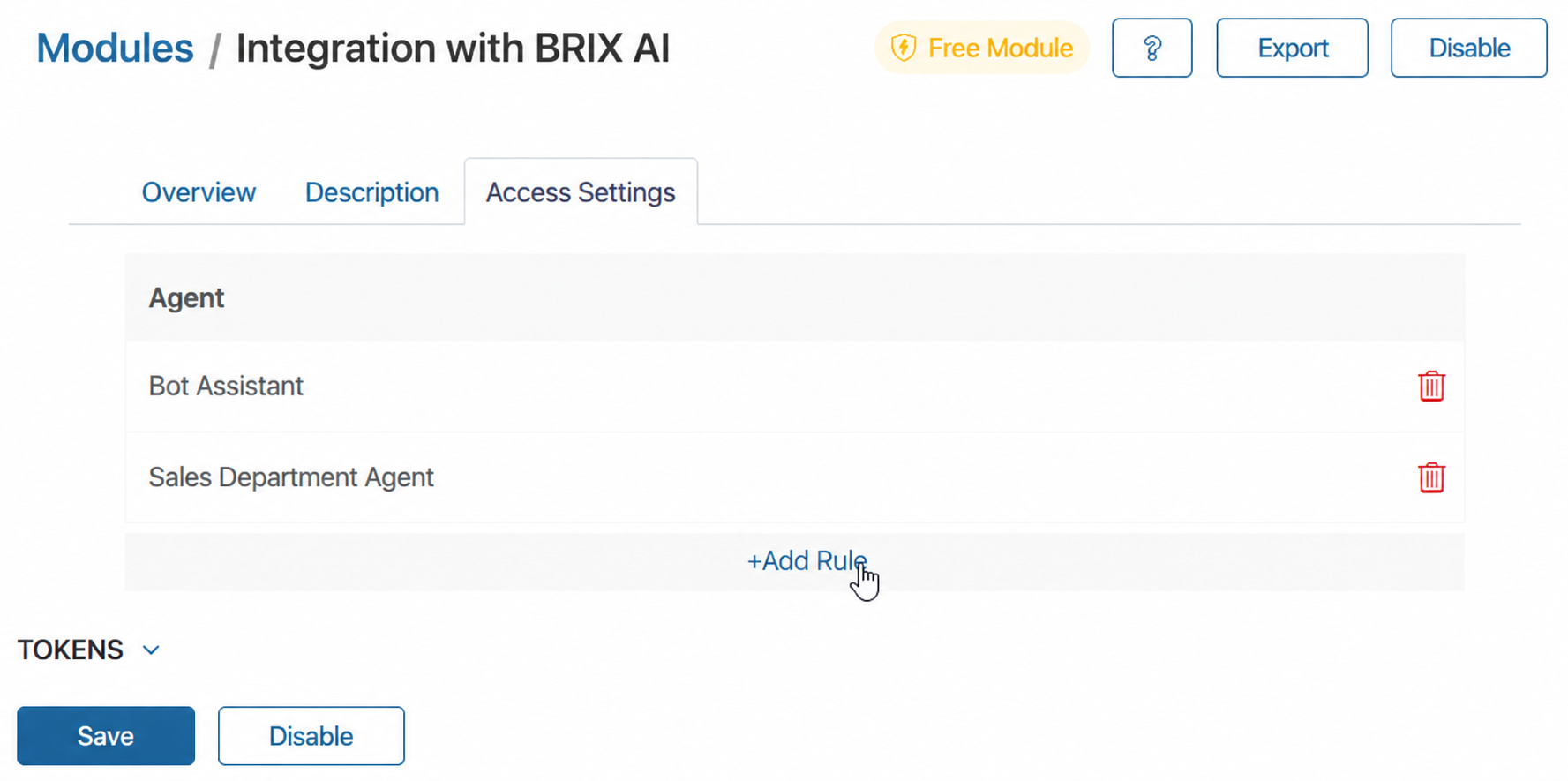
- In BRIX, go to Administration > Modules and select the BRIX AI Integration module.
- Open the Access Settings tab and click + Rule.
- In the window that opens, fill in the fields:
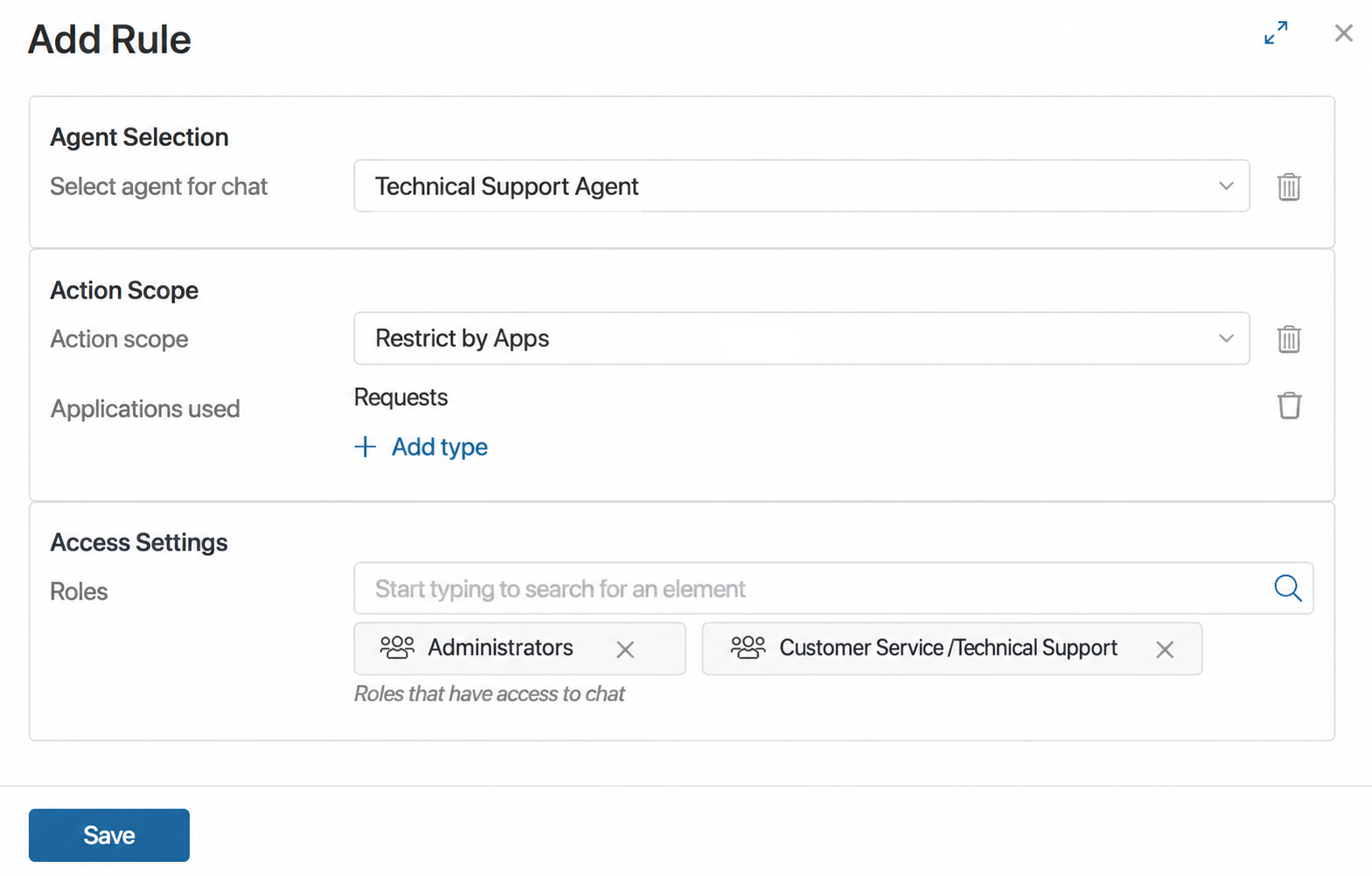
- Select agent for chat. Select an AI agent configured in BRIX AI.
- Scope. Specify where users can access the chat icon: across all system pages or within specific apps.
If you restrict the AI agent's scope, use the Apps used field that appears to add all apps where the agent should be available.
- Roles. Specify who can access the AI agent chat. You can select individual users, groups, or organizational structure items.
- Save the rule.
- At the bottom of the page, click Save.
Authorized users will now see the widget to open the chat and work with the AI agent.
To edit a rule, double-click it. To delete a rule, click the trash icon.