AI agents are smart assistant bots that can search for information, analyze data, manage BRIX records, and more. You interact with an AI agent using a chat: you send messages, and the agent determines which actions to take and what answer to provide.
A company can have several AI agents with different functions for various departments or use cases. Each agent's capabilities depend on its settings in BRIX AI.
Suppose your company sets up an AI agent to assist tech support agents. You can ask it to:
- List unassigned tickets.
- Summarize the issue from an open ticket form.
- Analyze a customer screenshot and describe the problem.
- Assign a task for a ticket.
- Search the company knowledge base and suggest a solution.
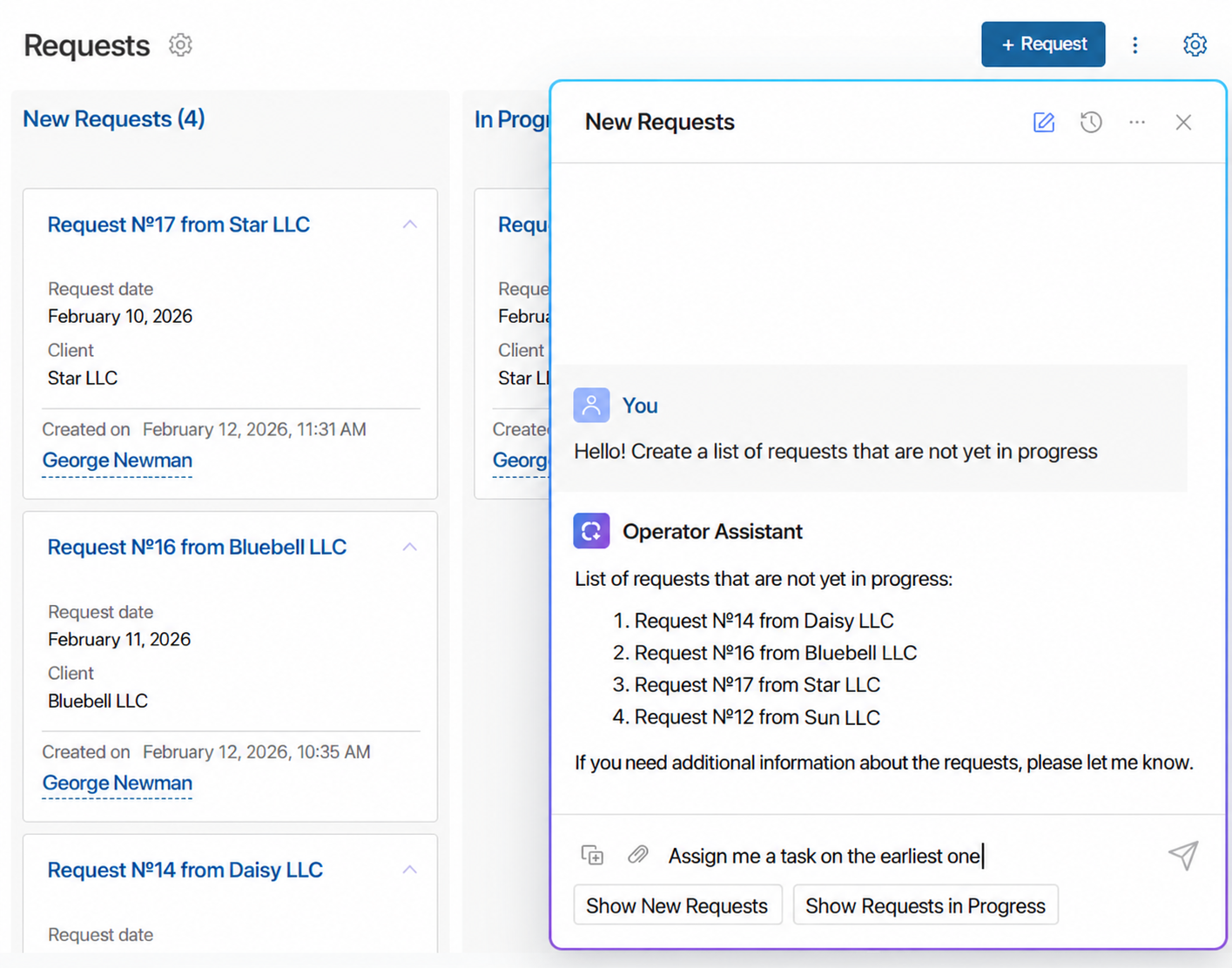
Your system administrator configures which AI agents you can access and on which BRIX pages you can chat with them in the BRIX AI integration settings.
Manage the chat window
If AI agent chat is available on the current page, a star tab icon appears in the bottom right corner  . Click it to expand the chat window. You can resize and move the window for your convenience.
The chat displays your current conversation with the AI agent. When you navigate between system pages, the chat automatically switches to the conversation linked to the active page. This helps the agent answer requests in context. All conversations are saved in history, allowing you to open and continue any of them at any time.
Here is a detailed breakdown of the actions available via the top right icons in the chat window:
- Pencil icon
 . Start a new conversation to reset the context of previous messages. You can return to the current conversation later by opening it from history.
 - Clock icon
 . View history with the AI agent and resume any conversation.
 - Three dots icon. Open additional options.
- Rename chat. Name the chat so it is easier to find in history. By default, the name matches the app item linked to the chat or your initial query.
- Switch agent. Select which available AI agent to chat with. Each agent has its own capabilities and specialization.
- Cross icon. Minimize the chat window.
Chat with an agent
- If authorization is requested at the bottom of the chat window, click I Agree to talk with the AI agent. In the open tab, allow the agent access to your data. You can manage granted permissions in your profile settings.
- Start chatting with the AI agent in plain language. It will provide results or request missing details. To send a message, click the send icon
 in the right corner of the input field or press Enter.
Chatting with an AI agent includes several features:
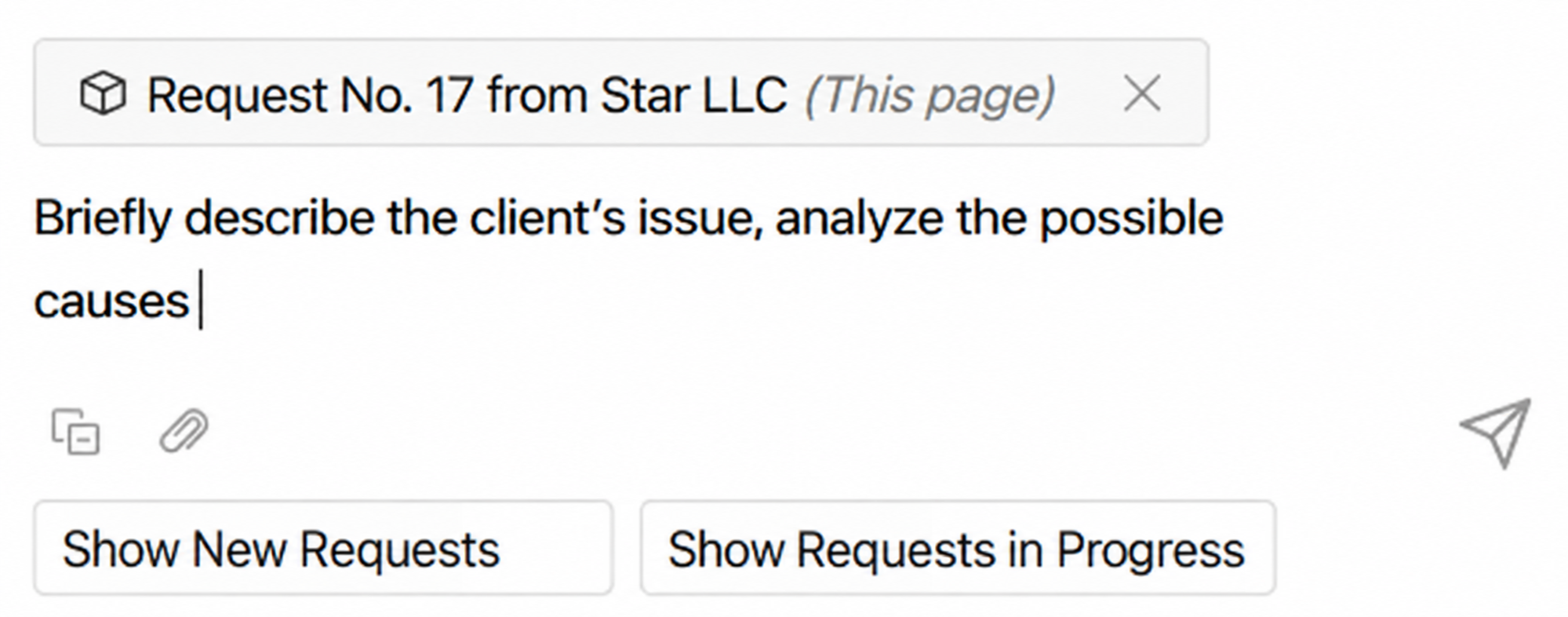
- Context-aware operation.
The AI agent recognizes the app item or file you are currently working with.
For example, if you expand the chat window while a ticket form is open, its title appears above the message field. If configured with the required functions, the AI agent can read and process information from the form, such as providing a brief summary.
To exclude data from an open file or item form when receiving a response, click the cross icon next to its name.
- Quick actions.
If quick actions are configured for the AI agent, additional buttons appear below the message input field. Click a button to send a message with its text to the chat. The AI agent processes the request according to its instructions.
To hide quick action buttons, click the minus icon in the bottom left corner  . To show them again, click the plus icon
  .
.
- Attachment analysis.
You can add attachments to a message by clicking the paperclip icon in the left corner of the input field. If file reading and image description capabilities are configured for the AI agent, it can process them—for example, analyze a log file or explain an error shown in a customer screenshot.