An event handler in a module can track changes in operator status to trigger required actions using a script or business process.
The handler triggers when an operator's status changes:
- Manually.
- Automatically, assigning the operator the Offline status in the following cases:
- When the operator logs out of the system.
- If the user remains inactive for the period specified by the administrator.
Начало внимание
A system administrator can configure the handler when creating a custom module.
Конец внимание
Configure an event handler for operator status change
For example, you can configure an event handler that starts a process when an operator changes status. As a result, the supervisor receives a notification about this change.
Step 1. Configure a business process in the module
- Go to Administration > Modules and create a custom module.
- In the module settings, go to the Processes tab and add a business process that will run every time an operator's status changes.
Add the Notify about operator status change process and configure its diagram as follows:
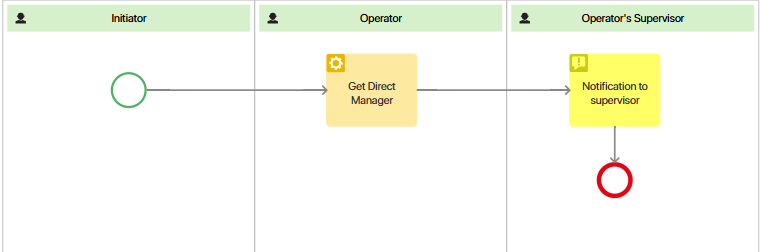
- In the process context, add the following variables:
- Operator (operator). A property of the Users (single) type to display the employee's name.
- Status (status). A property of the String (string) type to pass operator status data.
- Operator's supervisor (operator_supervisor). A property of the Users (single) type to specify the supervisor.
- Go to the Diagram tab. Since process participants will be determined while the process runs, create dynamic swimlanes on the process diagram:
- For the operator.
- For the operator's supervisor.
- In the Operator swimlane, place the Get Superior block. It is required to determine the supervisor during the process execution. In the block settings, select the Operator's supervisor variable created in the previous step.
- To allow the supervisor to review the operator status change, add a Notification activity in their swimlane.
In its settings, compose the notification text that the supervisor will see. On the Recipients tab, add the Operator's supervisor context variable.
- Save and publish the process.
Step 2. Configure an event handler
After creating a business process in the module, perform the following steps:
- In the module settings, go to the Event Handlers tab and click + Handler. In the window that opens, fill in and save the following data:
- Handler name, for example, Operator status change information.
- Handler type: Start process.
- Event domain: Users.
- Event: Operator status change.
- In the window that opens, on the Settings tab, select the previously created Notify about operator status change process.
- Go to the Input Variables tab and map the variables from the process context to the event properties as follows:
- Operator—User ID.
- Status—Status.
- Operator's supervisor. Leave this field empty, since the supervisor will be determined during the business process.
- On the top panel of the page, click Save, then click Publish to activate the event handler.
- Go to the module management page and enable it.
Now, when an operator's status changes, their supervisor will receive a notification.