An event handler in a module can track:
- Sending an outgoing message or receiving an incoming message in a session.
- System messages about session state changes: assigned to an operator, in queue, in spam, or closed.
When one of these events occurs, a script or business process is triggered.
Начало внимание
A system administrator can configure the handler when creating a custom module.
Конец внимание
Configure an event handler for sending a message in a session
For example, you can configure an event handler that tracks an operator's response in a session.
A user on an external portal submits an inquiry to a live chat from a ticket item details page using the Chat with live chat operators widget. A session is automatically created in BRIX. When an operator responds in the session, the event handler registers it and triggers a business process. During the process, the client receives an email notification about the new message in the session.
Step 1. Configure a business process in the module
- Go to Administration > Modules and create a custom module.
- In the module settings, go to the Processes tab and add a business process that will execute each time an operator sends a message in a customer chat.
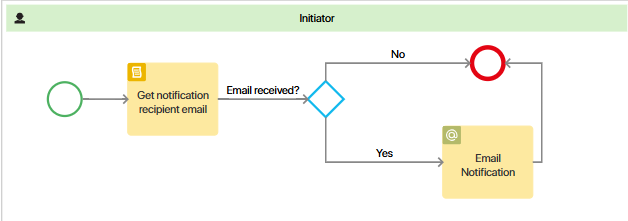
For example, add the Notify about new messages process. During its execution, the client's email address will be determined, and the operator's response will be sent to it. Configure the process diagram as follows:
- In the business process context, add variables to which the handler, after the operator responds, will pass the data required to send an email notification to the client:
- Session (session). With the Arbitrary app (one) type, stores the session in which the conversation takes place.
- Message type (type). With the String (string) type, identifies an outgoing message from the operator.
- Message (message). With the String (string) type, passes the message sent by the operator.
- Email (email). With the String (line) type, stores the email address to which the notification will be sent.
- Ticket (ticket). With the App (one) type, stores a link to the ticket item where correspondence with the operator takes place.
- Add a Script block named Determine notification email recipient to the process diagram. In its settings, create the getEmailRecipient function, which will determine the client's email address for sending the notification.
Sample script for determining client email
async function getEmailRecipient(): Promise<void> { |
- Configure the process flow to follow different branches depending on whether the client's address was retrieved. To do this, add an exclusive gateway named Email received? with two transitions: Yes and No. If the email address is determined, a notification is sent to the client; otherwise, the process ends. Select No as the default transition.
- For the Yes transition, add an Email Notification activity. In its settings, fill in the required fields using the variables created in Step 3.
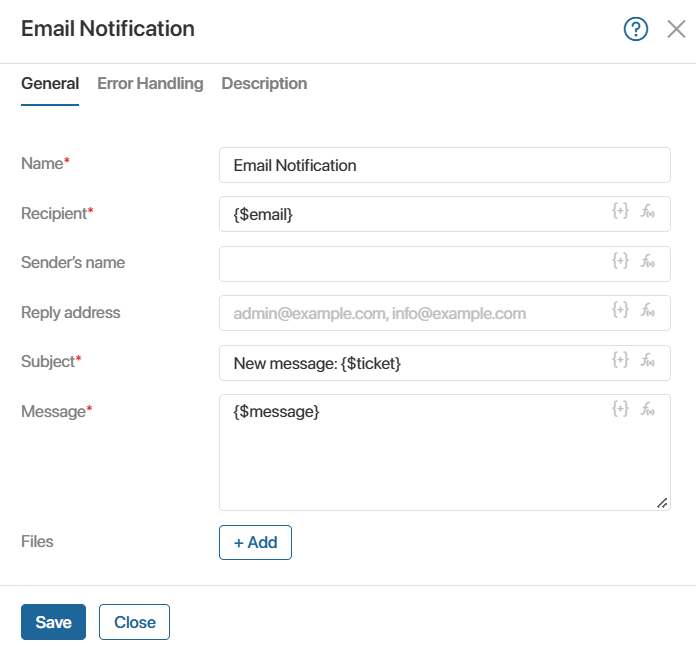
- Recipient*. Add the {$email} variable containing the client's email address.
- Email subject*. Write a short subject line and add the {$ticket} variable to it so the client knows which ticket item the response relates to.
- Email body*. Insert the {$message} variable containing the operator's response.
- Save and publish the process.
Step 2. Configure an event handler
After creating the business process in the module, perform the following steps:
- In the module settings, on the Event Handlers tab, click + Handler. In the window that opens, fill in and save the data:
- Handler name, for example, New message.
- Handler type: Start process.
- Event domain: Live Chats.
- Event: New message.
- In the window that opens, on the Settings tab, select the previously created Notify about new messages process.
- Go to the Input Variables tab and map the variables from the process context to the corresponding event properties.
- On the top panel of the page, click Save, then click Publish to activate the event handler.
- Go to the module management page and enable it.
Now, when an operator sends a response in a session, the client will receive a timely notification on their email.