 When a business process is running, you can pause it until a customer sends a message in a live chat linked to an app item. To do this, use the Wait for Live Chat Message process activity. Place it at the step where the process should wait for a reply. In the activity settings, select the app whose items are linked to live chat sessions. If a customer has reached out through different communication channels, multiple sessions may be linked to the item. During process execution, the activity tracks incoming messages across all linked sessions until a reply arrives from the customer, at which point the process resumes.
Once an incoming message is received, you can route the process based on your business requirements. For example, after the activity completes, you can assign a task to a supervisor to review the response text and decide on the next steps for the inquiry.
Set up the Wait for Live Chat Message activity
- Drag the block onto your process canvas and open its settings.
- Under the General tab, fill out these fields:
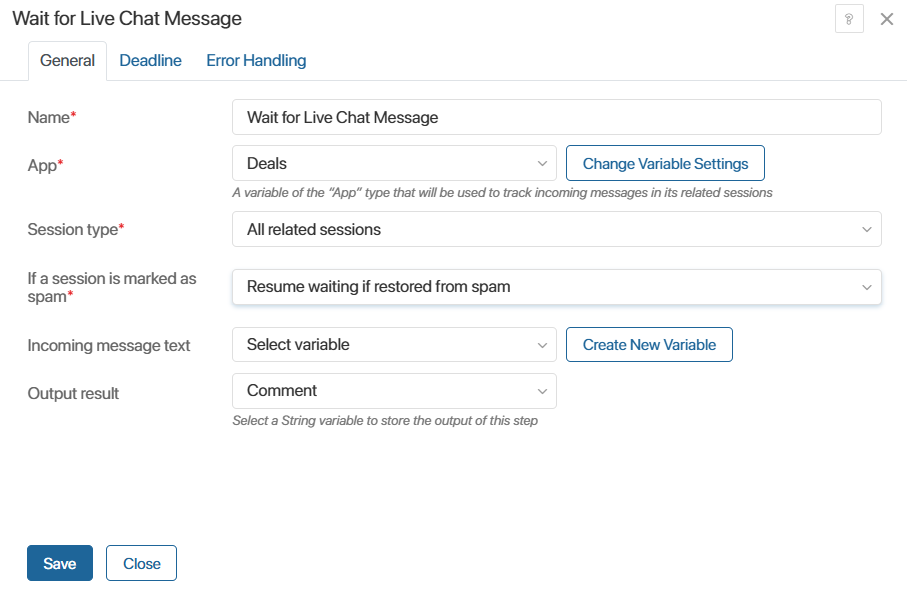
- Name*: Enter a clear label for the block on the canvas.
- App*: Choose an App variable from your process context. This must match the app selected in your live chat setup under To register messages.
Example: If the Deals app is specified in the To register messages field when creating a live chat, customer sessions can be displayed in deal pages via the Live Chat Messages widget. To track sessions for deals during a process, specify the Deals property in thе App* field of the block settings.
- Session type*: Specify which sessions to track for an incoming message if multiple sessions are linked to the app item:
- Latest created: Messages will be tracked in the latest created session.
- Earliest created: A message is expected in the very first session, if continuing the original dialogue is important.
- With the most recent message: The session with the most recent activity and current chat history will be tracked.
- All related sessions: A message is expected in any session linked to the app item.
During activity execution, new messages are tracked across all sessions except closed ones.
- If a session is marked as spam*: Select the action to perform if an operator or supervisor marks one of the tracked sessions as spam.
- Stop waiting for messages in this session: The session is excluded from the list. Waiting will continue across other sessions linked to the item.
- Resume waiting if restored from spam: Waiting will continue. If the session is restored from spam and a message is received, the block will complete.
- Incoming message text: If you need to retrieve the response text during the process for further processing, specify a String (text) variable from the business process context in this field. The text of the received message will be saved to it.
- Output result: If you need to save the execution result after the activity completes, specify a String (string) property in this field. This variable can be used in gateways and scripts to build different handling scenarios.
Possible values and examples of their use
|
- On the Deadline tab you can set the time during which the system should wait for an incoming message. This is configured similarly to the Task activity settings.
- On the Error Handling tab you can determine how the process will proceed if an error occurs during execution:
- Notification: Enable this option and specify the users who will receive an error notification. You can select the current user, a user group, an org chart item, or specify a context variable (such as the process initiator).
- Interrupt: Enable this option and specify which branch the process should follow if an error occurs using the Transition field.
Note that interruption requires a separate connector on the process diagram. You cannot use the main connector from the element that is activated when a message is sent successfully. On the process diagram, a connector used for error handling is marked with the icon.
icon.
If no connector is specified, interruption is considered disabled.
- Click Save.
Possible errors and their resolution
If the activity completes with an error, that process instance will be displayed on the Error Monitor page. The table below describes possible errors and how to resolve them.
Possible Errors |
Resolution |
1. App element parsing error Error while processing the app item from the variable specified in the App* field. |
Retry execution of the activity. |
2. Error in subscribing to session for waiting for a message Could not find sessions to track incoming messages. |
|
3. Error in timer setup response Failed to start waiting for an incoming message with the configured execution deadline. |
|
4. The execution result failed to save in result variable Failed to save the block execution result to the specified variable. |
|
5. Error in processing new message event Failed to process an incoming message. |
Fill out the Output result field in the activity settings, then configure a branch for the process to follow in case of an error. |
6. Application сontext variable does not contain an app element The variable specified in the App* field does not contain an app item. |