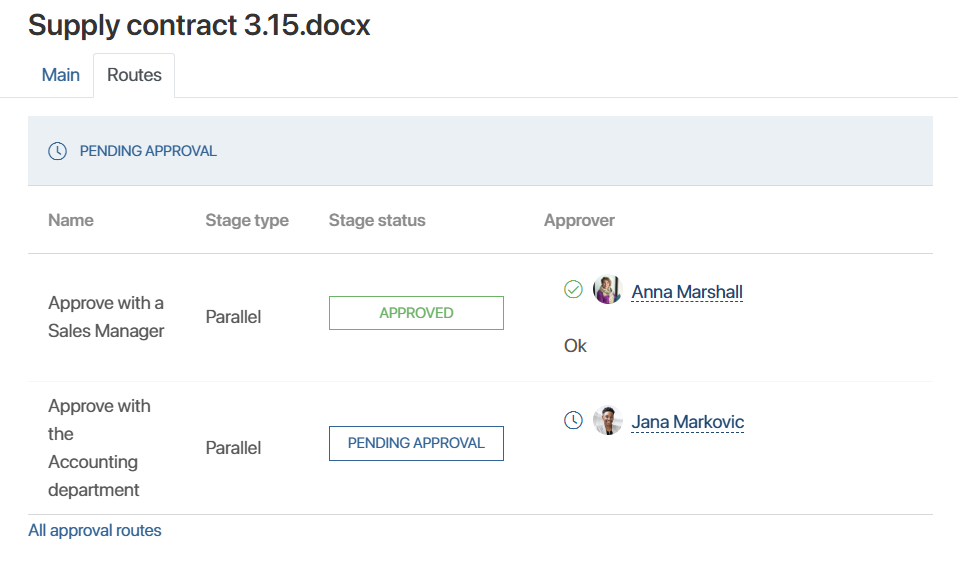
This widget is used for users to work with table-based approval routes and is placed on the app view form.
It allows real-time tracking of the approval process progress, route statuses, and its stages. Additionally, in this widget, users can view the history of previous approvals for the item via routes. Read more in the Work with table‑based approval routes article.
The widget can be placed:
- On the app view form.
- On a task form in a business process.
Note that the widget will only appear on the form after approval along a table‑based route has been launched within the business process. For a detailed overview of all stages of creating and executing a route, see the Initial setup for working with table-based approval routes article.
Configure the widget
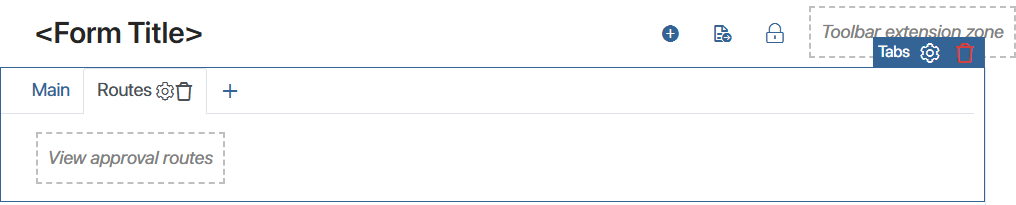
It is convenient to place the widget on a separate tab of the view form. To do this:
- Open the app view form in the interface designer.
- Add the View Approval Routes widget to the modeling canvas.
If you are configuring a form with many fields, we recommend placing the widget on a separate tab so users can easily review the approval stages.
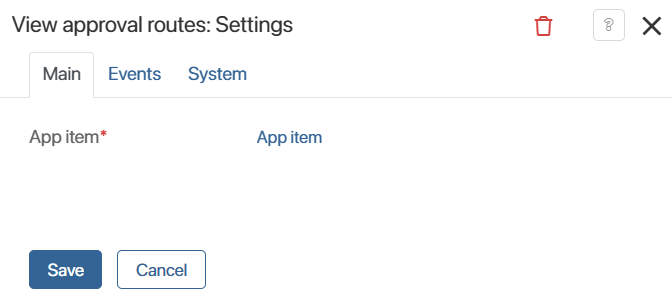
- In the widget settings, fill in the fields on the Main tab. The configuration logic depends on where the widget is placed.
Where the widget is placed |
Configuration logic |
App item field |
App item from context field |
On the app view form |
Fill in only one of the fields, depending on which item you want to display the approval status for:
|
Allows you to display the approval status for the current app’s item. Select App item in this field.
|
Allows you to display the approval status for a linked item from another app. Select a property of the App type that stores a reference to another app.
|
On a task form |
Only the App item from context field is used. |
Leave this field empty, as it does not apply when the widget is used on a task form. |
Select a process context variable that references the app whose item is being sent for approval. |
- You can configure system settings, which are the same for all widgets.
- Save the widget settings. Then save and publish the app form.