Installing OpenSearch and the fulltextsearcher and textextractor services in Kubernetes using a Helm package includes the following steps:
- Download the Helm chart and configuration file.
- Fill in the configuration file.
- Install the brix365-dbs chart in the Kubernetes cluster using Helm.
- Connect to the OpenSearch service.
- Apply full-text search settings for BRIX.
Step 1. Download the Helm chart and configuration file
To install via the internet, obtain the values-brix365-dbs.yaml configuration file by running:
helm repo add brix365 https://charts.brix365.com
helm repo update
helm show values brix365/brix365-dbs > values-brix365-dbs.yaml
Obtaining the configuration file for installation in a closed environment without internet access
helm repo add brix365 https://charts.brix365.com
tar -xf brix365-dbs-X.Y.Z.tgz |
Step 2. Fill in the configuration file
The OpenSearch service can be installed together with the brix365-dbs chart or separately in another namespace. Below is an example of configuring the values-brix365-dbs.yaml file to install OpenSearch:
- In the global section, enable OpenSearch for the opensearch component by setting the enabled parameter:
# Select databases to install.
global:
opensearch:
# Install opensearch (Enabled for fulltextsearcher)
enabled: true
- If necessary, specify OPENSEARCH_INITIAL_ADMIN_PASSWORD in the OpenSearch configuration and set a password for the admin user:
# Select databases to install.
global:
...
# Opensearch settings (Enabled for fulltextsearcher)
opensearch:
# cluster Mode — disable singleNode
singleNode: true
extraEnvs:
- name: OPENSEARCH_INITIAL_ADMIN_PASSWORD
value: 123456ASdlkjqweq
- name: "plugins.security.ssl.http.enabled"
value: "false"
config:
opensearch.yml: |
network.host: '*'
persistence:
enabled: true
size: 10Gi
# storageClass: "-"
...
- To configure high availability, switch the singleNode parameter:
# Select databases to install.
global:
...
# Opensearch settings (Enabled for fulltextsearcher)
opensearch:
...
# cluster Mode - disable singleNode
singleNode: false
...
- To install the brix365-dbs chart in a closed environment without internet access, configure the connection parameters for the private registry.
Example of configuring parameters for a private registry connection
# Select databases to install where the format of repository is:
|
Step 3. Install the brix365-dbs chart in the Kubernetes cluster using Helm
Install the brix365-dbs chart in namespace brix365-dbs:
- For installation via the internet:
helm upgrade --install opensearch brix365/brix365-dbs -f values-brix365-dbs.yaml -n opensearch --create-namespace
- For installation without internet access, navigate to the directory with the downloaded chart and run:
helm upgrade --install opensearch ./brix365-dbs -f values-brix365-dbs.yaml -n opensearch --create-namespace
Step 4. Connect to the OpenSearch service
- Create a backup of the existing values-brix365.yaml configuration file that was obtained and completed during the BRIX installation. This helps prevent service disruption if configuration changes are made incorrectly.
- Update the existing values-brix365.yaml configuration file:
- enable parameters global.extensions.name.fulltextsearcher.enabled and global.extensions.name.textextractor.enabled by setting them to true;
- configure the OpenSearch connection in the global.extensions.opensearch parameter.
global:
...
extensions:
# enable full-text search using OpenSearch
- name: fulltextsearcher
enabled: true
# requires OpenSearch connection settings
opensearch:
addresses: "http://opensearch-cluster-master.opensearch.svc.cluster.local:9200/"
login: "admin"
password: "123456ASdlkjqweq"
textExtractorURL: "http://textextractor:3000/"
itemsTransferPerIteration: 400
itemsWorkers: 4
taskWorkers: 1
# enable module for text extraction from office documents
- name: textextractor
enabled: true
...
Step 5. Apply full-text search settings
Update the BRIX application settings using the values-brix365.yaml configuration file
To update settings via the internet:
- Determine the chart version used to install BRIX by running:
helm show chart brix365/brix365
Example:
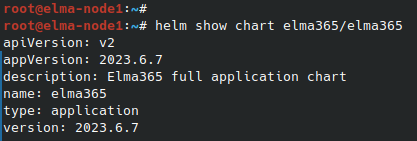
The version field indicates the chart version used to install BRIX.
- Run the update command, specifying the installed BRIX chart version::
helm upgrade --install brix365 brix365/brix365 -f values-brix365.yaml --version <brix365-chart-version> --timeout=30m --wait [-n namespace]
Instead of <brix365-chart-version>) for flag –version specify the chart version obtained at the previous step.
Updating parameters without internet access
helm upgrade --install brix365 ./brix365 -f values-brix365.yaml --timeout=30m --wait [-n namespace]
|
Remove the OpenSearch chart from the Kubernetes cluster Using Helm
To remove the OpenSearch chart from namespace opensearch, run:
helm uninstall opensearch -n opensearch