Users can start a business process from the email page. When they do, the attachments, subject, body, and other email data are passed to the process automatically.
For example, when a customer request with an attached document arrives, a manager can start the Register incoming request process without switching to the corresponding app or copying data from the request manually.
To enable this, the system administrator selects the processes that can be started from emails and maps these processes' context variables to email properties. Users will then see a button for starting the configured processes on the email page in the Email workspace.
Select a process and map its context to email properties
- Go to Administration > Email > Link Settings and click + Business Process.
- In the window that opens, configure the link to the business process:
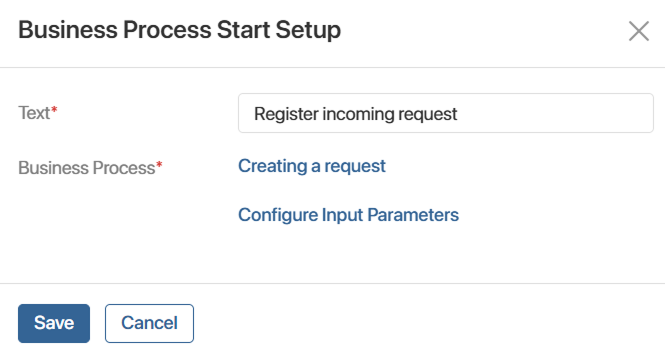
- In the Text* field, enter the name of the option that will appear in the process-launch button menu on the email page.
- Specify the business process that will start when the user selects the option you named in the Text* field.
- Configure how data is passed from the email to the business process. To do this, click Configure Input Parameters.
In the window that opens, the context variables of the selected business process are shown on the left, and the email properties are shown on the right.
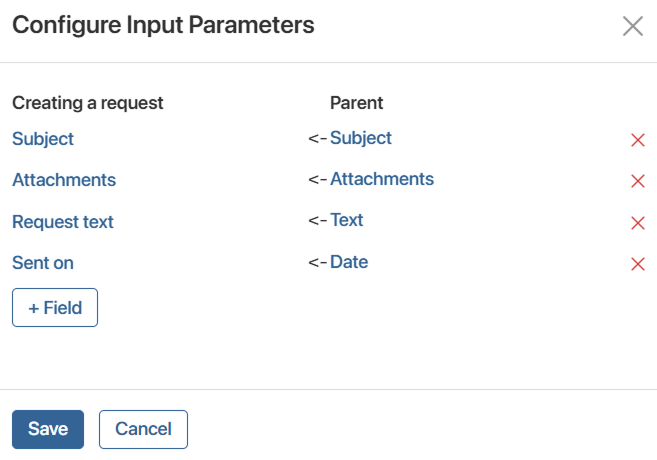
To map a process variable to an email property:
- Click + Field and select a variable from the process context.
- In the row of the selected variable, click Select field and, in the list, specify the email property whose value should be passed to the business process.
You can only map email properties to variables of a specific type. Nested properties of the App or Arbitrary app data types are not available for mapping.
Email property |
Process variable type |
ID |
String (string) |
Subject |
String (string) |
Body |
String (text) |
From |
Email (multiple) |
To |
Email (multiple) |
CC |
Email (multiple) |
Attachments |
Files |
Email date |
Date/time |
For example, to pass the email subject to the business process, add a String (string) variable to its context and map it to the Subject property.
- Save the link settings for the selected business process.
- At the bottom of the Link Settings page, click Save to apply the changes.
Users can now start the process from the email page. The values of the selected email properties will be passed to the process variables automatically when the process starts.
You can change the settings of a linked process or remove it from the settings.
If no process is set up in the link settings, the process-launch button doesn't appear on the email page.