A system administrator can delete a support live chat or a personal live chat set up by an employee.
By default, sessions from a deleted live chat are retained in the system. You can view them, but you can no longer continue working with them. If you don't need to keep the chat history, you can permanently delete the sessions along with the live chat.
To delete a live chat:
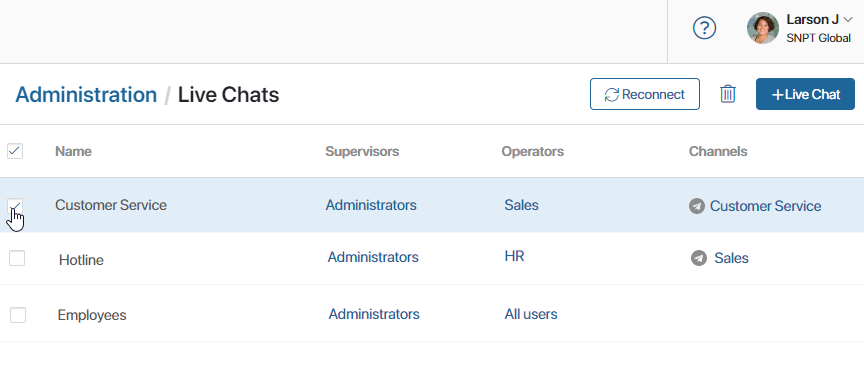
- Go to Administration > Live Chats.
- Select a live chat, or select all of them by checking the box in the Name row.
- Click the trash icon in the upper-right corner of the page.
- In the window that opens, check the Delete sessions box if you want to permanently delete the correspondence from all requests.
- Click Delete.
The live chat will be removed from the list in Administration > Live Chats. You can't restore a deleted live chat, but its information stays in the system and remains available for viewing.
View the settings of a deleted live chat
Here you can find:
- The settings of a deleted live chat, for example, to reuse them when creating another live chat.
- Who deleted the live chat, and when.
To do this:
- In the search bar, click the filter icon, then select Deleted in the upper-right corner of the window.
- Select the live chat you need from the list.
You'll see the live chat's settings page, but you won't be able to edit any values. Next to the live chat's name, you'll see information about the deletion.
View sessions from a deleted live chat
If you kept the sessions when you deleted the live chat, they'll close automatically and become available for viewing only. Employees with access to a session can:
- Find it by name using the search in the Live Chats workspace.
- View the correspondence from the page of the app item linked to the session—if the app form has the Live chat messages widget added and configured.
Users will see the messages and session information, but won't be able to continue the correspondence, add data to the request page, start a business process for it, and so on.