You can display events from external calendar services, such as Google Calendar, in your BRIX personal calendar. This lets you keep all your meetings in one place and avoid scheduling conflicts.
To connect an external calendar service, use an .ics calendar link. Events are imported and updated every 10 minutes by default.
This article describes how to:
- Connect an external calendar.
- Synchronize events automatically.
- Edit the connected calendar's details and delete its events.
Connect an external calendar
You can configure the integration with an external service in the Calendar workspace:
- Open the integration settings in one of the following ways:
- In the workspace’s left menu, select Import Events.
- On the personal calendar toolbar, click the gear icon next to the date and select Import Events.
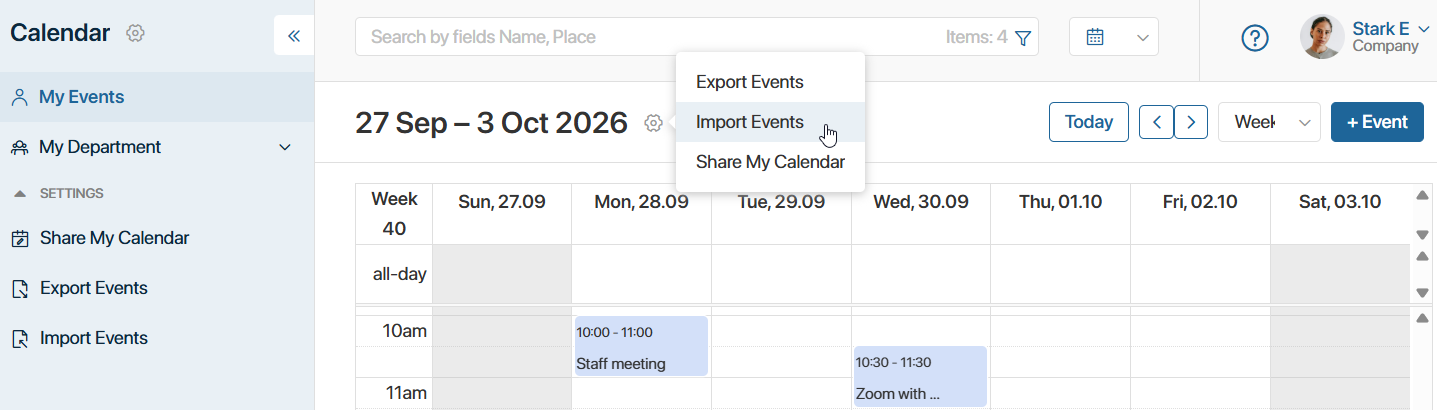
- To connect the calendar, obtain an .ics calendar link in the external service settings. For instructions on how to get a Google Calendar link, see the page that opens when you select Import Events.
For other calendar services, refer to their official websites.
- On the Import Events page, click + Add calendar.
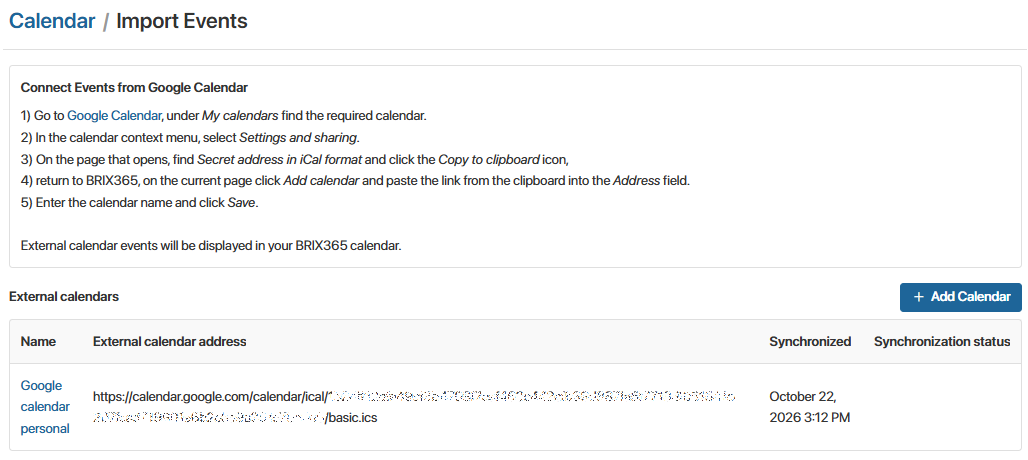
- In the window that opens, enter the following information:
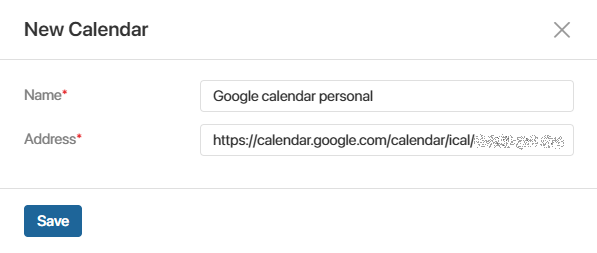
- The calendar name, which will appear in the list of connected calendars on the Import Events page.
- The calendar link you obtained in .ics format to connect the external calendar.
- Click Save. The external calendar will be connected, and its events will be imported into your BRIX personal calendar.
Automatic synchronization with an external calendar
Events from external calendars are imported and updated every 10 minutes by default.
Imported events cannot be edited or deleted in BRIX. Make the required changes in the external service. The changes will appear in the Calendar workspace after the next synchronization.
On the Import Events page, the list of connected calendars shows:
- The time of the last successful synchronization in the Synchronized column.
- Any event import errors, in the Synchronization status column.
Edit or delete an external calendar
On the Calendar > Import Events page, you can edit the connected external calendar's details or delete the calendar and all its events. To do this:
- In the list of connected calendars, find the calendar you want to edit or delete and click its name.
- In the window that opens:
- Edit the calendar's name or its connection link, then click Save.
- To delete the external calendar, click Delete. Its events will no longer appear in your BRIX personal calendar.