Projects allow you to group BRIX AI components by use case and export them together.
For example, suppose you create a Technical Support project and add components for support agents, such as AI agents, AI actions, smart search, and tool sets. During setup, you will work only with these items. Components from other projects will not appear when selecting child agents for an AI action, connecting smart search, or performing other tasks.
This allows you to:
- View only components in the interface that belong to the same scenario.
- Maintain isolation to export the project as a single file, for example, to move it from test to production.
By default, all components are created in the Default project. To organize your work, start by setting up projects for your tasks, and then create components within them. You can also move components from one project to another using export and import.
Create a project
You can add a project in two ways.
Create a project from scratch
- In the left menu of BRIX AI, open the Projects page.
- At the top of the page, click Create Project.
- Enter the project name and click Create.
Next, add components to the project.
Import a ready project
You can upload a project with preconfigured components created on another BRIX AI server. For example, when moving a project from a testing environment to production.
To learn more, see Import in BRIX AI.
Add components to a project
To add components to a project, create them within the project or transfer them between projects using export and import.
Create components within a project
- In the left menu below the logo, click the drop-down list with the name of the current project.
- Select the required project. You can quickly find it by typing its name in the search bar. The current project is marked with a checkmark.
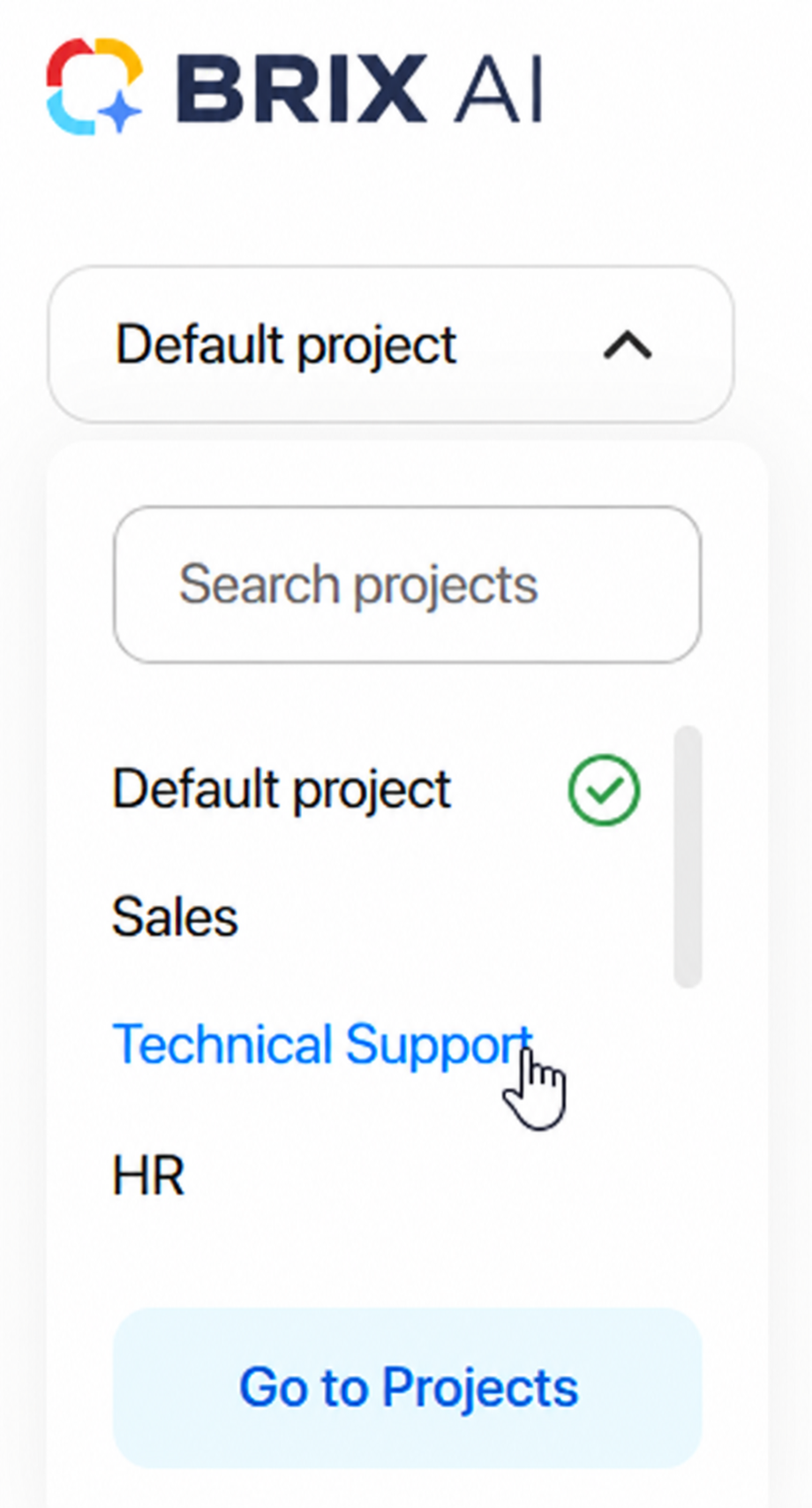
- Go to Agents, AI actions, Smart Search, and Tools pages, and configure the required components. They will belong to the open project.
Transfer a component between projects
To transfer a component from one project to another:
- Go to the project containing the component and export it. To do this, click the three dots next to the component name and select Export.
- Import the component into the target project.
- If necessary, delete the component from the original project.
Project management
On the Projects page, click the three dots icon to the right of the required project. You can:
- Export. Download a .zip file containing all project components to your computer, for example, to move them from a test BRIX AI environment to production. To learn more, see Export in BRIX AI.
- Import. Update the project version from a .zip file, for example, if it is developed on another BRIX AI server and needs to be transferred to the main server. To learn more, see Import in BRIX AI.
- Rename.
- Delete. Permanently remove the project and all its components. To keep specific components, export them to files and import them into other projects beforehand.