Multiple project plans can be displayed on the app page. They will be placed under each other along the same timeline. This visualization is convenient for working with a group of projects, the execution of which is controlled by one manager.
For example, you can create the Project Portfolio app to view the project plans combined into one portfolio on its page. This configuration can be performed by the system administrator using the View Project Plans widget. For more details, see the View project plans article.
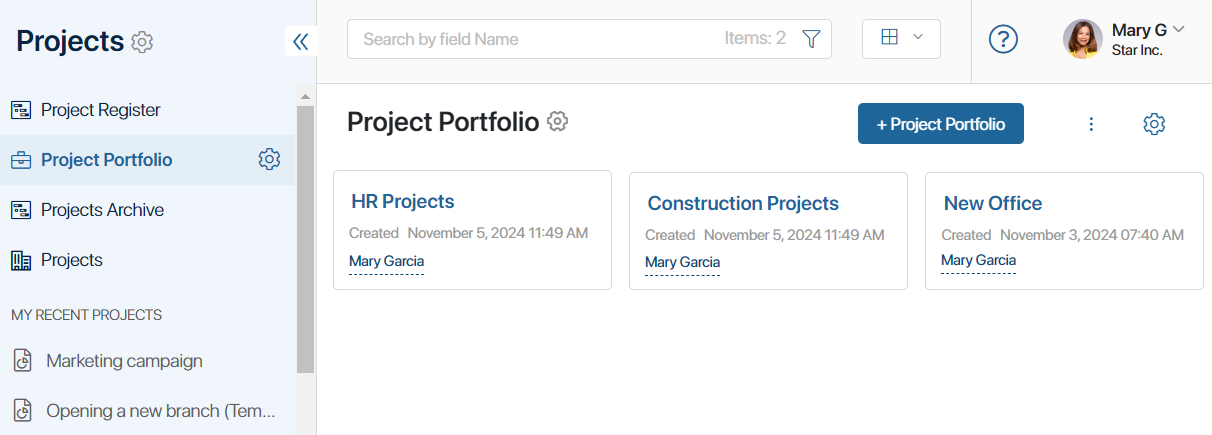
To add a group of projects to the app, click +Project Portfolio. Then in the opened window in the Projects field, select projects of any type whose plans you want to view.

When you open the page of the created portfolio, you will see the published plans of the selected projects with the currently available information.

Plans are available for viewing only. Using the top toolbar, you can:
 Configure the task table by defining the list of displayed columns and their order.
 Collapse or expand all tasks and subtasks.
 Set sorting parameters and sort plan items accordingly, preserving their nesting structure.
 Select options in a separate window to display additional data in plans:
- Show project start and end dates. Mark the start and end of each project.
- Show current date. Display the current date.
- Show overdue tasks. Highlight overdue tasks.
- Show the critical path. Highlight in red tasks that finish on or after the project end date, as well as all related tasks.
- Hide executed. Hide completed tasks. A completed parent task of type Task will still appear if it contains incomplete subtasks.
 In a separate window, enable the Highlight links option to highlight the line between tasks in black on the diagram when you hover over it or over one of the linked tasks. The configured link settings between tasks and additional data display in the plan will be applied the next time you open the plan.
 Navigate to the current date on the timeline.
 Increase or decrease the time period displayed in the plan.
To view a plan task, hover the cursor over its name in the task list, click the three dots icon that appears, and then Open.
You can change the list of projects. To do this, open the portfolio page for editing and select the required projects.