You can save advanced search settings or search conditions that you plan to use repeatedly as a filter. In this case, you do not need to fill in the search fields each time—just click on the filter name.
There are two types of filters:
- Shared. Filters created by the administrator and visible to all users.
- Personal. Filters created by individual users and not displayed to others.
Create a filter
- Open the advanced search window by clicking the filter icon in the search bar.
- Specify the search parameters or conditions that you want to save.
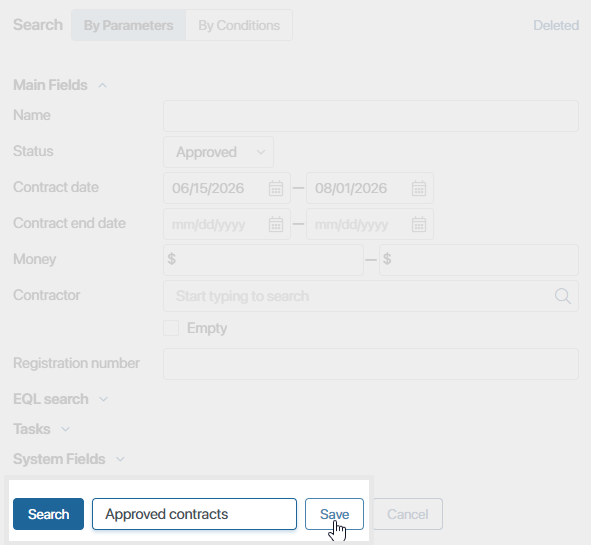
- At the bottom of the window, click Save as Filter.
- In the field that appears, enter a filter name and click Save
The saved filter will appear on the right panel of the advanced search form of the app where it was created.
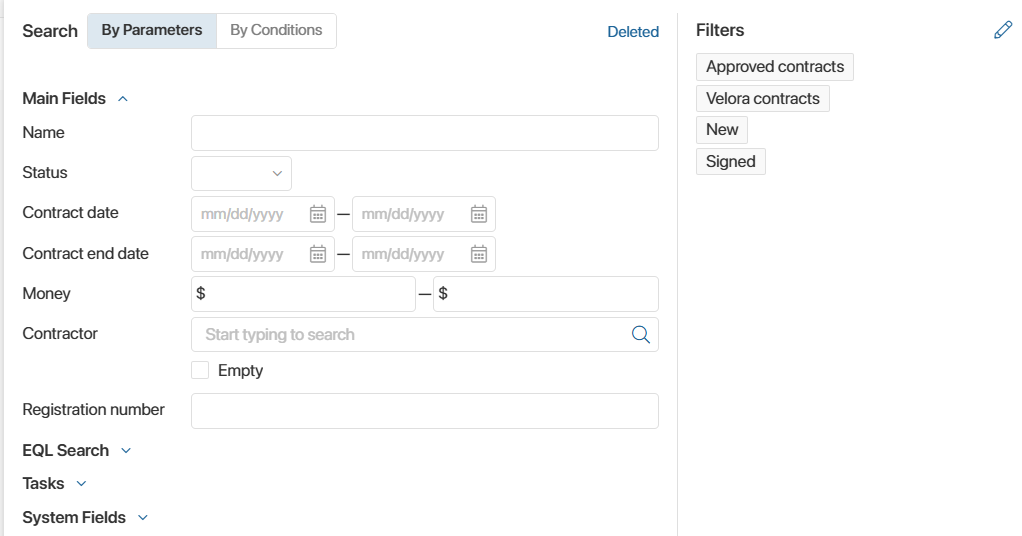
Shared filters are displayed at the beginning of the list. Personal filters are placed below them.
You can delete a filter or change its name. To do that, click on the pencil icon next to the filter name. Enter a new name for the filter or delete it by clicking on the recycle bin icon.
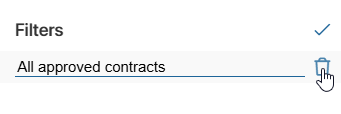
To save the changes, click on the  icon.
icon.
Apply a filter
To apply a filter, click on its name. Search results will include all items that correspond to the filter’s parameters. You can also use quick search together with a filter, for example, to search by name. In this case, the search is performed only among the items that match the selected filter.
Pin a filter
You can pin a previously created filter. When a filter is pinned, the next time you open the app, its page will display the items that match the filter criteria.
To pin a filter, hover the mouse over its name and click the  icon. To unpin a filter, click the icon again. Only one filter can be pinned at a time.
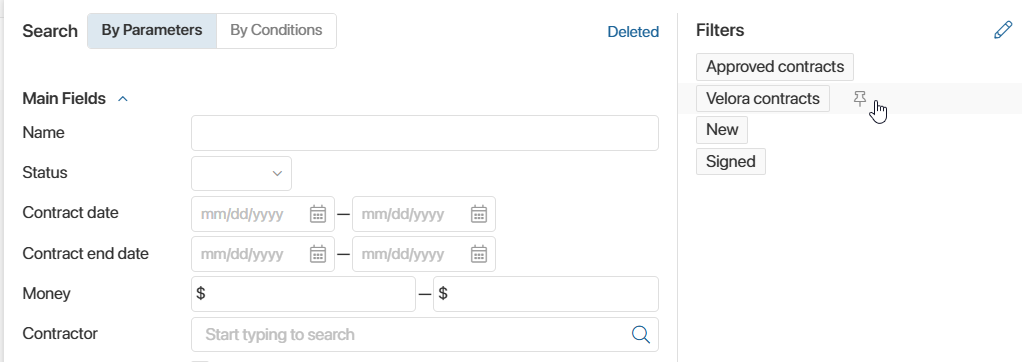
Users included in the Administrators group can pin a shared filter that will be applied for all users. If a user has previously pinned a different filter, that filter will be used for search instead.
Reset a filter
To reset the filter in the search bar, click the cross next to the filter name.

The filter is also reset by clicking on the app name in the left menu.
You can reset both a manually applied filter and a pinned filter.
If you use quick search together with a filter, the search bar will not be cleared: the search is performed across all available app items.