# Enable portable services
> [HTML Version](enable-portable-services.html)
For custom microservices in BRIX On-Premises, you can use the functionality of portable services. At the same time, it is possible to maintain state storage if you connect persistent storage. For example, when stopping or restarting a microservice with a database, the data in it will not be reset. Read more about services in [Portable services](portable-services.md).
The process of enabling portable services for the BRIX application consists of three steps:
1. [Prepare data storage systems](#prepare-storage-systems).
2. [Make changes to the configuration file](#make-changes-to-file).
3. [Apply the parameters for BRIX On-Premises](#apply-parameters).
## Step 1: Prepare data storage systems
The BRIX uses Longhorn as its storage system. For more details on configuring and installing this system, please refer to [Install Longhorn](install-longhorn.md).
## Step 2: Make changes to the configuration file values-brix365.yaml
Changes are made to the \[OBJECT\] configuration file filled in when BRIX is installed.
````
Начало внимание
````
Before editing the \[OBJECT\] file, make a backup copy of it, as incorrect parameter settings may cause BRIX application malfunction.
````
Конец внимание
````
Complete the \[OBJECT\] configuration file to configure the portable services:
1. Make sure that the portable services are enabled, that is, the \[OBJECT\] parameter is set to \[OBJECT\].
2. In the \[OBJECT\] specify the \[OBJECT\] where the portable services will be located.
3. Specify the Longhorn storage system in the \[OBJECT\] parameter.
4. To set resource limits, enable microservices autoscaling, distribute pods across cluster nodes, etc., enable the use of ConfigMap for portable services. To do this, set the \[OBJECT\] parameter to \[OBJECT\]. For more information, see the [Configure parameters of portable services using ConfigMap](configmap.md) article.
````
global:
...
\# Enable portable services
managedServices:
enabled: true
\# namespace for portable services
namespace: brix365-applets
\# storageclass for portable services
defaultStorageClass: "longhorn"
\# Enable ConfigMap
watchableConfigMap:
enabled: true
name: 'brix365-babysitter-config'
...
## ````
Step 3: Apply portable service parameters for BRIX On-Premises
Update the portable service parameters for BRIX On-Premises using the \[OBJECT\] configuration file. You can do it online or [offline](#offline-update).
### Update parameters online
1. ### Identify the version of the chart that was used to install or update the BRIX application:
````
helm show chart brix365/brix365
````
Command execution example:
**[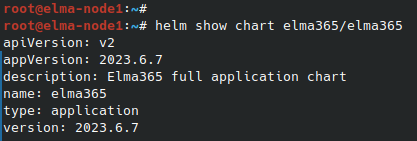]**
After the command execution, you see the chart version information in the \[OBJECT\] string. Save this value for the next step.
2. Update the parameter using the \[OBJECT\] configuration file. To do this, execute the following command specifying the installed chart version for the \[OBJECT\] flag instead of \[OBJECT\]:
````
helm upgrade --install brix365 brix365/brix365 -f values-brix365.yaml --version --timeout=30m --wait \[-n namespace\]
### ````
Update parameters offline
Go to the catalog with the downloaded BRIX chart and run the command:
````
helm upgrade --install brix365 ./brix365 -f values-brix365.yaml --timeout=30m --wait \[-n namespace\]
````
It takes about 10-30 minutes to update the parameters. Wait for it to complete.