# Download Deckhouse images
> [HTML Version](downloading-images-deckhouse.html)
You can deploy a Kubernetes cluster with [Deckhouse](https://deckhouse.io/) in a closed environment without internet access. To achieve this, download the Deckhouse platform images on a computer with internet access and upload them to a local image registry. [Harbor](https://github.com/goharbor/harbor) is chosen as the local image registry in this article. For more details on configuring and installing Harbor, refer to [Install Harbor](installing-harbor.md).
Loading Deckhouse images consists of three steps:
1. [Create a new project in Harbor](#creating-new-project).
2. [Download Deckhouse images](#downloading-images).
3. [Upload Deckhouse images to Harbor](#uploading-images-to-harbor).
## Step 1: Create a new project in Harbor
1. Log in to the Harbor web interface. In the main left menu, go to the **Projects** section. To create a new project, click **+New project**.
**(creating-new-project-harbor-1.png)**
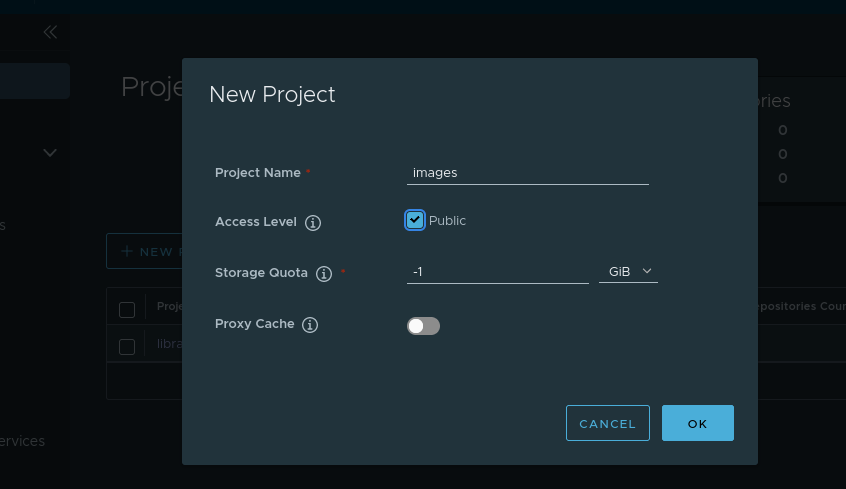
2. Enter a lowercase project name, for example, **images**. Specify whether the project should be public. Click **OK**.
**[]**
## Step 2: Download Deckhouse images
1. On a computer with internet access, download the script for downloading images. Open the terminal and execute the following command:
````
curl -fsSL -o d8-pull.sh https://raw.githubusercontent.com/deckhouse/deckhouse/main/tools/release/d8-pull.sh
chmod 700 d8-pull.sh
````
Note: Docker, crane, and jq must be installed on the host..
Example command for downloading images for [Deckhouse Platform Enterprise Edition](https://deckhouse.io/products/enterprise_edition.html):
````
./d8-pull.sh --license YOUR\_DECKHOUSE\_LICENSE\_KEY --output-dir /your/output-dir/
````
Example command for downloading images for [Deckhouse Platform Community Edition](https://deckhouse.io/community/community_edition.html):
````
./d8-pull.sh --edition ce --output-dir /your/output-dir/
````
Wait for the image download to complete. If errors occur during image loading, run the script again.
2. On a computer with internet access, download the script for downloading images to the local registry. Execute the following command:
````
curl -fsSL -o d8-push.sh https://raw.githubusercontent.com/deckhouse/deckhouse/main/tools/release/d8-push.sh
chmod 700 d8-push.sh
3. ````
Upload the directory with images and the script for loading images to the host with access to the private image registry.
## Step 3: Upload Deckhouse images to Harbor
1. On the computer where the installation will take place, go to the directory with images and the script for loading images. Crane must be installed on the host.
2. To upload Deckhouse images to the private registry, execute the following command:
````
./d8-push.sh --source-dir /your/source-dir/ --path hostname:port/path/deckhouse --username username --password password
````
where:
- ````
\[OBJECT\]````
is the path to the directory with images;
- ````
\[OBJECT\]````
is the FQDN or IP address through which the registry will be accessible, in this article it is **registry.example.com**;
- ````
\[OBJECT\]````
is the connection port;
- ````
\[OBJECT\]````
is the path to the [project created in Harbor](#creating-new-project), in this article it is **images**;
- ````
\[OBJECT\]````
is the username with privileges to upload images to the project;
- ````
\[OBJECT\]````
is the password for the specified **username**.
Note: If the local registry is only accessible via the HTTP protocol, an additional flag \[OBJECT\] should be specified.
````
./d8-push.sh --source-dir /your/source-dir/ --path hostname:port/path/deckhouse --username username --password password --insecure
````
Example of filling in the command parameters for uploading Deckhouse images within the scope of the article
````
./d8-push.sh--source-dir/your/source-dir/--pathregistry.example.com:443/images/deckhouse--usernameadmin--passwordHarbor12345
````
where:
- \[OBJECT\] is the path to the directory with images;
- \[OBJECT\] is the domain through which the local registry is accessible, installed in [Install Harbor](installing-harbor.md);
- \[OBJECT\] is the connection port;
- \[OBJECT\] is the path to the [project created in Harbor](#creating-new-project);
- \[OBJECT\] is the username with privileges to upload images to the project;
- \[OBJECT\] is the password for the **admin** user.
3. Wait for the completion of the Deckhouse image upload script.