# Download BRIX images
> [HTML Version](downloadin-images-elma365.html)
BRIX On-Premises can be installed in a closed environment without direct access to an external container image repository. To achieve this, download BRIX images on a computer with internet access and upload them to a local image registry. In this article, [Harbor](https://github.com/goharbor/harbor) is chosen as the local image registry. For more details on configuring and installing Harbor, refer to [Install Harbor](installing-harbor.md).
Loading BRIX images consists of three steps:
1. Create a new project in Harbor.
2. [Download BRIX images](#downloading-images).
3. [Upload BRIX images to Harbor](#uploading-images-to-harbor).
## Step 1: Create a new project in Harbor
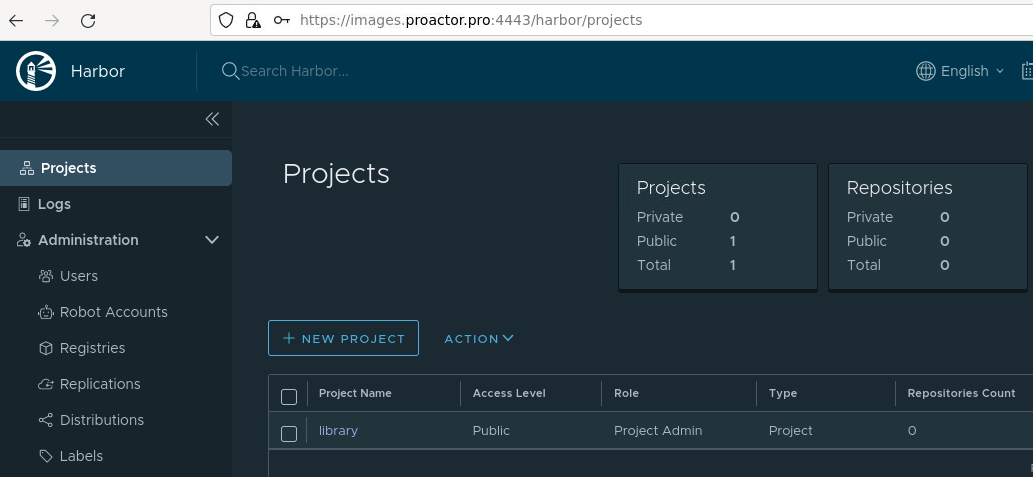
1. Log in to the Harbor web interface. In the main left menu, go to the **Projects** section. To create a new project, click **+New project**.
**[]**
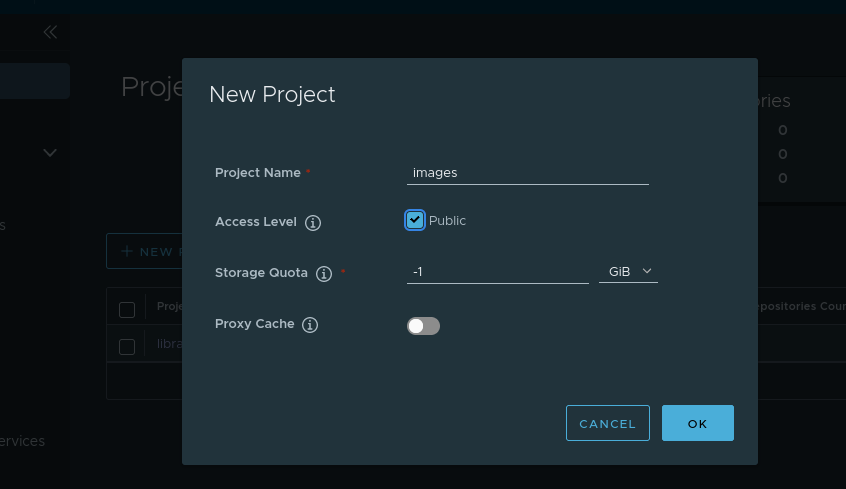
2. Enter a lowercase project name, for example, **images**. Specify whether the project should be public. Click **OK**.
**[]**
## Step 2: Download BRIX images
1. On a computer with internet access, download the script to get the BRIX distribution packages for offline installation by executing the following command:
````
curl -fsSL -o brix365-charts-offline.sh https://dl.brix365.com/onPremise/latest/brix365-charts-offline-latest \&\& \\
chmod +x brix365-charts-offline.sh
````
2. Execute the script for downloading the BRIX distribution packages. When executing the script without parameters, select:
- \[OBJECT\] command
- Packages to download. Use the following keys on the keyboard: **Up** and **Down** arrow keys to navigate through the list of packages, **Space** to select a package:
````
./brix365-charts-offline.sh
````
**(download-images-1.png)**
To download images for all the packages, execute the script with the \[OBJECT\] command:
````
./brix365-charts-offline.sh --pull
3. ````
After downloading the distribution packages, copy the obtained \[OBJECT\] directory to the server where the installation will take place.
## Step 3: Upload BRIX images to Harbor
1. On the server where the installation will take place, go to the \[OBJECT\] directory.
2. Execute the script for downloading the BRIX distribution packages for offline installation and select:
- \[OBJECT\] command
- Packages which BRIX images should be downloaded to the private registry. Use the following keys on the keyboard: **Up** and **Down** arrow keys to navigate through the list of packages, **Space** to select a package:
````
./brix365-charts-offline.sh
````
**(download-images-2.png)**
Non-interactive download
To perform a non-interactive download (when you pre-specify the packages to be downloaded), do the following steps:
1. In the **images.yaml** file, specify the values of the parameters in advance:
- the \[OBJECT\] block defines the parameters for the private registry
- the \[OBJECT\] block defines the packages to be downloaded to the private registry
**(download-images-3.png)**
2. Execute the script with the \[OBJECT\] command for non-interactive downloading of the images to the private repository:
````
./brix365-charts-offline.sh --push
````
3. ````
Wait for the BRIX image download script to end.